This is the full developer documentation for FeedbackPulse Help Center
# FeedbackPulse Help Center
> Find answers, learn best practices, and get the most out of FeedbackPulse for your team.
Getting Started
Set up your account, invite your team, and launch your first review cycle in minutes. [Start here](/help/getting-started/)
Integrations
Connect FeedbackPulse with AI assistants, API access, and automation tools. [Explore integrations](/help/integrations/)
360 Reviews
Configure review cycles, self-reviews, manager reviews, and peer feedback. [Learn more](/help/360-reviews/)
Engagement Surveys
Run pulse surveys and engagement checks to understand team sentiment. [Learn more](/help/surveys/engagement-surveys/)
Reports & Analytics
Track completion, sentiment, and trends with reporting built for leaders. [Learn more](/help/analytics-and-reports/analytics/)
Need Help?
Can’t find what you’re looking for? Our support team is here to help. [Contact support](/help/troubleshooting/contact-support/)
# 360 Reviews in FeedbackPulse
> Understand how FeedbackPulse uses review cycles, performance reviews, and peer reviews to run structured 360-style employee feedback.
FeedbackPulse uses **review cycles** to run structured 360-style feedback. A review cycle can include performance reviews, peer reviews, or both.
## How FeedbackPulse names 360 review tools
[Section titled “How FeedbackPulse names 360 review tools”](#how-feedbackpulse-names-360-review-tools)
The help center uses **360 Reviews** as the category name because HR teams commonly use that term for multi-perspective employee feedback.
In the product, you will see these labels:
| Product label | What it means |
| -------------------------- | ----------------------------------------------------------------------------------------- |
| **Review Cycles** | Time-bound review periods with start dates, due dates, reminders, and completion tracking |
| **Performance Reviews** | Self-reviews and manager reviews for employees in a cycle |
| **Peer Reviews** | Feedback from colleagues, with named or anonymous options depending on setup |
| **Review Cycle Analytics** | Post-cycle exports and summaries for HR analysis |
## What to read first
[Section titled “What to read first”](#what-to-read-first)
* Start with [Performance Reviews](/help/360-reviews/performance-reviews/) if you want to run self-reviews and manager evaluations.
* Start with [Peer Reviews](/help/360-reviews/peer-reviews/) if you want colleague feedback or 360-degree input.
* Use [Review Cycle Analytics](/help/360-reviews/review-cycle-analytics/) after a cycle is completed and you need exportable data for analysis.
# FeedbackPulse Peer Reviews
> Run Peer Reviews in FeedbackPulse to collect colleague feedback, assign peer groups, and choose anonymous, named, or manager-visible response modes.
A Peer Review collects feedback from an Employee’s colleagues, providing a 360-degree view of their performance beyond the Manager’s perspective.
## How Peer Reviews work
[Section titled “How Peer Reviews work”](#how-peer-reviews-work)
1. An Admin or Manager creates a Review Cycle with Peer Review enabled
2. Peers are assigned to each Employee (3-5 peers recommended)
3. Each Peer answers structured questions about the Employee
4. Responses are aggregated according to the anonymity setting
5. Results are shared with the Employee and/or Manager
## Entity relationships
[Section titled “Entity relationships”](#entity-relationships)
* A Peer Review is a component within a Review Cycle (it can be standalone or part of a Performance Review).
* Each Employee in the cycle is assigned one or more Peers.
* Each Peer completes one Peer Review per assigned Employee.
* Peer assignments are managed per Review Cycle — they do not carry over between cycles.
## Peer selection methods
[Section titled “Peer selection methods”](#peer-selection-methods)
| Method | How it works | Best for |
| ---------------------- | ---------------------------------------------------------- | ------------------------------------------------ |
| **Manager assigns** | The Manager selects Peers for each of their direct reports | Ensuring relevant cross-functional feedback |
| **Employee nominates** | The Employee suggests Peers; the Manager approves the list | Empowering Employees while maintaining oversight |
| **Automatic** | Peers are selected based on Team membership | Quick setup with minimal manual work |
## Anonymity settings
[Section titled “Anonymity settings”](#anonymity-settings)
Each Peer Review cycle has one anonymity mode:
| Mode | Employee sees | Manager sees |
| ------------------------ | ---------------------------------------- | ----------------------------------------- |
| **Fully anonymous** | Aggregated feedback only. No names. | Aggregated feedback only. No names. |
| **Named** | Each Peer’s responses attributed to them | Each Peer’s responses attributed to them |
| **Manager-visible only** | Aggregated feedback only. No names. | Each Peer’s responses with names attached |
The anonymity mode is set when creating the Review Cycle and cannot be changed after launch.
## Rules and constraints
[Section titled “Rules and constraints”](#rules-and-constraints)
* Peer Review questions are limited to 7 per cycle to prevent review fatigue.
* Each Employee must have at least 2 Peers assigned.
* A Peer cannot review themselves.
* A Manager is not automatically a Peer — they must be explicitly assigned if you want them to provide peer-style feedback.
* Fully anonymous Peer Reviews cannot be retroactively de-anonymized, even by Admins.
## Frequently asked questions
[Section titled “Frequently asked questions”](#frequently-asked-questions)
**Q: Can an Employee see which specific Peer wrote which comment?** A: Only if the anonymity mode is set to “Named.” In “Fully anonymous” and “Manager-visible only” modes, the Employee sees aggregated feedback without attribution.
**Q: What is the difference between a Peer Review and a Performance Review?** A: A Performance Review collects Self-Assessments and Manager Evaluations. A Peer Review collects feedback from colleagues. Peer Reviews can run as standalone cycles or as a component within a Performance Review.
**Q: Can Peers decline to participate?** A: Peers cannot opt out of an assigned Peer Review. If a Peer does not complete their review by the deadline, their status shows as incomplete.
# FeedbackPulse Performance Reviews
> Run Performance Reviews in FeedbackPulse with structured templates, self-assessments, and manager evaluations on monthly, quarterly, or annual cadences.
A Performance Review is a type of Review Cycle that combines self-assessments and manager evaluations into a structured feedback process.
## How Performance Reviews work
[Section titled “How Performance Reviews work”](#how-performance-reviews-work)
Each Performance Review cycle contains these components:
* A **Self-Assessment** — the Employee answers questions about their own performance
* A **Manager Evaluation** — the Manager answers questions about the Employee’s performance
* An optional **Peer Review** component — colleagues provide input (see [Peer Reviews](/help/360-reviews/peer-reviews/))
Each Performance Review uses a **Template** — a set of predefined questions. Templates can be reused across multiple Review Cycles.
## Entity relationships
[Section titled “Entity relationships”](#entity-relationships)
* A Performance Review belongs to one Organization.
* A Performance Review contains one or more Participants (Employees).
* Each Participant completes one Self-Assessment per cycle.
* Each Participant’s Manager completes one Evaluation per cycle.
* A Performance Review uses exactly one Template.
## Built-in templates
[Section titled “Built-in templates”](#built-in-templates)
| Template | Questions | Best for |
| ---------------------- | ------------------------------------------------------- | ---------------------------------- |
| **Quarterly Check-in** | 5 focused questions on recent performance | Regular lightweight reviews |
| **Annual Review** | 15 questions covering goals, skills, growth, and values | Comprehensive year-end evaluations |
| **Probation Review** | 8 questions on onboarding progress and role fit | New hires in their first 90 days |
You can customize any built-in Template or create a new Template from scratch in **Settings > Templates**.
## How to create a Performance Review
[Section titled “How to create a Performance Review”](#how-to-create-a-performance-review)
1. Go to **Reviews > Create New Cycle**
2. Select **Performance Review**
3. Choose a Template (or create custom questions)
4. Select Participants and set the deadline
5. Click **Launch**
## Who sees what
[Section titled “Who sees what”](#who-sees-what)
| Viewer | Can see |
| ------------ | --------------------------------------------------------------------------------- |
| **Employee** | Their own Self-Assessment. Their Manager’s Evaluation (if visibility is enabled). |
| **Manager** | Self-Assessments and Evaluations for their direct reports only. |
| **Admin** | All Reviews across the entire Organization. |
Visibility of Manager Evaluations to Employees is configurable per Review Cycle. The default is set in Organization settings.
## Rules and constraints
[Section titled “Rules and constraints”](#rules-and-constraints)
* A Performance Review requires the reporting structure (Employee → Manager) to be set up. Employees without an assigned Manager cannot be included.
* Each Employee can have only one active Performance Review at a time.
* Templates cannot be modified after a Review Cycle is launched. Create a new Template if changes are needed.
* Historical Performance Review data is preserved indefinitely and visible in [Analytics](/help/analytics-and-reports/analytics/).
## Frequently asked questions
[Section titled “Frequently asked questions”](#frequently-asked-questions)
**Q: Can an Employee skip the Self-Assessment?** A: No. The Self-Assessment is required for all Participants in a Performance Review cycle.
**Q: Can I run Performance Reviews on a custom schedule (not monthly/quarterly/annual)?** A: Yes. When creating a Review Cycle, set any start date and deadline you choose. The cadence options (monthly, quarterly, annual) are defaults — you can override them.
**Q: What is the difference between a Performance Review and a Peer Review?** A: A Performance Review collects Self-Assessments and Manager Evaluations. A Peer Review collects feedback from colleagues. You can enable Peer Review as an optional component within a Performance Review cycle.
# Review Cycle Analytics
> Export completed 360 review cycle data from FeedbackPulse for HR analysis, including performance reviews, peer reviews, participation, ratings, and written feedback.
Review Cycle Analytics lets admins download completed review cycle data as a ZIP file. Use it after a 360 review cycle closes to analyze participation, ratings, written feedback, questions, and peer review signals in a spreadsheet, BI tool, or approved AI tool.
In the product, the export button is labeled **Export analysis pack**.
## When Review Cycle Analytics is available
[Section titled “When Review Cycle Analytics is available”](#when-review-cycle-analytics-is-available)
Review Cycle Analytics is available only for completed review cycles.
If a review cycle is still active, scheduled, or in draft, the export is not available. Completed cycles are locked, so the export reflects the final performance review and peer review data for that cycle.
| User type | Can export? | Notes |
| --------- | ----------: | --------------------------------------------------------------------------- |
| Admin | Yes | Only after the review cycle is completed |
| Manager | No | Managers may see some review data, but cannot export the full analysis pack |
| Employee | No | Employees cannot export review cycle analysis packs |
## Where to download the analysis pack
[Section titled “Where to download the analysis pack”](#where-to-download-the-analysis-pack)
Open a completed review cycle in FeedbackPulse.
If you are an admin and the cycle is completed, click **Export analysis pack** near the top of the review cycle details page. FeedbackPulse downloads a ZIP file named from the review cycle name and export date.
## What is included in the ZIP file
[Section titled “What is included in the ZIP file”](#what-is-included-in-the-zip-file)
The ZIP file includes five CSV files and one Markdown guide.
| File | What it contains | Use it for |
| ------------------------- | -------------------------------------------------------------------------------------------------------- | ------------------------------------------------------ |
| `cycle_context.csv` | Review cycle name, status, dates, generated time, and included modules | Confirm which cycle and review types are in the export |
| `summary.csv` | Completion counts, incomplete counts, completion rates, department summaries, and rating response counts | Start with high-level cycle health |
| `performance_answers.csv` | Self-review and manager-review answer rows | Compare employee and manager perspectives |
| `peer_answers.csv` | Peer review answer rows | Review peer feedback while respecting anonymity rules |
| `questions.csv` | Question text, type, order, audience, and options | Understand what each answer refers to |
| `ai_analysis_guide.md` | Plain-language notes and suggested analysis prompts | Guide spreadsheet, BI, or AI-assisted review |
## How anonymous peer review data is handled
[Section titled “How anonymous peer review data is handled”](#how-anonymous-peer-review-data-is-handled)
Anonymous peer reviewer identity is not included in anonymous peer rows.
For anonymous peer reviews:
* reviewer ID is blank
* reviewer name is blank
* reviewer email is blank
* reviewer display shows `Anonymous reviewer`
* the row is marked with `reviewer_visibility=anonymous`
Anonymous written feedback and ratings may still appear in the export, but they are not tied to the reviewer’s identity. Named peer reviews can include reviewer name, email, and ID.
## How to use the analysis pack
[Section titled “How to use the analysis pack”](#how-to-use-the-analysis-pack)
Start with the files in this order.
1. Open `cycle_context.csv` to confirm the cycle name, dates, and included modules.
2. Open `summary.csv` to review completion rates and department-level gaps.
3. Use `performance_answers.csv` to compare self-review and manager-review responses.
4. Use `peer_answers.csv` to analyze peer feedback while preserving anonymity rules.
5. Use `questions.csv` to connect each answer row back to the question text.
6. Read `ai_analysis_guide.md` before using an approved AI tool for analysis prompts.
## Rules and constraints
[Section titled “Rules and constraints”](#rules-and-constraints)
* The analysis pack is available only after a review cycle is completed.
* Only admins can export the analysis pack.
* The pack can contain sensitive HR feedback and should be handled according to your organization’s internal data policies.
* FeedbackPulse does not create talent decisions from the export. The pack provides structured data for your team’s analysis.
## Frequently asked questions
[Section titled “Frequently asked questions”](#frequently-asked-questions)
**Q: Is this the same as the in-app Analytics dashboard?**\
A: No. The Analytics dashboard shows in-product reports and trends. Review Cycle Analytics exports completed cycle data for deeper analysis outside FeedbackPulse.
**Q: Can managers export the analysis pack for their own team?**\
A: No. The export is admin-only because it can include raw review data across performance and peer review workstreams.
**Q: Can I export an active review cycle?**\
A: No. The export is available only after the review cycle is completed.
# FeedbackPulse Billing and Plans
> Manage FeedbackPulse billing and plans, compare Free, Pro, and Enterprise options, and learn how to start a subscription or request invoicing from sales.
Each Organization has one plan. To upgrade, request an invoice, or set up a subscription, contact our sales team.
## Available plans
[Section titled “Available plans”](#available-plans)
| Feature | Free | Pro | Enterprise |
| -------------------------- | -------- | --------------------- | ---------- |
| Active surveys | Up to 5 | Unlimited | Unlimited |
| Team seats | Up to 10 | Unlimited | Unlimited |
| Performance reviews | — | Included | Included |
| 360° peer reviews | — | Included | Included |
| Advanced analytics | — | Included | Included |
| AI-generated reports | — | Included | Included |
| Custom branding | — | — | Included |
| Dedicated account team | — | — | Included |
| Custom integrations & SLAs | — | — | Included |
| **Pricing** | **Free** | **$5/employee/month** | **Custom** |
Pro plan annual billing: **$4/employee/month** (20% discount).
Visit [feedbackpulse.com/pricing](https://feedbackpulse.com/pricing) for full plan details.
## How to subscribe or request an invoice
[Section titled “How to subscribe or request an invoice”](#how-to-subscribe-or-request-an-invoice)
FeedbackPulse uses manual invoicing and sales-assisted subscriptions. To get started with a paid plan:
1. Go to [feedbackpulse.com/support](https://feedbackpulse.com/support)
2. Submit a request for a quote, or schedule a call with a sales representative
3. Our team will set up your plan and send an invoice
You can also reach us at .
## Viewing your current plan
[Section titled “Viewing your current plan”](#viewing-your-current-plan)
1. Go to **Settings > Billing**
2. View your current plan, survey usage, and team seat usage
## Upgrading your plan
[Section titled “Upgrading your plan”](#upgrading-your-plan)
To upgrade from Free to Pro or Enterprise:
1. Go to **Settings > Billing** and click **Upgrade Plan**
2. You will be directed to the support page to request a quote or schedule a call
3. Our sales team will arrange your new plan and billing
## Invoicing
[Section titled “Invoicing”](#invoicing)
Invoices are sent manually by the FeedbackPulse team based on your subscription arrangement. Contact [support](mailto:support@feedbackpulse.com) for invoice questions or to request a copy.
## Cancellation
[Section titled “Cancellation”](#cancellation)
To cancel your paid plan, contact . After cancellation:
* Your account remains active until the end of the current paid period
* After the paid period ends, your account reverts to the **Free** plan with its associated limits
* To fully close your account, contact support
## Plan limits
[Section titled “Plan limits”](#plan-limits)
* **Free**: Up to 5 active surveys and 10 team members
* **Pro and Enterprise**: Unlimited surveys and team members
* Only Admins can view billing and plan details
* Each Organization has exactly one plan
Tip
If you are approaching your Free plan limits, archive unused surveys or contact sales to upgrade.
## Frequently asked questions
[Section titled “Frequently asked questions”](#frequently-asked-questions)
**Q: Can I try Pro features before subscribing?** A: Yes. Contact our team to request a trial with access to Pro features for a limited time.
**Q: How do I pay for FeedbackPulse?** A: We support manual invoicing and subscriptions arranged through our sales team. Visit [feedbackpulse.com/support](https://feedbackpulse.com/support) to get started.
**Q: What happens if I exceed my Free plan limits?** A: You will not be able to create new surveys once you reach the limit. Existing surveys continue to collect responses. Upgrade to Pro for unlimited surveys and seats.
# FeedbackPulse Notifications and Calendar Export
> Set up FeedbackPulse notifications for review cycles, surveys, and continuous feedback, and export review deadlines to any calendar app with an .ics file.
FeedbackPulse keeps your team on track with automatic email reminders so Users do not need to log in constantly to check for pending tasks.
## Email notifications
[Section titled “Email notifications”](#email-notifications)
FeedbackPulse sends automatic email notifications for:
| Event | When it is sent |
| --------------------------- | ------------------------------------------------------------ |
| Review Cycle launched | Immediately when an Admin/Manager launches a cycle |
| Reminder: pending review | Configurable (3 days before deadline, 1 day before deadline) |
| New feedback received | When a User receives Continuous Feedback |
| Survey deadline approaching | Configurable intervals before the survey window closes |
Email notification preferences are configured in **Settings > Notifications** (Organisation-wide defaults) and can be overridden by individual Users in their profile settings.
## Frequently asked questions
[Section titled “Frequently asked questions”](#frequently-asked-questions)
**Q: Can I sync my employee list from our HRIS?** A: Not currently. Users are managed manually in FeedbackPulse. HRIS sync is available upon request — contact .
**Q: Can AI assistants like Claude access my FeedbackPulse data?** A: Yes — see [AI Assistants & MCP](/help/integrations/mcp-overview/) for setup instructions.
# FeedbackPulse Security and Privacy
> Understand FeedbackPulse security and privacy, including encryption in transit and at rest, anonymous survey protections, and GDPR data deletion support.
FeedbackPulse protects employee feedback data with encryption, access controls, and anonymity protections.
For full details, see the [Security Overview](https://feedbackpulse.com/security) and [Privacy Policy](https://feedbackpulse.com/privacy-policy).
## Data protection
[Section titled “Data protection”](#data-protection)
| Layer | Protection |
| ------------------ | --------------------------------------------------------------------------- |
| **In transit** | All data transmitted over HTTPS with TLS 1.2+ |
| **At rest** | Database and backups are encrypted |
| **Access control** | Role-based permissions (Admin, Manager, Employee) determine data visibility |
FeedbackPulse does not sell, share, or use customer data for advertising. Employee feedback data is used only to provide the FeedbackPulse service.
## Anonymity protections
[Section titled “Anonymity protections”](#anonymity-protections)
* Anonymous Survey responses cannot be traced back to individual Respondents — not even by Admins.
* Team-level Analytics reports require a minimum of 3 responses per Team. Teams with fewer responses are not broken out separately.
* Open-text responses in anonymous Surveys are never attributed to individuals.
* Fully anonymous Peer Reviews cannot be retroactively de-anonymized.
## Account security
[Section titled “Account security”](#account-security)
* Passwords must be at least 8 characters with complexity requirements.
* Sessions time out automatically after a period of inactivity.
* Only verified work email addresses are accepted for account creation.
## Data retention
[Section titled “Data retention”](#data-retention)
| Account status | Data retention |
| -------------------- | --------------------------------------------------------------------- |
| **Active** | Data retained for the life of the account |
| **Cancelled** | Data retained in read-only mode for 90 days, then permanently deleted |
| **Deactivated User** | Historical data preserved. Login access removed. |
## GDPR compliance
[Section titled “GDPR compliance”](#gdpr-compliance)
FeedbackPulse is designed for GDPR compliance. For data processing agreements, data subject access requests, or data deletion requests, contact [support](/help/troubleshooting/contact-support/).
## System boundaries
[Section titled “System boundaries”](#system-boundaries)
FeedbackPulse stores feedback data (Reviews, Surveys, feedback items) and User account information (name, email, role). FeedbackPulse does not store payroll data, benefits information, or personally identifiable documents. Authentication is handled by FeedbackPulse directly — there is no third-party identity provider involved in the standard configuration.
# FeedbackPulse Team Management
> Manage users, roles, and teams in FeedbackPulse, and learn how deactivating a user preserves historical data for surveys, reviews, and analytics.
The Team Members page manages who has access to your Organization, their roles, and how they are grouped.
## Adding Users
[Section titled “Adding Users”](#adding-users)
See [Invite Your Team](/help/getting-started/invite-team/) for the full invitation process.
## Changing a User’s role
[Section titled “Changing a User’s role”](#changing-a-users-role)
1. Go to **Settings > Team Members**
2. Click the User’s name
3. Under **Role**, select Admin, Manager, or Employee
4. Click **Save**
Role changes take effect immediately. The User’s permissions update on their next page load.
## Deactivating a User
[Section titled “Deactivating a User”](#deactivating-a-user)
When someone leaves your Organization:
1. Go to **Settings > Team Members**
2. Click the User’s name
3. Click **Deactivate Account**
A deactivated User cannot log in. Their historical data (Reviews, Survey responses, feedback) is preserved. You can reactivate a deactivated User at any time.
## Managing Teams
[Section titled “Managing Teams”](#managing-teams)
A Team is a group of Users within an Organization. Teams are used for:
* Targeting Surveys to specific groups
* Filtering Analytics by team
* Assigning Peer Review groups
To create a Team:
1. Go to **Settings > Teams**
2. Click **Create Team**
3. Name the Team and add members
4. Optionally assign a Team Lead
A User can belong to multiple Teams. A Team must have at least one member.
## Rules and constraints
[Section titled “Rules and constraints”](#rules-and-constraints)
* Each Organization must have at least one Admin at all times.
* Deactivating the last Admin is not allowed.
* A deactivated User’s data is preserved — it is not deleted.
* Roles can be changed at any time with immediate effect.
* A User can belong to zero or more Teams.
* Deleting a Team does not deactivate its members — they remain in the Organization.
# Analytics and Reports in FeedbackPulse
> Use FeedbackPulse analytics and reports to understand review completion, survey results, engagement trends, eNPS benchmarks, and stakeholder-ready summaries.
FeedbackPulse analytics and reports help HR teams turn survey and review data into trends, completion summaries, benchmarks, and stakeholder-ready exports.
## What to read first
[Section titled “What to read first”](#what-to-read-first)
| Goal | Start here |
| ------------------------------------------------ | ---------------------------------------------------------------------------------------- |
| Understand the main analytics dashboard | [FeedbackPulse Analytics and Reports](/help/analytics-and-reports/analytics/) |
| Review a completed survey in a report view | [Survey Insights Report](/help/analytics-and-reports/survey-insights-report/) |
| Analyze survey department trends with an AI tool | [Survey Analysis Packs for AI Tools](/help/analytics-and-reports/survey-analysis-packs/) |
| Export completed 360 review cycle data | [Review Cycle Analytics](/help/360-reviews/review-cycle-analytics/) |
## Where data comes from
[Section titled “Where data comes from”](#where-data-comes-from)
Analytics and reports can include data from surveys, performance reviews, peer reviews, and review cycles. Visibility depends on the viewer’s role and the permissions applied in FeedbackPulse.
# FeedbackPulse Analytics and Reports
> Use FeedbackPulse analytics reports to track engagement, completion, trends, and team comparisons with role-based visibility for admins and managers.
The Analytics dashboard aggregates data from all Review Cycles and Surveys into a single view. It shows engagement scores, completion rates, and trends over time.
## What Analytics contains
[Section titled “What Analytics contains”](#what-analytics-contains)
| Report | Data source | What it shows |
| ---------------------------- | ---------------------------------- | -------------------------------------------------------------------------- |
| **Engagement trends** | Engagement Surveys + Pulse Surveys | Scores over time, by dimension and by Team |
| **Survey question insights** | Survey instances (question-level) | Total responses, per-question breakdowns, and eNPS benchmark/trend context |
| **Review completion** | Performance Reviews + Peer Reviews | Completion rates per cycle, per Team |
| **Team comparison** | All Surveys | Side-by-side engagement scores across Teams |
| **Individual history** | Performance Reviews | Timeline of an Employee’s review scores (Manager view only) |
## Who sees what
[Section titled “Who sees what”](#who-sees-what)
Analytics respects role-based permissions:
| Role | Can see |
| ------------ | ------------------------------------------------------------------------- |
| **Admin** | All data across the entire Organization |
| **Manager** | Data for their direct reports only. Team-level aggregates for their Team. |
| **Employee** | Their own individual performance history only |
## How data flows into Analytics
[Section titled “How data flows into Analytics”](#how-data-flows-into-analytics)
```plaintext
Review Cycle closes → responses aggregated → scores calculated → visible in Analytics
Pulse Survey response submitted → score updated in real time → visible in Analytics
```
* Engagement Survey and Performance Review data appears after the cycle closes.
* Pulse Survey data updates in real time.
* All historical data is preserved — there is no automatic deletion.
## Exporting data
[Section titled “Exporting data”](#exporting-data)
Export any report as CSV:
1. Navigate to the report
2. Click **Export** in the top right
3. Choose CSV format
Exported data respects the same role-based permissions as the dashboard. A Manager’s export contains only their direct reports’ data.
## Rules and constraints
[Section titled “Rules and constraints”](#rules-and-constraints)
* Team comparison reports require a minimum of 3 responses per Team (anonymity protection).
* Analytics data cannot be deleted by Managers or Employees. Only Admins can request data deletion via [support](/help/troubleshooting/contact-support/).
* Historical data persists even after a User is deactivated.
* Analytics does not contain raw individual Survey responses — only aggregated scores and anonymized open-text feedback.
## Reading eNPS benchmark context
[Section titled “Reading eNPS benchmark context”](#reading-enps-benchmark-context)
When a survey includes an eNPS question, FeedbackPulse shows:
* Your current eNPS score.
* A benchmark band with four zones: Needs Work, Good, Excellent, World Class.
* Industry median (or global fallback median when industry is not set).
* Size median when company-size benchmark data is available.
* Trend markers versus the previous survey and approximately one year ago (when comparison data exists).
For the full interpretation guide, see [Survey Results & eNPS Benchmarks](/help/surveys/survey-results-and-enps-benchmarks/).
## Frequently asked questions
[Section titled “Frequently asked questions”](#frequently-asked-questions)
**Q: Why does my Team’s engagement score look different from last quarter?** A: Check whether Team membership has changed between survey periods. Also verify that enough Team members responded (minimum 3 for team-level breakdowns).
**Q: Can I export individual Employee review data?** A: Admins can export individual performance history. Managers can export data for their direct reports only.
**Q: How far back does historical data go?** A: All data since the Organization’s creation is preserved. There is no retention limit for active accounts.
# Survey Analysis Packs for AI Tools
> Export FeedbackPulse survey analysis packs for ChatGPT, Claude, Codex, Copilot, and other AI tools to analyze department eNPS trends.
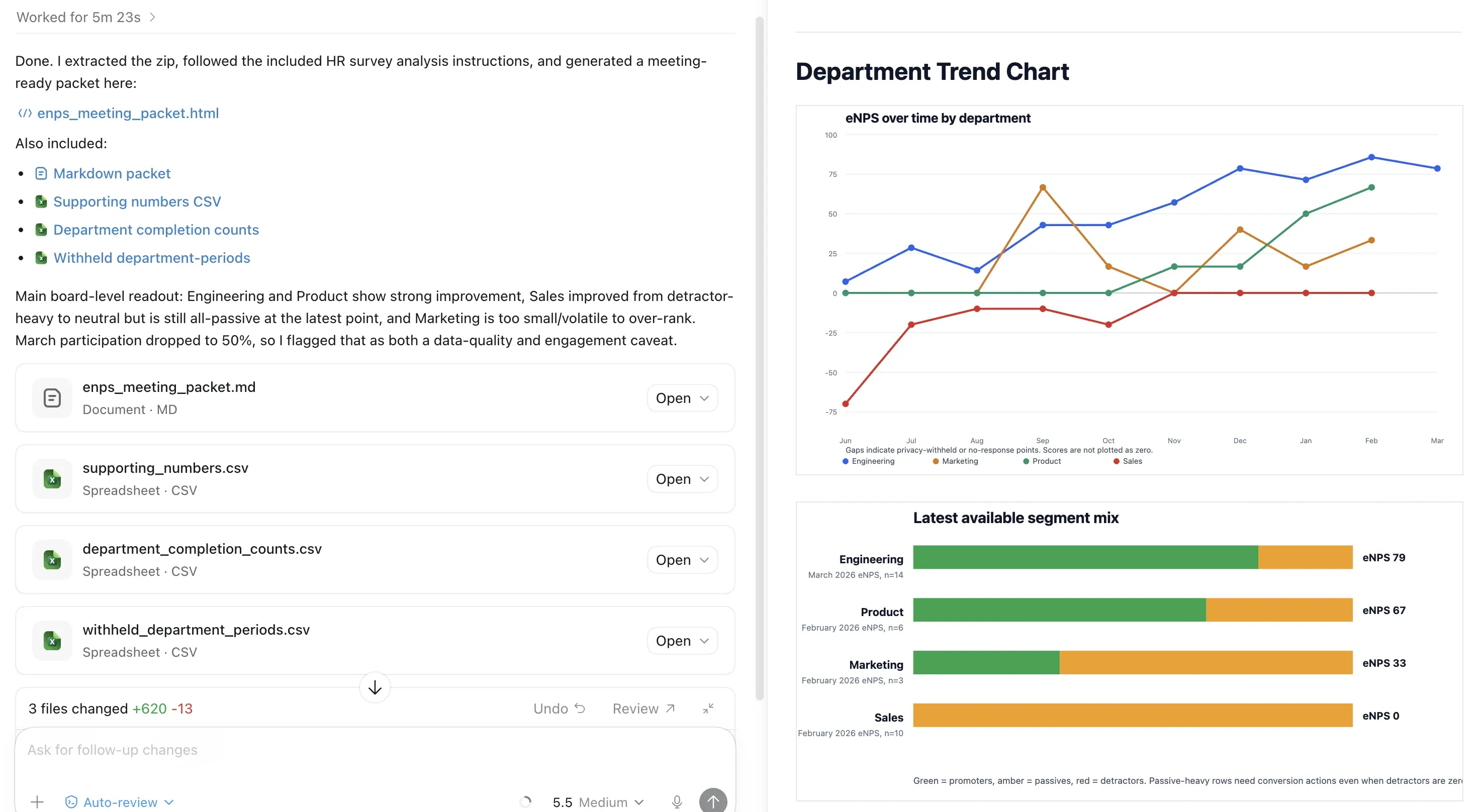
A survey analysis pack is a ZIP export built for AI-assisted HR analysis. Use it when you want to give ChatGPT, Claude, Codex, Microsoft Copilot, or another AI tool the survey files it needs to chart eNPS by department, list the supporting numbers, summarize themes, and draft an executive memo.
## When to use a survey analysis pack
[Section titled “When to use a survey analysis pack”](#when-to-use-a-survey-analysis-pack)
Use an analysis pack when you want to compare survey results across departments over time without manually exporting each survey.
The pack is scoped to one survey template and the time range selected in **Reports** > **Surveys**. It includes the per-department breakdown inside the ZIP, so department and employee-level page filters are not applied to the export.
## Before you start
[Section titled “Before you start”](#before-you-start)
* You need permission to export survey reports.
* Choose the survey template you want to analyze.
* Choose the time range you want included: last week, last month, last 3 months, last 6 months, or last year.
* At least one survey in the selected template and time range must have responses.
## Download the analysis pack
[Section titled “Download the analysis pack”](#download-the-analysis-pack)
1. Go to **Reports**.
2. Open **Surveys**.
3. Choose the survey template.
4. Choose the time range for the analysis.
5. In **Recent Survey Instances**, click **Export as analysis pack**.
6. Save the ZIP file.

## What’s inside the ZIP
[Section titled “What’s inside the ZIP”](#whats-inside-the-zip)
| File | Use it for |
| -------------------------------------- | ------------------------------------------------------------------------------------ |
| `ai_analysis_guide.md` | A quick guide you can paste or reference when asking an AI tool to analyze the pack. |
| `manifest.json` | Export metadata, selected template, time range, privacy threshold, and file list. |
| `included_surveys.csv` | Survey periods, survey-level recipient counts, completed counts, and response rate. |
| `department_period_metrics.csv` | Department-period completion counts and privacy status. |
| `department_enps_trends.csv` | Graph-ready eNPS rows by department, survey period, and question. |
| `trend_data.json` | JSON version of the department eNPS trend data. |
| `text_responses.csv` | De-identified text responses when enough responses are available. |
| `questions.csv` | Question wording and public question identifiers. |
| `ai-skills/hr-survey-analysis/` | Portable AI instructions and reference notes for HR survey analysis. |
| `scripts/analyze_department_trends.py` | A small Python helper for deterministic eNPS trend summaries. |
## Use the pack with ChatGPT, Claude, Codex, or Copilot
[Section titled “Use the pack with ChatGPT, Claude, Codex, or Copilot”](#use-the-pack-with-chatgpt-claude-codex-or-copilot)
If your AI tool accepts ZIP uploads, upload the ZIP directly. If it does not, unzip the pack and upload the files listed above.
Start with this prompt:
```text
Use the FeedbackPulse survey analysis pack I uploaded. Follow ai_analysis_guide.md and ai-skills/hr-survey-analysis/SKILL.md. Create a department eNPS trend chart over time, include supporting numbers for each department, then write an executive memo with recommended HR actions and caveats.
```
If your AI tool supports code execution, ask it to run `scripts/analyze_department_trends.py` first. That script summarizes available eNPS rows by department with response counts, promoters, passives, detractors, and scores. Then ask the AI tool to use those numbers for the chart and memo.
## What to ask for
[Section titled “What to ask for”](#what-to-ask-for)
| HR question | Useful prompt |
| --------------------------------------------- | --------------------------------------------------------------------------------------------------------------------------------- |
| Which departments are improving or declining? | ”Show eNPS over time by department and classify each department as improving, declining, stable, volatile, or insufficient data.” |
| What numbers support the graph? | ”For each latest department point, list response count, promoters, passives, detractors, passive rate, and score.” |
| What should leadership know? | ”Write a 3-paragraph executive memo that separates data-backed findings from caveats.” |
| What should HR do next? | ”Recommend 3 to 5 actions tied to specific departments, trends, or recurring text themes.” |
## How privacy protections appear
[Section titled “How privacy protections appear”](#how-privacy-protections-appear)
Analysis packs keep department trends useful while protecting anonymity.
* Rows with `privacy_status=privacy_withheld` have sensitive counts and scores blanked.
* Treat withheld values as missing data, not as zero.
* Do not ask the AI tool to infer hidden values.
* Text responses do not include employee names, emails, user IDs, recipient IDs, or per-response timestamps.
* Department-level response rate is not included. Use department completion counts and survey-level response rate instead.
Caution
Do not paste withheld values, private employee context, or guessed identities into an AI tool. The analysis pack is designed for aggregate HR analysis, not individual attribution.
## Interpreting the output
[Section titled “Interpreting the output”](#interpreting-the-output)
Use the AI output as a first analysis pass, then validate the chart and memo before sharing. Check that the tool did not plot withheld or no-response values as zero, did not rank departments with very small sample sizes too strongly, and did not turn survey signals into causal claims.
For exact FeedbackPulse benchmark context, use the benchmark view in FeedbackPulse. The bundled HR reference files provide conservative interpretation heuristics, not official benchmark scores for your company size or industry.
# FeedbackPulse Survey Insights Report
> Use the Survey Insights Report in FeedbackPulse to review participation, question scores, benchmarks, themes, and CSV exports for stakeholder updates.
A Survey Insights Report is a polished, shareable snapshot of your survey results. It’s designed for decision-makers and team leaders to understand participation, identify patterns, and prioritize action areas without diving into individual responses.
## Where to access reports
[Section titled “Where to access reports”](#where-to-access-reports)
1. Click **Reports** in the left navigation
2. Click **Surveys**
3. Choose a survey from the list
4. The report opens with all insights below
Admins can access all survey reports. Managers can view reports for surveys within their scope.
See an example
Download and review a [sample survey insights report](/help/examples/sample-survey-insights-report.pdf) to see a real example of what FeedbackPulse generates.
## What’s included in a report
[Section titled “What’s included in a report”](#whats-included-in-a-report)
Reports show six key sections:
### Participation & Timing
[Section titled “Participation & Timing”](#participation--timing)
* **Response Rate** — percentage of recipients who completed the survey
* **Total Responses** — count of completed responses
* **Response Window** — when the survey opened and closed
* **First and Last Response** — timestamps of opening and final submission
Use this to gauge engagement. Low response rates may indicate timing issues, unclear messaging, or low priority perceived by recipients.
### Question Insights
[Section titled “Question Insights”](#question-insights)
Each question card shows:
* **Question text and type** — Likert (1-5 scale), Yes/No, eNPS (0-10), or open text
* **Response Count** — how many people answered this specific question
* **Result breakdown**:
* **Likert**: average score and distribution across the scale
* **Yes/No**: count and percentage for each option
* **eNPS**: score, promoter/passive/detractor split, benchmark comparison, and trend markers vs previous survey and \~1 year ago
* **Text**: highlights of common themes and representative responses
### eNPS Benchmark Context
[Section titled “eNPS Benchmark Context”](#enps-benchmark-context)
When your survey includes eNPS questions, the report shows:
| Element | Purpose |
| ------------------------- | ----------------------------------------------------------------------- |
| **Your Score** | Current survey eNPS (% Promoters minus % Detractors) |
| **Industry Median** | Average eNPS for your industry (if set) or global cross-industry median |
| **Size Median** | Average eNPS for companies your size |
| **Trend vs Previous** | Whether eNPS moved up, down, or stayed level |
| **Trend vs \~1 Year Ago** | Year-over-year comparison for pattern detection |
Read the benchmark strip as four zones:
* **Needs Work**: eNPS -100 to 0
* **Good**: eNPS 0 to 30
* **Excellent**: eNPS 30 to 70
* **World Class**: eNPS 70 to 100
Use these zones and medians to separate real sentiment shifts from normal variance. If your score is moving above your industry median, that’s a leadership strength. If it’s dropping, investigate the detractors’ comments.
### Text Response Themes
[Section titled “Text Response Themes”](#text-response-themes)
Open-ended questions are automatically grouped by sentiment:
* **Frequently mentioned strengths** — themes that appear in promoter responses
* **Common concerns** — themes from passive and detractor responses
* **Representative quotes** — direct feedback examples for each theme
Read these after confirming your response count is large enough to avoid over-indexing on individual voices. The report surface only themes that appeared in at least 2–3 responses.
### Timing and Response Windows
[Section titled “Timing and Response Windows”](#timing-and-response-windows)
The report shows:
* **Scheduled date** — when invitations were sent
* **Response cutoff** — when the survey stopped accepting responses
* **Response timeline** — spread of submissions (first response to last response)
This context matters: a survey that closes in 2 days will have different dynamics than one open for 30 days.
## Quick interpretation workflow
[Section titled “Quick interpretation workflow”](#quick-interpretation-workflow)
1. **Check response rate first.** If it’s under 50%, engagement is the headline — not the sentiment data.
2. **Scan benchmark zones.** Is your eNPS in the top/bottom quartile vs peers?
3. **Read trend markers.** If vs-previous is ▼-10 and vs-1-year-ago is ▼-5, there’s a recent decline worth investigating.
4. **Review text themes in order.** Start with the most frequently mentioned strength and top concern.
5. **Spot the gap.** If scores are high but top concerns appear frequently, your team wants to celebrate wins and address specific pain points.
## Sharing reports
[Section titled “Sharing reports”](#sharing-reports)
To share a survey report with a colleague, open the completed survey, click **Report**, then click **Generate Link** on the report page. After the link is created, click **Copy Link** and send it to the colleague you want to share with.
For step-by-step instructions and screenshots, see [Share Survey Results with Colleagues](/help/surveys/share-survey-results-with-colleagues/).
## Exporting responses
[Section titled “Exporting responses”](#exporting-responses)
### Export text responses to CSV
[Section titled “Export text responses to CSV”](#export-text-responses-to-csv)
1. Open a survey report
2. Click **Export Text Responses**
3. Choose date range (optional)
4. Click **Download**
The CSV includes:
* Response timestamp
* Written response text (with anonymity protections applied)
* Response type or category if applicable
Use this to import feedback into your action-tracking system, send to a separate analysis tool, or share with a consultant.
Anonymous surveys only export responses when the privacy threshold is met (minimum 3 responses per question for aggregate reporting).
### Export all data
[Section titled “Export all data”](#export-all-data)
From **Reports > Surveys**, click **Export All** to export survey metadata, participation stats, and question aggregates for the selected filters and date range.
## Rules and constraints
[Section titled “Rules and constraints”](#rules-and-constraints)
* **Admins** can generate, copy, and revoke survey report share links
* **Managers** can view survey reports in their allowed scope, but share-link management is admin-only
* **Team members** cannot access survey reports — they can view results within individual survey instances only
* **Anonymous surveys** suppress individual text responses if the response count is below the privacy threshold (minimum 3 responses); theme summaries still display
* **Reports are read-only** — admins cannot edit question wording or results from the report view, only from the survey instance itself
* **Share links are survey-specific** — a shared link leads to one survey report, not a dashboard
* **Share links stay active until revoked** — FeedbackPulse does not show an expiry setting for survey report links
## Frequently asked questions
[Section titled “Frequently asked questions”](#frequently-asked-questions)
**Q: Can I edit the report or add notes?**
A: The report is a snapshot of the raw data and cannot be edited. Store action plans and team-specific notes in your HR system or design docs — link to the report from there.
**Q: Do all my team members see the same report?**
A: Permissions apply inside FeedbackPulse. Shared report links do not require login, so anyone with the URL can view the shared report.
**Q: Why are some text responses hidden in the report?**
A: Anonymous surveys hide individual responses below the privacy threshold (fewer than 3 responses to a question) to protect respondent anonymity. Aggregated themes still surface.
**Q: How do I know if the trends are real or just normal variance?**
A: Use the benchmark zones and industry median as context. A ▼-3 eNPS change in a small survey is noise. A ▼-15 change relative to a 100-person survey is signal. Compare against your industry median as a baseline — if your industry also dipped, it’s sector-wide.
**Q: Can I print or PDF the report?**
A: Yes. Use your browser’s Print to PDF feature (Cmd+P on Mac, Ctrl+P on Windows) to save a portable copy. The report layout is optimized for printing.
# Getting Started with FeedbackPulse
> Get started with FeedbackPulse by setting up your organisation, inviting teams, and launching your first review cycle or survey as an admin.
FeedbackPulse is employee feedback management software for growing teams. It manages performance reviews, peer reviews, engagement surveys, and pulse surveys within a single platform.
## Core entities in FeedbackPulse
[Section titled “Core entities in FeedbackPulse”](#core-entities-in-feedbackpulse)
* An **Organization** is the top-level account. Each Organization has one plan and one or more Users.
* A **User** belongs to exactly one Organization. Each User has one role: Admin, Manager, or Employee.
* A **Review Cycle** is a time-bound feedback collection period. Each Review Cycle belongs to one Organization and contains one or more Participants.
* A **Survey** is a set of questions sent to a group of Users. Each Survey belongs to one Organization.
* A **Team** is a group of Users within an Organization. Each Team has one optional Team Lead.
## How these entities connect
[Section titled “How these entities connect”](#how-these-entities-connect)
* An Organization contains many Users, many Teams, many Review Cycles, and many Surveys.
* A Manager manages one or more Employees (via the “Reports to” relationship).
* A Review Cycle targets specific Users or Teams as Participants.
* A Survey targets specific Users or Teams as Respondents.
## What FeedbackPulse does not do
[Section titled “What FeedbackPulse does not do”](#what-feedbackpulse-does-not-do)
FeedbackPulse does not process payroll, manage benefits, track time-off, or handle recruitment. It focuses exclusively on employee feedback — reviews, surveys, and recognition.
FeedbackPulse is not an HRIS (Human Resource Information System). It integrates with your existing HR tools but does not replace them.
## Setup checklist
[Section titled “Setup checklist”](#setup-checklist)
1. **[Quick Setup Guide](/help/getting-started/quick-setup/)** — Create your Organization and configure settings
2. **[Invite Your Team](/help/getting-started/invite-team/)** — Add Users and assign roles (Admin, Manager, Employee)
3. **[Your First Review Cycle](/help/getting-started/first-review-cycle/)** — Launch a Review Cycle or Survey
Most teams complete initial setup in under 15 minutes.
## Frequently asked questions
[Section titled “Frequently asked questions”](#frequently-asked-questions)
**Q: Can I use FeedbackPulse with a free email address (Gmail, Yahoo)?** A: No. FeedbackPulse requires a work email address for account creation. Free email providers are not accepted.
**Q: How many Users can I add to my Organization?** A: The Free plan supports up to 10 team members. Pro and Enterprise plans have unlimited seats. See [Billing & Plans](/help/account/billing/).
**Q: Does FeedbackPulse replace our existing HR software?** A: No. FeedbackPulse handles feedback only — performance reviews, peer reviews, and surveys. It does not manage payroll, benefits, or recruitment.
# Your First FeedbackPulse Review Cycle
> Create and launch your first FeedbackPulse review cycle with participants, self-assessments, manager evaluations, and the right cycle type for your goals.
A Review Cycle is a time-bound feedback collection period. Each Review Cycle has a type, a set of Participants, a start date, and a deadline.
## Cycle types
[Section titled “Cycle types”](#cycle-types)
FeedbackPulse supports four cycle types:
| Cycle Type | What it collects | Typical length | Typical frequency |
| ---------------------- | ----------------------------------------- | -------------- | --------------------- |
| **Performance Review** | Self-assessments + Manager evaluations | 1-2 weeks | Quarterly or annually |
| **Peer Review** | Feedback from colleagues (360-degree) | 1-2 weeks | Quarterly or annually |
| **Engagement Survey** | Team sentiment across multiple dimensions | 1 week | Quarterly |
| **Pulse Survey** | Quick temperature check (3-5 questions) | 2-3 days | Weekly or biweekly |
## How to create a Review Cycle
[Section titled “How to create a Review Cycle”](#how-to-create-a-review-cycle)
1. Go to **Performance Reviews** from the main navigation
2. Click **Create New Cycle**
3. Select the cycle type
4. Choose Participants (all Employees, specific Teams, or individual selection)
5. Set the **start date** and **deadline**
6. Review the summary and click **Launch**
## Cycle lifecycle
[Section titled “Cycle lifecycle”](#cycle-lifecycle)
Each Review Cycle moves through these states:
```plaintext
Draft → Launched → In Progress → Closed → Results Available
```
* **Draft** — Created but not yet sent to Participants. Can be edited freely.
* **Launched** — Notifications sent. Participants can begin responding.
* **In Progress** — At least one Participant has submitted a response.
* **Closed** — Deadline has passed. No more responses accepted.
* **Results Available** — Data is aggregated and visible in Analytics.
## Rules and constraints
[Section titled “Rules and constraints”](#rules-and-constraints)
* Once a Review Cycle is launched, Participants cannot be removed. You can add more Participants or extend the deadline.
* A User can be a Participant in multiple active Review Cycles simultaneously.
* Performance Reviews require the reporting structure (Employee → Manager) to be set up before launch.
* Engagement Surveys and Pulse Surveys do not require a reporting structure.
* The minimum deadline is 1 day after the start date.
## Monitoring completion
[Section titled “Monitoring completion”](#monitoring-completion)
The cycle dashboard shows completion status for each Participant:
| Status | Meaning |
| ---------- | ----------------------------- |
| **Green** | Submitted their response |
| **Yellow** | Started but not yet submitted |
| **Gray** | Not yet started |
Automated email reminders are sent at configurable intervals as the deadline approaches.
## Viewing results
[Section titled “Viewing results”](#viewing-results)
After the deadline:
* **Performance Review results** are visible to the Employee’s Manager and all Admins
* **Engagement Survey results** are aggregated and visible to Admins and Managers
* **Pulse Survey results** update in real time as responses arrive
All results are preserved in [Analytics](/help/analytics-and-reports/analytics/) for historical comparison.
## Frequently asked questions
[Section titled “Frequently asked questions”](#frequently-asked-questions)
**Q: Can I cancel a Review Cycle after launching it?** A: Yes. Go to the cycle page and click **Cancel Cycle**. Participants are notified. Any responses already submitted are discarded.
**Q: What happens if a Participant misses the deadline?** A: Their status shows as incomplete. Admins can extend the deadline to give more time.
**Q: Can an Employee see their Manager’s evaluation?** A: This depends on your Organization’s visibility settings. By default, Employees see their Manager’s evaluation after the cycle closes. Admins can configure this per cycle.
# Invite Your Team to FeedbackPulse
> Invite your team to FeedbackPulse, assign each user the right role, and set manager relationships so review cycles can target direct reports correctly.
After creating your Organization, add team members and assign roles.
## User roles
[Section titled “User roles”](#user-roles)
Each User has exactly one role at any time. Roles can be changed by an Admin.
| Role | Permissions |
| ------------ | ------------------------------------------------------------------------------------------------------------------------------------ |
| **Admin** | Full access — manage Organization settings, billing, all Users, all Review Cycles and Surveys. Can view all data. |
| **Manager** | Create and manage Review Cycles for their direct reports. View team-level analytics. Cannot access billing or Organization settings. |
| **Employee** | Complete self-assessments, peer reviews, and Surveys assigned to them. View their own feedback history. Cannot create Review Cycles. |
## How to invite Users
[Section titled “How to invite Users”](#how-to-invite-users)
1. Go to **Settings > Team Members**
2. Click **Invite Members**
3. Enter email addresses (one per line, or paste a comma-separated list)
4. Select the default role for the batch
5. Click **Send Invitations**
Each invited User receives an email with a link to create their account.
## Setting up the reporting structure
[Section titled “Setting up the reporting structure”](#setting-up-the-reporting-structure)
Each Employee should have exactly one Manager assigned. This relationship determines:
* Who can initiate Review Cycles for that Employee
* Who sees that Employee’s review results
* Who appears in team-level analytics
To assign a Manager:
1. Go to **Team Members**
2. Click on the Employee’s name
3. Under **Reports to**, select their Manager
4. Click **Save**
Caution
Review Cycles require the reporting structure to be set up. If an Employee has no Manager assigned, they cannot be included in manager-initiated Review Cycles.
## Rules and constraints
[Section titled “Rules and constraints”](#rules-and-constraints)
* Each User belongs to exactly one Organization.
* Each User has exactly one role (Admin, Manager, or Employee).
* Each Employee reports to exactly one Manager (or none, if unassigned).
* A Manager can manage multiple Employees.
* An Admin can also be assigned as a Manager for specific Employees.
* Roles can be changed at any time — changes take effect immediately.
* Deactivating a User removes their login access but preserves all historical data.
## Frequently asked questions
[Section titled “Frequently asked questions”](#frequently-asked-questions)
**Q: Can someone be both a Manager and an Employee?** A: A User with the Manager role can participate in Surveys and complete self-assessments like any Employee. They can also be reviewed by their own Manager (if one is assigned above them).
**Q: What happens when I deactivate a User?** A: The User cannot log in. Their past Review data, Survey responses, and feedback are preserved for historical reporting. You can reactivate them at any time.
**Q: Can I bulk-import Users from a CSV?** A: Not currently. Users are invited via email. Contact [support](/help/troubleshooting/contact-support/) if you need to add more than 50 Users at once.
# Launch Your First FeedbackPulse Survey
> Launch your first FeedbackPulse survey by choosing a template, setting anonymity and timing, selecting recipients, and sending in a few steps.
Surveys are the fastest way to hear from your team. Use them for weekly pulse checks, eNPS, engagement measurement, onboarding feedback, or exit interviews. No manager reporting structure required — just pick a template, add recipients, and send.
## Before you start
[Section titled “Before you start”](#before-you-start)
* You need the **Admin** role to create and launch surveys.
* Team members should be [invited to your Organization](/help/getting-started/invite-team/) before you add them as recipients.
## How to launch a survey
[Section titled “How to launch a survey”](#how-to-launch-a-survey)
### Step 1: Select a template
[Section titled “Step 1: Select a template”](#step-1-select-a-template)
1. Click **Surveys** in the left navigation
2. Click **New Survey**
3. Choose a template from the list
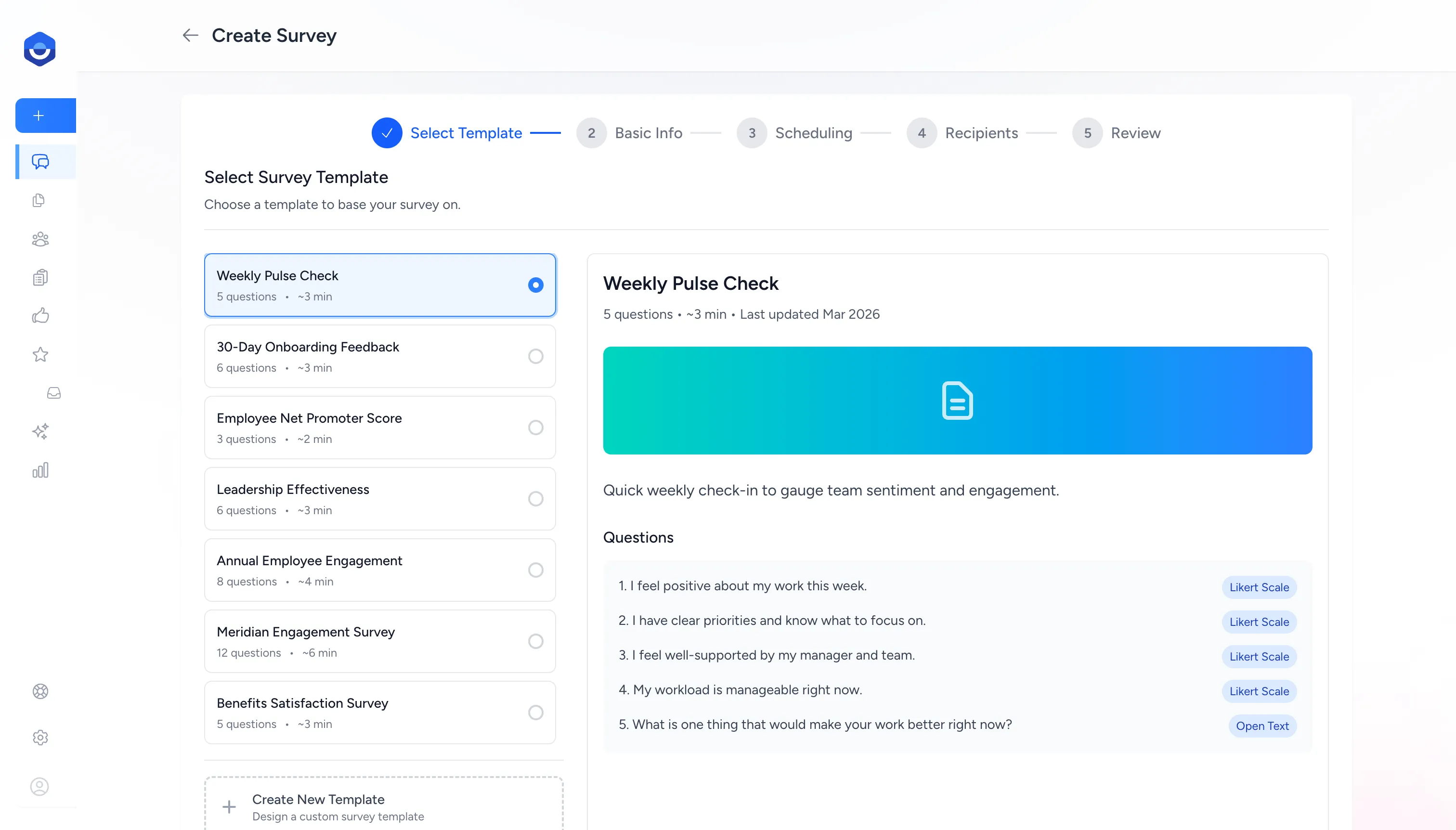
Built-in templates to get you started:
| Template | Questions | Typical use |
| --------------------------- | --------- | ------------------------------------- |
| Weekly Pulse Check | 5 | Regular team sentiment check-in |
| Employee Net Promoter Score | 3 | Measure employee loyalty |
| Annual Employee Engagement | 8 | Comprehensive yearly measurement |
| 30-Day Onboarding Feedback | 6 | New hire experience after first month |
| Exit Interview | 5 | Departure insights |
| Leadership Effectiveness | 6 | Manager feedback from the team |
Select **Create New Template** to design a custom survey from scratch.
### Step 2: Configure basic info
[Section titled “Step 2: Configure basic info”](#step-2-configure-basic-info)
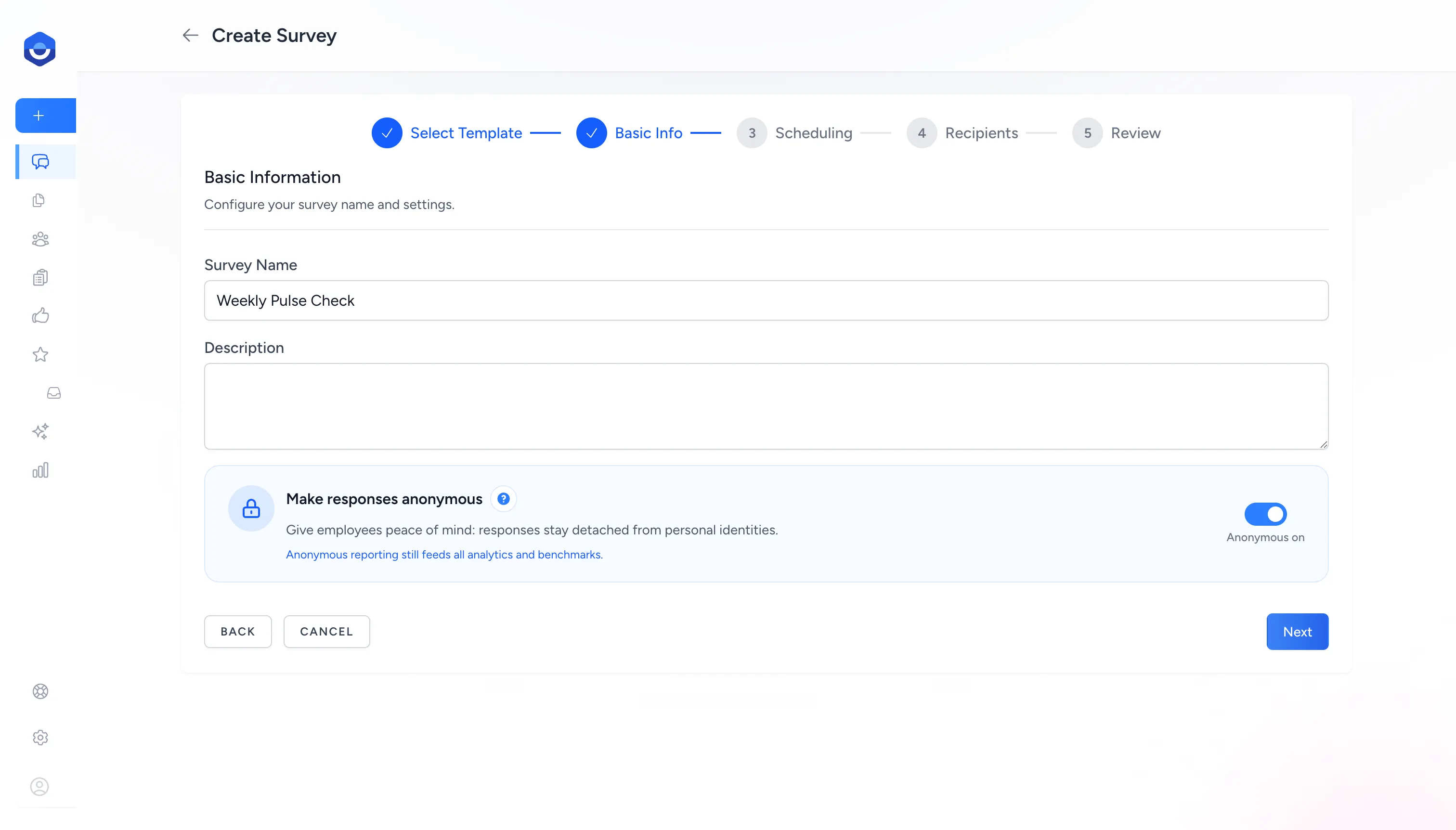
* **Survey Name** — required. Appears in the invitation email and on the results page. Pre-filled with the template name — edit it to match the specific survey.
* **Description** — optional context shown to recipients before they begin.
* **Make responses anonymous** — on by default. When enabled, individual identities are hidden and only aggregated results are visible.
Note
Anonymous surveys require at least 3 recipients. If you’re surveying a small group, either add more people or turn off anonymity.
### Step 3: Set the schedule
[Section titled “Step 3: Set the schedule”](#step-3-set-the-schedule)
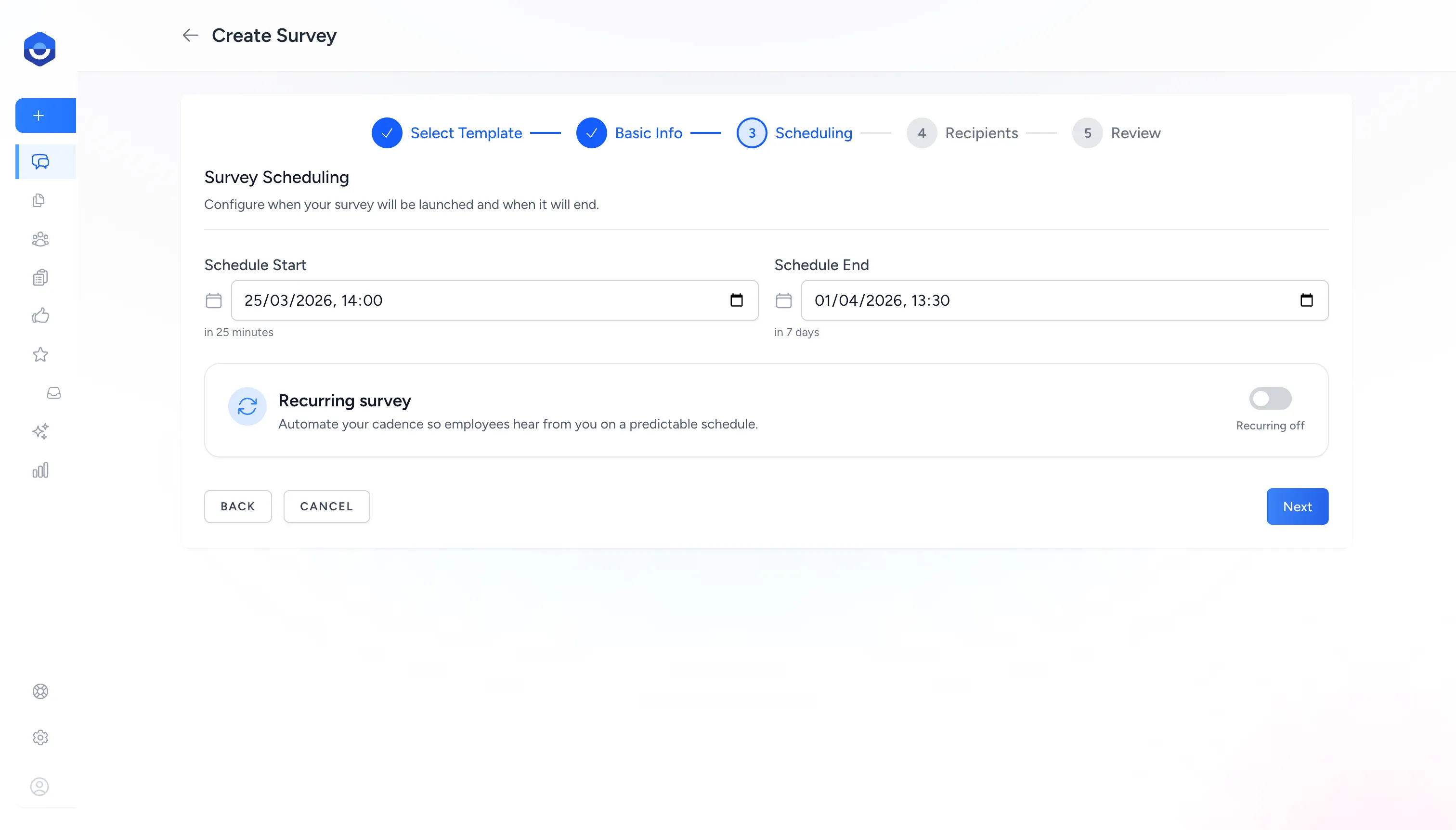
* **Schedule Start** — when invitations are sent. Defaults to now, so leaving it as-is launches the survey immediately after you confirm.
* **Schedule End** — when the survey closes and stops accepting responses. Defaults to 7 days after the start.
* **Recurring** — toggle on to automate repeat delivery on a set cadence (weekly, monthly, etc.).
### Step 4: Add recipients
[Section titled “Step 4: Add recipients”](#step-4-add-recipients)
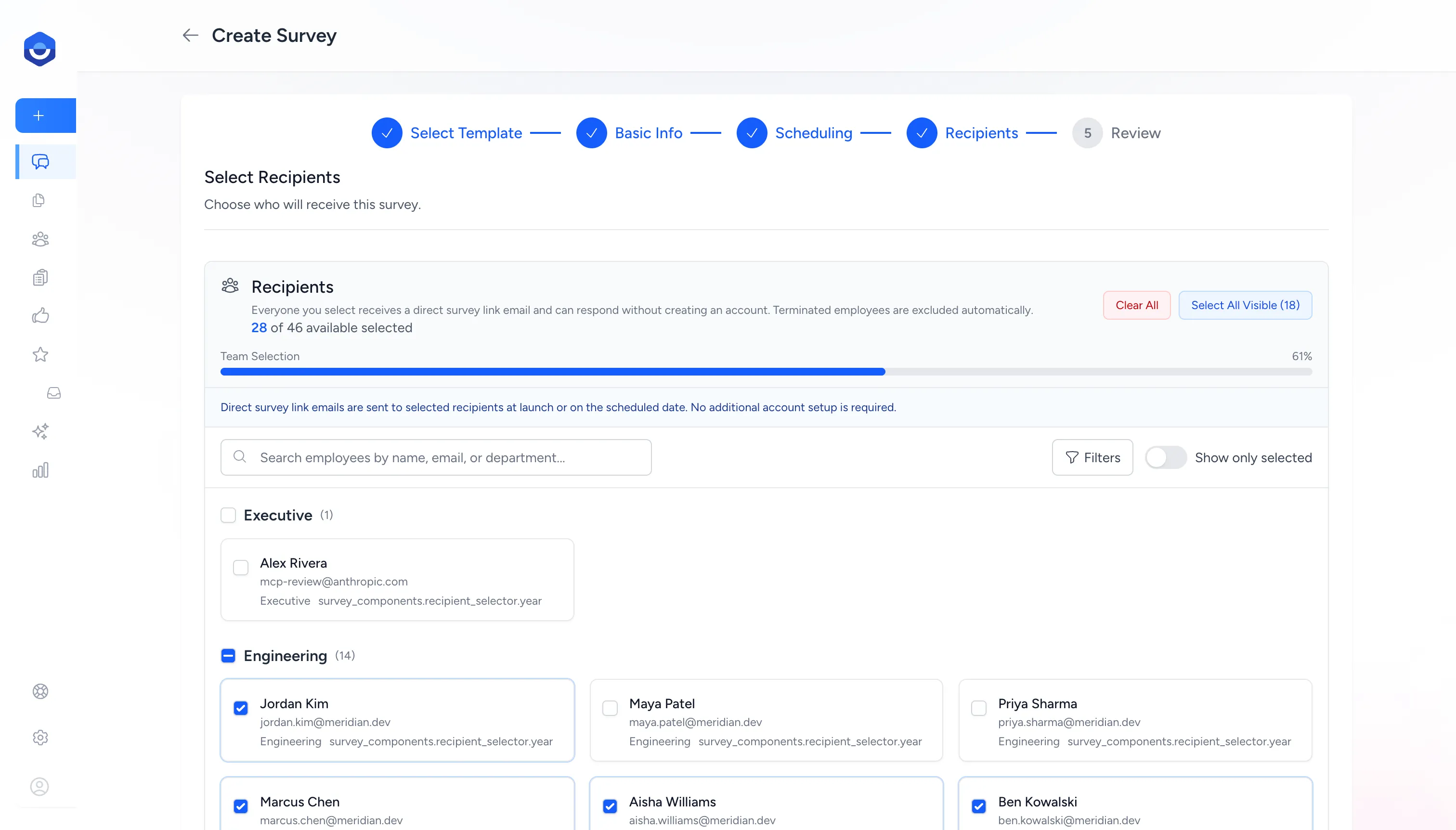
Browse and select employees by name, email, or department. Click **Select All Visible** to include everyone shown, or check individual boxes to build a targeted list.
Recipients receive a direct link by email and can respond without logging in to FeedbackPulse.
### Step 5: Review and launch
[Section titled “Step 5: Review and launch”](#step-5-review-and-launch)
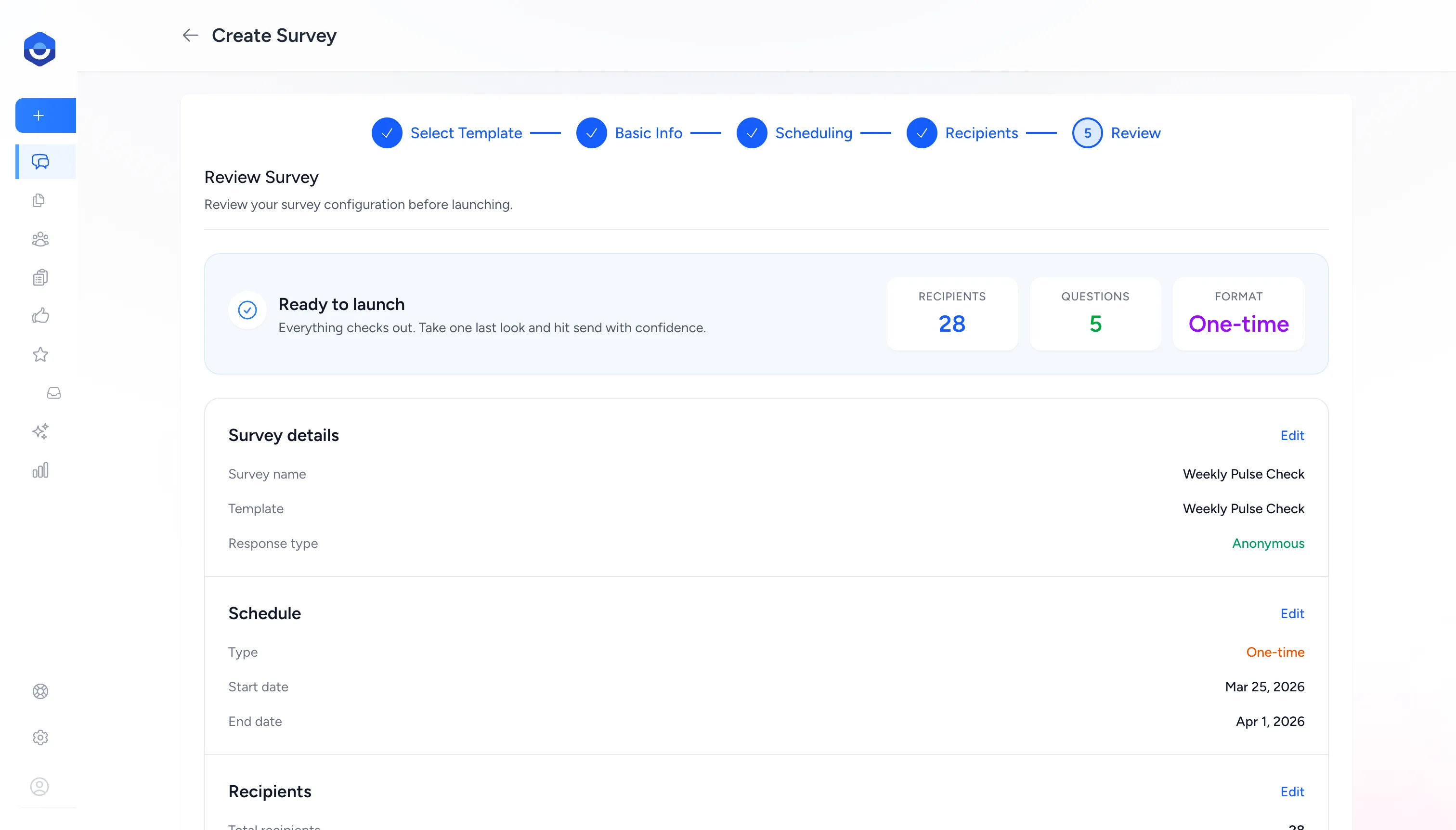
FeedbackPulse shows a summary of your survey before it goes out — template, recipient count, schedule type, and anonymity setting. Review each section and use **Edit** to go back and adjust anything.
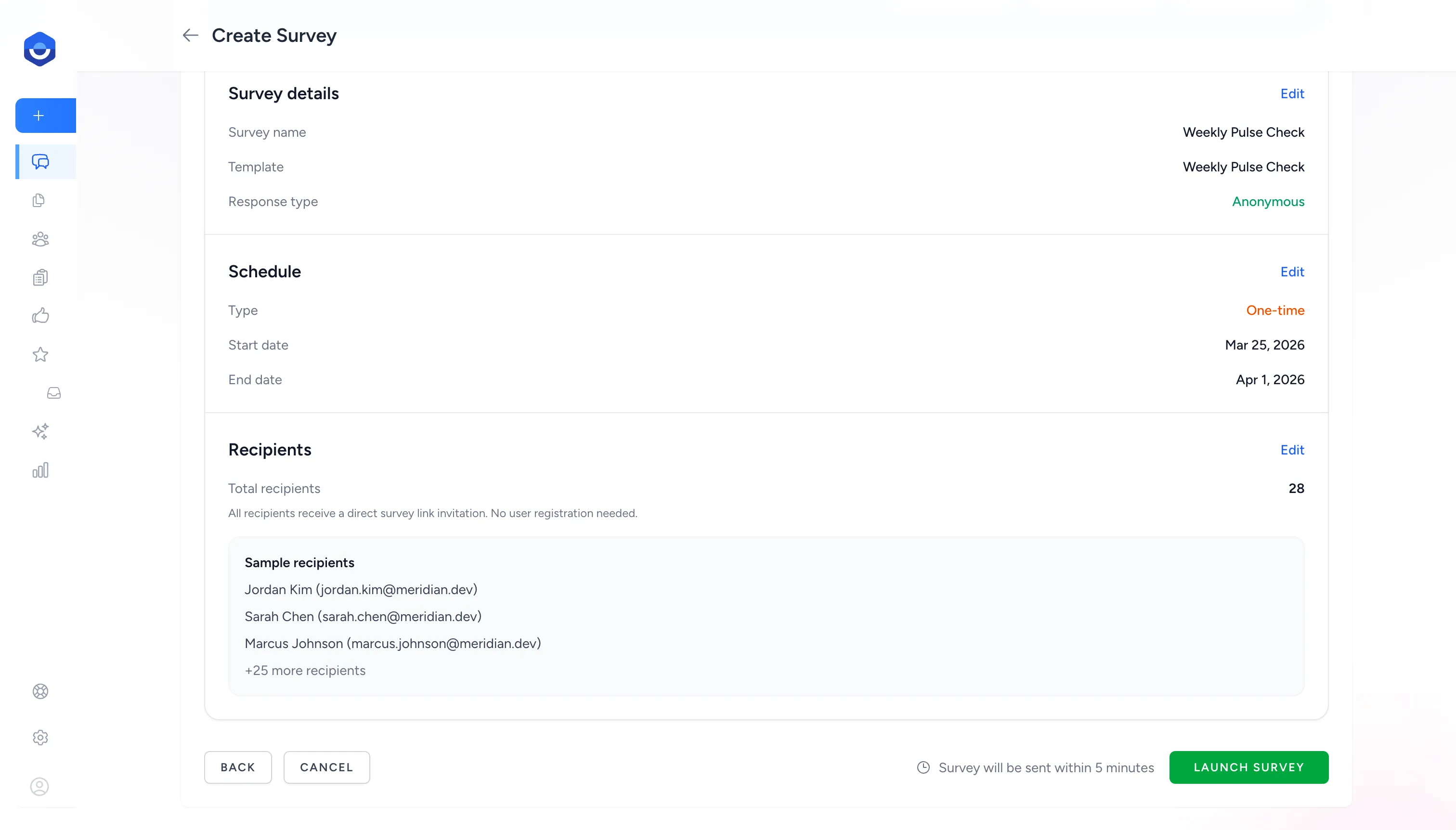
When everything looks correct, click **Launch Survey** at the bottom of the page to send invitations immediately. If you set a future start date, the button reads **Schedule Survey** instead.
## What happens after launch
[Section titled “What happens after launch”](#what-happens-after-launch)
Each recipient gets an email with a unique link to their response. The survey status tracks where it is in its lifecycle:
| Status | Meaning |
| ------------- | ------------------------------------------------------------------ |
| **Active** | Live and accepting responses. Invitations have been sent. |
| **Scheduled** | Not yet started. Invitations send automatically on the start date. |
| **Completed** | All recipients have responded. |
| **Expired** | End date has passed. No more responses accepted. |
Results appear in real time on the survey’s **Results** page as responses come in.
## Rules and constraints
[Section titled “Rules and constraints”](#rules-and-constraints)
* Only Admins can create and launch surveys.
* Anonymous surveys require at least 3 recipients.
* Recipients must have a valid email address. Terminated employees are excluded automatically.
* A recipient cannot be added to the same survey more than once.
* Your plan determines the maximum number of active and scheduled surveys that can run at the same time.
## Frequently asked questions
[Section titled “Frequently asked questions”](#frequently-asked-questions)
**Q: Can I send a survey to my whole company at once?** A: Yes. On the Recipients step, click **Select All Visible** to add all active employees in one click.
**Q: What if I want the survey to repeat automatically — like a monthly pulse?** A: Enable **Recurring** on the Scheduling step. See [Pulse Surveys](/help/surveys/pulse-surveys/) for full recurring cadence options.
**Q: Can I see who responded and what they said?** A: If the survey is not anonymous, each recipient’s individual responses are visible in the results. For anonymous surveys, only aggregate data is shown — individual responses are hidden to protect respondent privacy.
**Q: Can I add more recipients after the survey goes live?** A: Yes. Go to the survey page and add recipients from there. New recipients receive an invitation immediately.
**Q: What if I need to close the survey early?** A: Go to the survey page and close it manually. Existing responses are preserved. Recipients who haven’t responded can no longer submit.
**Q: Can I reopen a survey after it has ended?** A: No. Once a survey has expired or been closed, it cannot be reopened. All responses collected are still visible on the survey’s **Results** page. If you need to collect more responses, create a new survey — you can select the same template to keep the same questions.
# FeedbackPulse Quick Setup Guide
> Complete FeedbackPulse setup in minutes by creating your organisation, configuring review defaults, and setting notification preferences with a work email.
This guide covers creating your Organization and configuring it before inviting your team.
## What you need
[Section titled “What you need”](#what-you-need)
* A work email address (Gmail, Yahoo, Outlook, and other free providers are not accepted)
* Your organization name
* Your approximate team size
## Step-by-step setup process
[Section titled “Step-by-step setup process”](#step-by-step-setup-process)
1. Go to [app.feedbackpulse.com](https://app.feedbackpulse.com) and click **Get Started**
2. Enter your work email address and create a password
3. Open the verification email and click the confirmation link
4. Enter your **Organization name**
5. Select your **team size range**
6. Choose your **primary use case** (performance reviews, engagement surveys, or both)
The User who creates the Organization is automatically assigned the Admin role.
## Configure Organization settings
[Section titled “Configure Organization settings”](#configure-organization-settings)
In **Settings > Organization**, configure:
| Setting | What it controls | Options |
| ------------------------ | ------------------------------------------------- | -------------------------------------------------------- |
| Review cycle cadence | Default schedule for new Review Cycles | Monthly, Quarterly, Annual, Custom |
| Notification preferences | When email reminders are sent | On launch, 3 days before deadline, 1 day before deadline |
| Anonymity default | Whether Survey responses are anonymous by default | Anonymous (default), Named |
## Rules and constraints
[Section titled “Rules and constraints”](#rules-and-constraints)
* Each Organization must have at least one Admin.
* The Organization creator cannot be removed — they can transfer ownership to another Admin.
* Organization settings apply as defaults — individual Review Cycles and Surveys can override them.
* Changing the default anonymity setting does not affect existing Surveys.
## What happens next
[Section titled “What happens next”](#what-happens-next)
Once your Organization is configured, [invite your team members](/help/getting-started/invite-team/).
# FeedbackPulse Integrations
> Find FeedbackPulse integration guides for Slack survey messages, AI assistants, MCP access, API tokens, upcoming native API support, and automation tooling.
FeedbackPulse integrations help your team connect feedback data with the tools you already use. Today, FeedbackPulse supports Slack survey messages and AI assistant access through MCP, with native API support and automation tooling planned for the next release cycle.
## What to read first
[Section titled “What to read first”](#what-to-read-first)
| Goal | Start here |
| ------------------------------------------------- | ------------------------------------------------------------------------------------- |
| Send survey invitations and reminders in Slack | [Connect Slack to FeedbackPulse](/help/integrations/connect-slack/) |
| Connect an AI assistant to FeedbackPulse | [FeedbackPulse MCP Overview](/help/integrations/mcp-overview/) |
| Manage MCP access and personal tokens | [Manage FeedbackPulse API Tokens](/help/integrations/token-management/) |
| Connect Claude Desktop | [Connect Claude Desktop to FeedbackPulse](/help/integrations/connect-claude-desktop/) |
| Connect Claude.ai | [Connect Claude.ai to FeedbackPulse](/help/integrations/connect-claude-ai/) |
| Connect Claude Code or another token-based client | [Connect Claude Code to FeedbackPulse](/help/integrations/connect-claude-code/) |
| Review supported MCP tools and prompts | [FeedbackPulse MCP Tools Reference](/help/integrations/mcp-tools-reference/) |
| Fix connection, token, or permission errors | [Troubleshoot FeedbackPulse MCP Connection](/help/integrations/mcp-troubleshooting/) |
## Slack survey messages
[Section titled “Slack survey messages”](#slack-survey-messages)
FeedbackPulse can send survey invitations and reminders as Slack direct messages alongside email. This helps employees notice surveys in the place they already work, while keeping email delivery in place as the fallback channel.
Start with [Connect Slack to FeedbackPulse](/help/integrations/connect-slack/) to connect your Slack workspace and choose when Slack direct messages should be sent.
## AI assistants and MCP
[Section titled “AI assistants and MCP”](#ai-assistants-and-mcp)
FeedbackPulse uses the Model Context Protocol (MCP) to let approved AI assistants answer questions about surveys, review cycles, recognition, employees, and supported template workflows.
MCP access must be enabled by an Admin. Users also need permission before they can connect an assistant or create a personal token.
## Native API support
[Section titled “Native API support”](#native-api-support)
Native API support is being prepared for the next release cycle. Once the production release is available, this section will link to the full API setup and reference documentation.
Until then, use the MCP guides above for supported AI assistant connections. MCP API tokens are for assistant and MCP client access; they may not cover every native API workflow.
## Automation tools
[Section titled “Automation tools”](#automation-tools)
Automation tooling, including Zapier-style workflows, is planned alongside the native API release. Dedicated setup guides will be added here once the production flow is available.
For now, contact if you need help preparing an integration workflow.
# Connect Claude.ai to FeedbackPulse
> Connect Claude.ai to FeedbackPulse with OAuth to query surveys, reviews, and other feedback data directly from Claude.ai conversations.
Claude.ai connects to FeedbackPulse using OAuth. Sign in once, approve access, and FeedbackPulse tools become available in new Claude.ai conversations.
## Before you start
[Section titled “Before you start”](#before-you-start)
* Your organisation must have **AI Integrations (MCP)** enabled. Ask your Admin to check **Settings > Features**.
* Your Admin must grant you MCP access in **Settings > Integrations**.
* You need a [Claude.ai](https://claude.ai) account (Free, Pro, or Team plan).
## Connect Claude.ai
[Section titled “Connect Claude.ai”](#connect-claudeai)
1. Sign in to [Claude.ai](https://claude.ai)
2. Go to **Settings** (click your profile picture in the top-right corner)
3. Open **Integrations**, **Connected Apps**, or **MCP Servers** (label may vary by account)
4. Click **Add Integration** and search for **FeedbackPulse**, or enter the server URL manually:
```plaintext
https://app.feedbackpulse.com/mcp
```
5. A FeedbackPulse sign-in window will open — enter your credentials
6. Review the permissions and click **Authorize**
7. You’ll be returned to Claude.ai and the connection will be active
## Use FeedbackPulse in a conversation
[Section titled “Use FeedbackPulse in a conversation”](#use-feedbackpulse-in-a-conversation)
Start a new Claude.ai conversation and try:
> “Show me the results from our most recent engagement survey”
Claude will automatically use the FeedbackPulse tools to retrieve and present your data.
Note
FeedbackPulse tools are available in all new conversations. They appear in Claude’s tool list when you open a new chat.
## Rules and constraints
[Section titled “Rules and constraints”](#rules-and-constraints)
* Your account only sees the FeedbackPulse data it is already authorised to access.
* Write actions (for example, creating surveys or sending reminders) require admin-level permissions.
* If your Admin disables **MCP Access** or revokes your token/session in **Settings > Integrations**, this connection stops working.
## Disconnect
[Section titled “Disconnect”](#disconnect)
To remove access:
1. Go to **claude.ai Settings > Integrations**
2. Find FeedbackPulse and click **Disconnect**, or
3. Ask your Admin to revoke the OAuth token in **Settings > Integrations**
***
[← Back to MCP Overview](/help/integrations/mcp-overview/) · [Manage API Tokens →](/help/integrations/token-management/)
# Connect Claude Code to FeedbackPulse
> Connect Claude Code to FeedbackPulse with a personal API token to query feedback data and run supported actions from your terminal or IDE.
Claude Code connects to FeedbackPulse using a personal API token. You’ll create a token in FeedbackPulse and register the server with Claude Code using a single command.
Use this method when your MCP client does not support OAuth sign-in.
Note
Claude Code is a terminal-based AI assistant. This guide assumes you have it installed. See the [Claude Code documentation](https://docs.anthropic.com/claude/claude-code) for installation instructions.
## Before you start
[Section titled “Before you start”](#before-you-start)
* Your organisation must have **AI Integrations (MCP)** enabled. Ask your Admin to check **Settings > Features**.
* Your Admin must grant you MCP access in **Settings > Integrations**.
* Create a personal API token — see [Managing API Tokens](/help/integrations/token-management/).
## Connect Claude Code
[Section titled “Connect Claude Code”](#connect-claude-code)
Once you have your API token, run the following command in your terminal — replacing `YOUR_TOKEN` with the token you copied:
```bash
claude mcp add feedbackpulse \
--transport http \
https://app.feedbackpulse.com/mcp \
--header "Authorization: Bearer YOUR_TOKEN"
```
This registers FeedbackPulse as an MCP server in Claude Code. The connection is stored in your Claude Code configuration and persists across sessions.
Caution
Treat your API token like a password. If it’s exposed, revoke it in **Settings > Integrations** and create a new token.
## Verify the connection
[Section titled “Verify the connection”](#verify-the-connection)
In your terminal, start a Claude Code session and ask:
```plaintext
claude
> List my FeedbackPulse surveys
```
You should see your organisation’s surveys in the response.
Tip
If you see an authentication error, double-check your token was copied correctly and that your account has MCP access enabled.
## Remove the connection
[Section titled “Remove the connection”](#remove-the-connection)
To remove the FeedbackPulse server from Claude Code:
```bash
claude mcp remove feedbackpulse
```
You can also revoke the token entirely from **Settings > Integrations** in FeedbackPulse, which will cause the connection to stop working immediately.
## Rules and constraints
[Section titled “Rules and constraints”](#rules-and-constraints)
* Your account only sees the FeedbackPulse data it is already authorised to access.
* Write actions (for example, creating surveys or sending reminders) require admin-level permissions.
* If the token is revoked or MCP access is disabled for your user, requests will fail until you reconnect with a valid token.
## Using FeedbackPulse in your editor
[Section titled “Using FeedbackPulse in your editor”](#using-feedbackpulse-in-your-editor)
If you use Claude Code inside VS Code or another IDE, the FeedbackPulse server will be available in all Claude Code sessions once registered. You can ask questions about your feedback data without leaving your editor.
***
[← Back to MCP Overview](/help/integrations/mcp-overview/) · [Manage API Tokens →](/help/integrations/token-management/)
# Connect Claude Desktop to FeedbackPulse
> Connect Claude Desktop to FeedbackPulse with OAuth for quick access to your feedback data without manual token setup or config files.
Claude Desktop connects to FeedbackPulse using OAuth — you’ll sign in and approve access once, and Claude handles the rest automatically.
No API token or local config editing is required for this connection method.
## Before you start
[Section titled “Before you start”](#before-you-start)
* Your organisation must have **AI Integrations (MCP)** enabled. Ask your Admin to check **Settings > Features**.
* Your Admin must grant you MCP access in **Settings > Integrations**.
* [Claude Desktop](https://claude.ai/download) must be installed on your computer.
## Connect Claude Desktop
[Section titled “Connect Claude Desktop”](#connect-claude-desktop)
1. Open **Claude Desktop** and go to **Settings**
2. Navigate to **Connections**, **Integrations**, or **MCP Servers** (label may vary)
3. Click **Add Server** (or **Connect a new server**)
4. Enter the FeedbackPulse server URL:
```plaintext
https://app.feedbackpulse.com/mcp
```
5. Claude Desktop will open a browser window — sign in with your FeedbackPulse credentials
6. Review the permissions listed on the authorization screen and click **Authorize**
7. The browser will redirect back to Claude Desktop — the connection is complete
## Verify the connection
[Section titled “Verify the connection”](#verify-the-connection)
In Claude Desktop, start a new conversation and ask:
> “List my FeedbackPulse surveys”
You should see your organisation’s surveys in the response.
Tip
If you see an error, ask your Admin to confirm your account has MCP access enabled in **Settings > Integrations**.
## Rules and constraints
[Section titled “Rules and constraints”](#rules-and-constraints)
* Your account only sees the FeedbackPulse data it is already authorised to access.
* Write actions (for example, creating surveys or sending reminders) require admin-level permissions.
* If your Admin disables **MCP Access** or revokes your OAuth access in **Settings > Integrations**, this connection stops working.
## Disconnect
[Section titled “Disconnect”](#disconnect)
To remove FeedbackPulse from Claude Desktop:
* In Claude Desktop, go to **Settings > Connections** and remove the FeedbackPulse server, or
* Ask your Admin to revoke the OAuth token in **Settings > Integrations**
***
[← Back to MCP Overview](/help/integrations/mcp-overview/) · [Manage API Tokens →](/help/integrations/token-management/)
# Connect Slack to FeedbackPulse
> Connect Slack to FeedbackPulse so survey invitations and reminders can be sent as Slack direct messages alongside email.
Connect Slack to FeedbackPulse to help employees notice and complete surveys faster. When Slack is connected, FeedbackPulse can send survey invitations and reminders as Slack direct messages to matching employees. Email still sends as the fallback channel for everyone.
Note
Slack survey messages must be enabled for your organisation. If you do not see Slack in **Settings > Integrations**, contact .
## What Slack adds
[Section titled “What Slack adds”](#what-slack-adds)
Slack is useful when your team works in Slack more than email. Employees receive a direct message with a secure survey link, so they can open the survey from the place they already check during the day.
| Without Slack | With Slack connected |
| -------------------------------------------------- | ----------------------------------------------------------- |
| Survey invitations and reminders are sent by email | Matching employees receive email and a Slack direct message |
| Admins rely on email visibility and reminders | Admins get another high-visibility delivery channel |
| Employees may miss survey emails in busy inboxes | Employees see survey links in Slack where they already work |
## Before you start
[Section titled “Before you start”](#before-you-start)
* You need the **Admin** role in FeedbackPulse.
* You need permission to install apps in your Slack workspace.
* Employees should use the same work email address in Slack and FeedbackPulse. FeedbackPulse uses email address matching to decide who should receive Slack direct messages.
## Connect Slack
[Section titled “Connect Slack”](#connect-slack)
1. In FeedbackPulse, go to **Settings > Integrations**.
2. Find **Slack survey messages**.
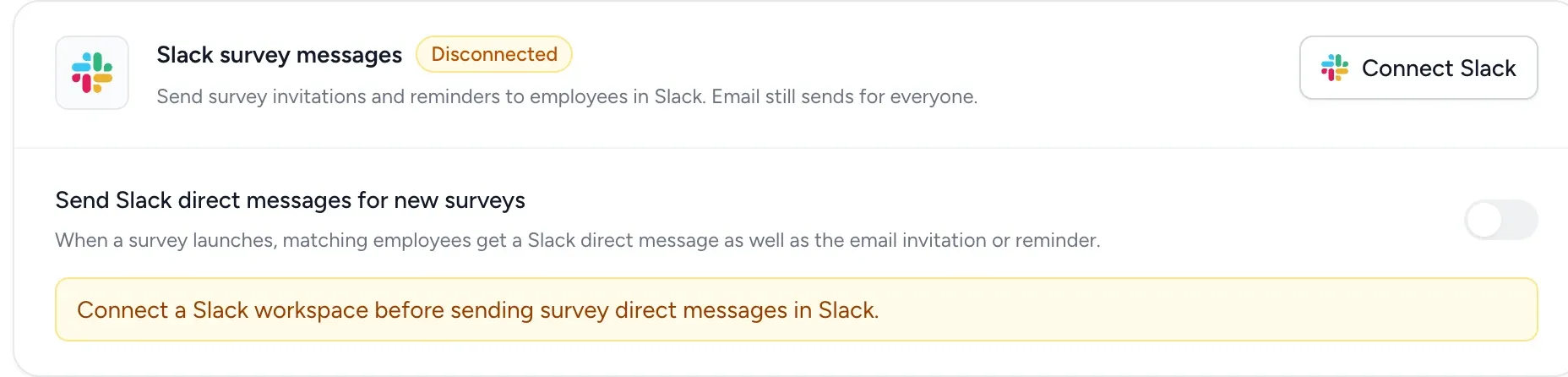
3. Click **Connect Slack**.
4. Slack opens and asks you to approve FeedbackPulse.
5. Review the requested permissions and click **Allow**.
6. Slack redirects you back to FeedbackPulse.
After connection, the Slack section shows **Connected** and displays the Slack workspace name.
## Turn on Slack messages for new surveys
[Section titled “Turn on Slack messages for new surveys”](#turn-on-slack-messages-for-new-surveys)
After Slack is connected, you can choose whether new surveys should send Slack direct messages by default.
1. Go to **Settings > Integrations**.
2. Open **Slack survey messages**.
3. Turn on **Send Slack direct messages for new surveys**.
When this is on, new surveys use **Email + Slack direct message** by default. You can still change delivery for an individual survey before launch.
## Choose delivery when launching a survey
[Section titled “Choose delivery when launching a survey”](#choose-delivery-when-launching-a-survey)
On the **Review** step of the survey launch wizard, FeedbackPulse shows the delivery channels before you launch or schedule the survey.
| Delivery shown | What happens |
| -------------------------------- | ---------------------------------------------------------------------------------- |
| **Email + Slack direct message** | Matching employees receive a Slack direct message and everyone receives email |
| **Email only** | The survey sends by email only |
| **Connect first** | Slack is not connected yet; connect Slack before launch if you want Slack messages |
| **Unavailable** | Slack messages are not available for this workspace or environment |
To change delivery for one survey, click **Change** in the **Delivery** section and update the Slack direct messages toggle.
## What employees receive
[Section titled “What employees receive”](#what-employees-receive)
Employees who match between FeedbackPulse and Slack receive a direct message when:
* a survey invitation is sent
* a survey reminder is sent
Each Slack message includes the survey name and a secure link to respond. Employees do not need to log in to FeedbackPulse to answer from the survey link.
Tip
Email continues to send even when Slack is connected. This keeps survey delivery reliable for employees who are not matched in Slack, are not active in Slack, or miss the Slack message.
## Check Slack delivery
[Section titled “Check Slack delivery”](#check-slack-delivery)
After a survey is launched, open the survey and review the recipients list. When Slack delivery is enabled, FeedbackPulse shows Slack message delivery status for invitations and reminders.
Common statuses include:
| Status | Meaning |
| ----------- | ------------------------------------------------------------------------------------- |
| **Sent** | The Slack direct message was sent |
| **Queued** | FeedbackPulse is preparing to send the Slack message |
| **Skipped** | Slack was not attempted for this recipient, usually because they could not be matched |
| **Failed** | Slack returned an error; email delivery continues separately |
## Disconnect Slack
[Section titled “Disconnect Slack”](#disconnect-slack)
You can disconnect Slack from **Settings > Integrations**.
Disconnecting Slack stops future survey direct messages in Slack. Existing surveys and email notifications continue to work.
## Frequently asked questions
[Section titled “Frequently asked questions”](#frequently-asked-questions)
**Q: Will Slack replace email?**\
A: No. Email still sends. Slack adds a second delivery channel for matching employees.
**Q: Why did some employees not receive a Slack message?**\
A: The most common reason is that their Slack email address does not match their FeedbackPulse email address. They will still receive the email invitation or reminder.
**Q: Can I turn Slack off for one survey?**\
A: Yes. On the survey **Review** step, click **Change** in the **Delivery** section and turn off Slack direct messages for that survey.
**Q: Can employees answer directly inside Slack?**\
A: Not yet. The Slack message links employees to the FeedbackPulse survey response page.
**Q: Who can connect Slack?**\
A: FeedbackPulse Admins can start the connection. Your Slack workspace may also require approval from a Slack workspace owner or admin.
# FeedbackPulse MCP Overview
> Connect AI assistants to FeedbackPulse with MCP to access surveys, review cycles, recognitions, employees, and survey template workflows in natural language.
FeedbackPulse supports the **Model Context Protocol (MCP)**, an open standard that lets AI assistants like Claude and ChatGPT read and act on your organisation’s feedback data. Instead of logging into the dashboard, you can ask questions in plain language and get answers drawn directly from your data.
Note
MCP access must be enabled for your organisation by an Admin. See [Managing API Tokens](/help/integrations/token-management/) to get started.
## What you can do
[Section titled “What you can do”](#what-you-can-do)
| Ask your AI assistant… | What FeedbackPulse provides |
| ------------------------------------------------------------------- | ------------------------------------------------ |
| ”Show me our latest engagement survey results” | Survey responses, scores, and completion rates |
| ”What’s the completion rate for the Q1 review cycle by department?” | Performance review progress and breakdowns |
| ”Who are our top recognition recipients this quarter?” | Recognition counts, kudos trends, top recipients |
| ”Which employees haven’t completed their performance reviews?” | Per-employee review status and overdue list |
| ”Create a new onboarding survey template with these questions” | Survey template creation (Admin + write scope) |
| “Show me all active employees in the Engineering department” | Employee list with department and manager info |
## Available tools
[Section titled “Available tools”](#available-tools)
FeedbackPulse exposes 16 tools to connected AI assistants. For full parameter details, see the [MCP Tools Reference](/help/integrations/mcp-tools-reference/).
### Surveys
[Section titled “Surveys”](#surveys)
| Tool | What it does | Scope |
| ------------------------ | ----------------------------------------------- | ------------------- |
| `list_surveys` | Lists surveys with status and completion rates | `mcp:use` |
| `get_survey_detail` | Full details for a specific survey | `mcp:use` |
| `get_survey_results` | Survey results, scores, and response statistics | `mcp:use` |
| `get_survey_summary` | AI-generated summary of survey themes | `mcp:use` |
| `list_survey_templates` | Lists available survey templates | `mcp:use` (Admin) |
| `get_survey_template` | Full template detail including all questions | `mcp:use` (Admin) |
| `create_survey_template` | Creates a new survey template | `mcp:write` (Admin) |
| `update_survey_template` | Updates an existing survey template | `mcp:write` (Admin) |
### Reviews
[Section titled “Reviews”](#reviews)
| Tool | What it does | Scope |
| -------------------------- | --------------------------------------------------- | --------- |
| `list_review_cycles` | Lists review cycles with completion statistics | `mcp:use` |
| `get_review_cycle_summary` | Department-level completion breakdown for a cycle | `mcp:use` |
| `list_perf_reviews` | Individual performance reviews with status | `mcp:use` |
| `list_peer_reviews` | Peer reviews with status and reviewer info | `mcp:use` |
| `get_peer_review_stats` | Aggregated peer review ratings and completion rates | `mcp:use` |
### Recognitions
[Section titled “Recognitions”](#recognitions)
| Tool | What it does | Scope |
| ----------------------- | ------------------------------------------------- | --------- |
| `get_recognition_stats` | Aggregate recognition metrics and top recipients | `mcp:use` |
| `list_recognitions` | Individual recognition records with feedback text | `mcp:use` |
### Employees
[Section titled “Employees”](#employees)
| Tool | What it does | Scope |
| ---------------- | ------------------------------------------------- | --------- |
| `list_employees` | Browse employees with department and manager info | `mcp:use` |
Note
`list_perf_reviews`, `get_recognition_stats`, and `list_recognitions` require the relevant feature to be enabled on your plan. `list_survey_templates`, `get_survey_template`, `create_survey_template`, and `update_survey_template` require Admin access.
## Guided prompts
[Section titled “Guided prompts”](#guided-prompts)
FeedbackPulse also provides four guided prompts — pre-built workflows that instruct your AI assistant to gather and analyse data in a structured way.
| Prompt | What it does | Arguments |
| ------------------------- | ------------------------------------------------------------------------------ | ------------------------------------------ |
| `analyze_survey_results` | Response rates, sentiment themes, low-scoring questions, and recommendations | `department`, `survey_id`, `period` |
| `engagement_health_check` | Snapshot combining survey scores and recognition activity with red-flag alerts | `department`, `period` |
| `performance_review_prep` | Cycle completion status, peer feedback stats, and calibration notes | `review_cycle` (required), `employee_name` |
| `team_pulse` | Quick health check on a team’s survey participation and recognition frequency | `department`, `manager_name`, `period` |
To use a prompt, ask your AI assistant to run it by name, for example:
> “Run the engagement health check for the Engineering department over the last 90 days.”
`performance_review_prep` requires a paid FeedbackPulse plan with performance reviews enabled.
## Example prompts
[Section titled “Example prompts”](#example-prompts)
Try these prompts once you’ve connected your AI assistant:
1. **“Run analyze\_survey\_results for the last 90 days.”** The AI will retrieve your most recent surveys, compare response rates and scores, surface recurring themes, and flag low-scoring questions.
2. **“What’s the completion rate for the Q1 2026 review cycle, broken down by department?”** The AI will pull the review cycle summary and present department-level progress.
3. **“Show me recognition stats for the Engineering department this quarter.”** The AI will return total recognitions, kudos vs constructive breakdown, and top recipients.
4. **“Which employees haven’t started their performance reviews in the current cycle?”** The AI will list reviews filtered by `not_started` status.
5. **“List all active employees in the Sales department.”** The AI will return employees with their job titles, managers, and contact details.
## Data access and privacy
[Section titled “Data access and privacy”](#data-access-and-privacy)
* AI assistants can only access data your account is authorised to see. Admins see all organisation data; Managers see their direct and indirect reports only.
* Anonymous survey responses are protected — individual text responses are withheld when the number of responses falls below the configured privacy threshold.
* Write actions (creating and updating survey templates) require Admin access and a token with the `mcp:write` scope.
* No conversation content is stored by FeedbackPulse.
For full details, see our [Privacy Policy](https://feedbackpulse.com/privacy-policy) (Section 11: API & MCP Access).
## Connect your AI assistant
[Section titled “Connect your AI assistant”](#connect-your-ai-assistant)
Choose your AI assistant to get started:
* [Connect Claude Desktop](/help/integrations/connect-claude-desktop/)
* [Connect Claude.ai](/help/integrations/connect-claude-ai/)
* [Connect Claude Code](/help/integrations/connect-claude-code/)
Having trouble? See [MCP Connection Troubleshooting](/help/integrations/mcp-troubleshooting/).
Questions? Contact us at .
# FeedbackPulse MCP Tools Reference
> Reference all FeedbackPulse MCP tools and guided prompts, including required scopes, roles, parameters, and data access rules by resource type.
Complete reference for every tool and guided prompt on the FeedbackPulse MCP server (`https://app.feedbackpulse.com/mcp`). For setup instructions, see [AI Assistants & MCP](/help/integrations/mcp-overview/).
## Survey tools
[Section titled “Survey tools”](#survey-tools)
| Tool | What it returns | Scope | Role |
| ------------------------ | ---------------------------------------------------------------------------------------------------------------------------------------------------------------------------------------------------------------------------------------------------------------------------------------- | ----------- | -------------- |
| `list_surveys` | Surveys with status, response rate, and schedule. Filters: `status` (active, completed, expired, scheduled, draft, cancelled, archived). Cursor pagination. | `mcp:use` | Admin, Manager |
| `get_survey_detail` | Metadata for one survey: status, anonymity, response rate, template type, AI summary availability. Requires `survey_id`. | `mcp:use` | Admin, Manager |
| `get_survey_results` | Per-question aggregates — Likert averages, eNPS scores with promoter/passive/detractor breakdown, benchmark context, previous/year-ago eNPS deltas when available, yes/no percentages, text responses (up to 50). Anonymous surveys suppress text responses below the privacy threshold. | `mcp:use` | Admin, Manager |
| `get_survey_summary` | AI-generated summary with themes and insights from text responses. Requires `survey_id`. | `mcp:use` | Admin, Manager |
| `list_survey_templates` | Templates with name, type, and question count. Filter by `type`. Cursor pagination. | `mcp:use` | Admin only |
| `get_survey_template` | Full template including all questions, types, and display options. Use before updating. Requires `survey_template_id`. | `mcp:use` | Admin only |
| `create_survey_template` | Creates a new template. Supports question types: `likert`, `yes_no`, `text`, `enps`. Template types: pulse, onboarding, exit\_interview, enps, leadership, engagement, custom. No survey is launched. | `mcp:write` | Admin only |
| `update_survey_template` | Updates a template’s name, description, anonymity, type, or questions. Providing a `questions` array replaces all existing questions. Previously launched surveys are not affected. | `mcp:write` | Admin only |
## Review tools
[Section titled “Review tools”](#review-tools)
| Tool | What it returns | Scope | Role | Plan |
| -------------------------- | ----------------------------------------------------------------------------------------------------------------------------------------------------------------------------------------------------------------- | --------- | -------------- | ---- |
| `list_review_cycles` | Review cycles with completion statistics for performance and peer reviews. Use to find cycle IDs. | `mcp:use` | Admin, Manager | Any |
| `get_review_cycle_summary` | Department-by-department breakdown: completed, in-progress, not-started, and overdue counts. Requires `review_cycle_id`. | `mcp:use` | Admin, Manager | Any |
| `list_perf_reviews` | Per-employee performance review status. Defaults to the active cycle. Filters: `status` (completed, in\_progress, not\_started, overdue), `department`, `search`, `employee_id`. Managers see their reports only. | `mcp:use` | Admin, Manager | Paid |
| `list_peer_reviews` | Peer reviews with status. Anonymous reviewers hidden. Filters: `review_cycle_id`, `status`. Cursor pagination. | `mcp:use` | Admin, Manager | Any |
| `get_peer_review_stats` | Aggregate stats: completion rate, average ratings, overdue count. Requires `review_cycle_id`. | `mcp:use` | Admin, Manager | Any |
Note
`list_perf_reviews` returns an error if performance reviews are not enabled on your plan.
## Recognition tools
[Section titled “Recognition tools”](#recognition-tools)
| Tool | What it returns | Scope | Role | Plan |
| ----------------------- | ----------------------------------------------------------------------------------------------------------------------------------------------------------------------------------------------------------------------------------------------- | --------- | -------------- | ---- |
| `get_recognition_stats` | Aggregate metrics: total count, this-month count, kudos vs constructive breakdown, top 5 recipients. Filters: `type` (kudos, constructive), `department`, `period` (today, 7days, 30days, quarter) or custom `from`/`to` dates, `recipient_id`. | `mcp:use` | Admin, Manager | Paid |
| `list_recognitions` | Individual recognition records with feedback text. Anonymous submitters hidden. Admins see pending recognitions; Managers see approved only. Same filters as `get_recognition_stats`. Cursor pagination. | `mcp:use` | Admin, Manager | Paid |
Note
Both recognition tools return an error if the Recognition feature is not enabled on your plan.
## Employee tools
[Section titled “Employee tools”](#employee-tools)
| Tool | What it returns | Scope | Role |
| ---------------- | ----------------------------------------------------------------------------------------------------------------------------------------------------------------------------------------------------------------------------------------------------------------------------------- | --------- | -------------- |
| `list_employees` | Employees with name, email, job title, department, status, and manager. Filters: `status` (active, terminated, invited, not-invited), `department` (exact match), `search` (name, email, or title partial match). Managers see direct and indirect reports only. Cursor pagination. | `mcp:use` | Admin, Manager |
## Guided prompts
[Section titled “Guided prompts”](#guided-prompts)
Guided prompts provide structured, multi-step workflows. To run a prompt, ask your AI assistant by name, for example: *“Run the team pulse for the Engineering department.”*
### `analyze_survey_results`
[Section titled “analyze\_survey\_results”](#analyze_survey_results)
Analyses recent surveys for a team or the whole organisation. Retrieves results and AI summaries, identifies low-scoring questions, and produces actionable recommendations.
| Argument | Required | Description |
| ------------ | -------- | ------------------------------------------------------------------------------ |
| `survey_id` | No | Analyse a specific survey. If provided, `department` and `period` are ignored. |
| `department` | No | Filter to a specific department. |
| `period` | No | Look-back window, e.g. “last 90 days”. Defaults to last 90 days. |
### `engagement_health_check`
[Section titled “engagement\_health\_check”](#engagement_health_check)
Full engagement snapshot combining survey scores and recognition activity. Flags low-response or high-concern areas and recommends next actions.
| Argument | Required | Description |
| ------------ | -------- | ------------------------------------------------- |
| `department` | No | Scope to one department. |
| `period` | No | Time window to analyse. Defaults to last 90 days. |
### `performance_review_prep`
[Section titled “performance\_review\_prep”](#performance_review_prep)
Pre-review compilation: cycle completion status, peer feedback stats, and calibration notes. Requires performance reviews to be enabled on your plan.
| Argument | Required | Description |
| --------------- | -------- | -------------------------------------------------------------------- |
| `review_cycle` | Yes | Cycle name or ID. Use `list_review_cycles` to find available cycles. |
| `employee_name` | No | Narrow the prep to a single employee. |
### `team_pulse`
[Section titled “team\_pulse”](#team_pulse)
Quick health check on a team’s survey participation and recognition frequency. Works by department or manager name.
| Argument | Required | Description |
| -------------- | -------- | ------------------------------------------------- |
| `department` | No | Department name. |
| `manager_name` | No | Manager name to scope the check to their team. |
| `period` | No | Time window to analyse. Defaults to last 90 days. |
## Permissions summary
[Section titled “Permissions summary”](#permissions-summary)
| Role | Surveys | Reviews | Recognitions | Employees | Template write |
| -------- | ------------ | ----------------------- | ----------------------- | ----------------------- | ----------------- |
| Admin | All org data | All reviews | All (including pending) | All employees | Yes (`mcp:write`) |
| Manager | All org data | Direct/indirect reports | Approved only | Direct/indirect reports | No |
| Employee | No access | No access | No access | No access | No |
***
[← Back to MCP Overview](/help/integrations/mcp-overview/)
# Troubleshoot FeedbackPulse MCP Connection
> Troubleshoot FeedbackPulse MCP connection, authentication, and permission errors, including invalid tokens, OAuth failures, and missing data access.
Use this page when an AI assistant cannot connect to FeedbackPulse, cannot authenticate, or returns permission and data-access errors. Find the exact error message below, then apply the listed fix steps in order.
## ”Your account does not have MCP access”
[Section titled “”Your account does not have MCP access””](#your-account-does-not-have-mcp-access)
**Cause:** Your user account has not been granted MCP access by an Admin.
**Solution:**
1. Ask your Admin to go to **Settings > Integrations**
2. Find your name in the user list and toggle **MCP Access** on
3. Reconnect your AI assistant
## ”MCP access is not enabled for your organisation”
[Section titled “”MCP access is not enabled for your organisation””](#mcp-access-is-not-enabled-for-your-organisation)
**Cause:** The AI Integrations feature has not been enabled for your organisation.
**Solution:**
1. Ask your Admin to go to **Settings > Features**
2. Enable the **AI Integrations (MCP)** toggle and save
3. Your Admin will also need to grant you access in **Settings > Integrations**
## ”Invalid or expired token” / 401 error
[Section titled “”Invalid or expired token” / 401 error”](#invalid-or-expired-token--401-error)
**Cause:** The API token used by your AI assistant has been revoked, or the token was entered incorrectly.
**Solution:**
1. Go to **Settings > Integrations** and check whether the token is still listed
2. If it was revoked, create a new token and update your AI client configuration
3. For Claude Code, re-run the `claude mcp add` command with the new token
4. For OAuth connections (Claude Desktop, Claude.ai), disconnect and reconnect to trigger a new authorization
## OAuth authorization fails or loops back to the login page
[Section titled “OAuth authorization fails or loops back to the login page”](#oauth-authorization-fails-or-loops-back-to-the-login-page)
**Cause:** A browser cookie or session conflict, or the authorization was denied partway through.
**Solution:**
1. Clear your browser cookies and try again
2. Make sure you are signed in to the correct FeedbackPulse account before starting the OAuth flow
3. Complete the authorization in a single browser session — do not switch tabs or accounts mid-flow
4. If the problem persists, disconnect the FeedbackPulse integration in your AI assistant and reconnect from scratch
5. If it still fails, contact support with the exact error text and which AI client you are using
## ”You don’t have permission to view this”
[Section titled “”You don’t have permission to view this””](#you-dont-have-permission-to-view-this)
**Cause:** Your FeedbackPulse role does not allow access to the requested data. For example, Managers can only see data for their direct and indirect reports.
**Rule:** MCP access follows the same permissions as the web application. It does not grant additional access.
**Solution:**
1. Confirm which role your account has in **Settings > Team Members**
2. Ask your Admin if you need access to additional data
3. Admins have the broadest access and can see all organisation data via MCP
## Survey results show no text responses
[Section titled “Survey results show no text responses”](#survey-results-show-no-text-responses)
**Cause:** The survey is configured as anonymous and the number of responses is below the privacy threshold. Individual text responses are intentionally withheld to protect respondent anonymity.
**Rule:** This is expected behaviour and cannot be bypassed. It applies in the web application as well as via MCP.
**Workaround:** Ask your AI assistant to retrieve the AI-generated survey summary instead:
> “Get the AI summary for survey \[name]”
The summary surfaces themes and patterns without revealing individual responses.
## ”Survey not found” for a valid survey ID
[Section titled “”Survey not found” for a valid survey ID”](#survey-not-found-for-a-valid-survey-id)
**Cause:** The survey belongs to a different organisation, or the survey has been deleted.
**Solution:**
1. Use the `list-surveys` tool to retrieve current survey IDs — do not hardcode IDs from previous sessions
2. Confirm the survey has not been deleted in **Surveys**
3. If you are testing across multiple accounts, ensure you are authenticated as the correct user
## ”This action requires the mcp:write scope” / 403 error
[Section titled “”This action requires the mcp:write scope” / 403 error”](#this-action-requires-the-mcpwrite-scope--403-error)
**Cause:** You asked your AI assistant to create or update a survey template, but the personal access token in use was created with the `mcp:use` scope only.
**Solution:**
1. Go to **Settings > Integrations** and revoke the existing token
2. Create a new token and select the `mcp:write` scope
3. Update your AI client configuration with the new token (for Claude Code, re-run the `claude mcp add` command)
Note
Only Admins can create survey templates. If you are not an Admin, this action is not available to you regardless of token scope.
Note
OAuth connections (Claude Desktop, Claude.ai) always use `mcp:use`. Template management via these clients is not supported.
## ”Rate limit exceeded” / 429 error
[Section titled “”Rate limit exceeded” / 429 error”](#rate-limit-exceeded--429-error)
**Cause:** Your AI client sent too many requests to the MCP server in a short period.
**Solution:**
1. Wait briefly, then retry
2. If this happens frequently, reduce the frequency of automated or scheduled queries
3. If the issue continues, contact support and include the time of the error and the client you used
## The AI assistant cannot find FeedbackPulse tools
[Section titled “The AI assistant cannot find FeedbackPulse tools”](#the-ai-assistant-cannot-find-feedbackpulse-tools)
**Cause:** The MCP server was not registered correctly, or the connection was lost.
**Solution:**
1. Verify the server URL is exactly `https://app.feedbackpulse.com/mcp`
2. For Claude Code, run `claude mcp list` to confirm the server is registered
3. For Claude Desktop and Claude.ai, check **Settings > Connections** or **Integrations** to confirm the FeedbackPulse server is listed and shows as connected
4. If missing, follow the setup steps again: [Claude Desktop](/help/integrations/connect-claude-desktop/), [Claude.ai](/help/integrations/connect-claude-ai/), [Claude Code](/help/integrations/connect-claude-code/)
## Still need help?
[Section titled “Still need help?”](#still-need-help)
If your issue is not listed here, [contact our support team](/help/troubleshooting/contact-support/) with a description of the error message and the AI client you are using.
# Manage FeedbackPulse API Tokens
> Manage FeedbackPulse API tokens by enabling MCP access, granting user permissions, and creating or revoking tokens in Settings > Integrations.
API tokens let AI assistants authenticate with FeedbackPulse on behalf of a user. Admins manage which users have access and can revoke tokens at any time.
## When to use OAuth vs API tokens
[Section titled “When to use OAuth vs API tokens”](#when-to-use-oauth-vs-api-tokens)
| Connection type | What to use |
| -------------------------------------- | ------------------------------ |
| Claude Desktop or Claude.ai | OAuth (no manual token needed) |
| Claude Code, Cursor, or custom scripts | Personal API token |
Note
Only Admins can enable MCP access and manage tokens for other users. Users with MCP access enabled can create and manage their own tokens.
## Step 1 — Enable MCP for your organisation
[Section titled “Step 1 — Enable MCP for your organisation”](#step-1--enable-mcp-for-your-organisation)
1. Go to **Settings > Features**
2. Find **AI Integrations (MCP)** and toggle it on
3. Click **Save**
This makes the **Settings > Integrations** page visible to Admins.
## Step 2 — Grant access to users
[Section titled “Step 2 — Grant access to users”](#step-2--grant-access-to-users)
1. Go to **Settings > Integrations**
2. Find the user in the list and toggle **MCP Access** on for them
3. Repeat for each user who needs access
Users without MCP access enabled will receive a “Your account does not have MCP access” error if they try to connect.
## Step 3 — Create an API token
[Section titled “Step 3 — Create an API token”](#step-3--create-an-api-token)
Tokens are required for clients that don’t support OAuth (such as Claude Code, Cursor, or custom scripts). For Claude Desktop and Claude.ai, tokens are managed automatically through OAuth — you don’t need to create one manually.
1. Go to **Settings > Integrations**
2. Click **Create Token** next to the relevant user (or yourself)
3. Enter a descriptive name (e.g. “Claude Code – MacBook”)
4. Choose a scope (see below)
5. Click **Create**
6. Copy the token — it is shown only once
The page will also display a ready-to-use configuration snippet you can paste directly into your AI client.
### Token scopes
[Section titled “Token scopes”](#token-scopes)
| Scope | What it allows | Who can use it |
| ----------- | ------------------------------------------------------------------------------------ | ------------------------- |
| `mcp:use` | Read access to surveys, review cycles, peer reviews, recognitions, and employee data | All users with MCP access |
| `mcp:write` | Everything in `mcp:use`, plus creating and updating survey templates | Admins only |
Select `mcp:use` for most connections. Only select `mcp:write` if you need your AI assistant to create or edit survey templates. OAuth connections (Claude Desktop, Claude.ai) always use `mcp:use` — the write scope is only available via personal access tokens.
Caution
Store the token securely. It cannot be retrieved after the creation screen is closed. If lost, revoke it and create a new one.
## Revoking a token
[Section titled “Revoking a token”](#revoking-a-token)
1. Go to **Settings > Integrations**
2. Find the token in the list and click **Revoke**
3. Confirm the action
The token stops working immediately. Any connected AI clients using that token will receive an authentication error on their next request.
## Token behaviour
[Section titled “Token behaviour”](#token-behaviour)
| Situation | What happens |
| ----------------------------- | ---------------------------------------------------------------------------------------------------------- |
| User account is deactivated | All their tokens are revoked automatically |
| Token is not used for 90 days | Token remains active (does not auto-expire) |
| Admin revokes a token | Stops working immediately |
| OAuth access token expires | Client uses the refresh token to get a new one automatically (1-hour access tokens, 30-day refresh tokens) |
## Rules and constraints
[Section titled “Rules and constraints”](#rules-and-constraints)
* Only Admins can toggle MCP access on or off for other users.
* Users can only see and manage their own tokens (unless they are an Admin).
* There is no limit on the number of tokens per user, but each token should have a unique name for easy identification.
***
[← Back to MCP Overview](/help/integrations/mcp-overview/)
# Recognition in FeedbackPulse
> Understand FeedbackPulse recognition and continuous feedback tools for sharing praise, constructive feedback, and team-visible appreciation.
FeedbackPulse recognition tools help teams share praise and feedback outside formal surveys or review cycles.
## What to read first
[Section titled “What to read first”](#what-to-read-first)
Start with [Continuous Feedback](/help/recognition/continuous-feedback/) to learn how users can send praise or constructive feedback with private, manager-visible, or public visibility.
## How recognition differs from reviews
[Section titled “How recognition differs from reviews”](#how-recognition-differs-from-reviews)
Recognition and continuous feedback are ongoing. They are not tied to review cycle deadlines, survey windows, or formal self-review and manager-review workflows.
# FeedbackPulse Continuous Feedback
> Use Continuous Feedback in FeedbackPulse to share praise or constructive feedback anytime, with private, manager-visible, or public visibility options.
Continuous Feedback allows any User to send feedback to any other User at any time — outside of formal Review Cycles.
## How Continuous Feedback works
[Section titled “How Continuous Feedback works”](#how-continuous-feedback-works)
* Any User can send feedback to any other User in the same Organization.
* Each piece of feedback has a **type**: Praise (positive recognition) or Constructive (improvement suggestion).
* Each piece of feedback has a **visibility level** that determines who can see it.
## Entity relationships
[Section titled “Entity relationships”](#entity-relationships)
* A Feedback item is created by one User (the Sender) and addressed to one User (the Recipient).
* A Feedback item belongs to one Organization.
* A Feedback item has one type (Praise or Constructive) and one visibility level.
## Visibility levels
[Section titled “Visibility levels”](#visibility-levels)
| Visibility | Who can see it |
| ------------------- | ---------------------------------------------- |
| **Private** | Sender and Recipient only |
| **Manager-visible** | Sender, Recipient, and the Recipient’s Manager |
| **Public** | All Users in the Organization |
## How to send feedback
[Section titled “How to send feedback”](#how-to-send-feedback)
1. Click **Give Feedback** from the main navigation or from a User’s profile
2. Select the Recipient
3. Choose the type: Praise or Constructive
4. Write the feedback
5. Select the visibility level
6. Click **Submit**
## How Continuous Feedback connects to Reviews
[Section titled “How Continuous Feedback connects to Reviews”](#how-continuous-feedback-connects-to-reviews)
Continuous Feedback items are surfaced during Performance Reviews:
* When a Manager writes an Evaluation, they see all feedback sent to the Employee during the review period
* This provides additional context beyond the formal Review questions
Continuous Feedback is not aggregated into Analytics scores. It appears as supplementary context only.
## Rules and constraints
[Section titled “Rules and constraints”](#rules-and-constraints)
* Feedback cannot be edited after submission.
* Feedback cannot be deleted by the Sender. Admins can remove inappropriate feedback.
* A User cannot send feedback to themselves.
* There is no limit on the number of feedback items a User can send or receive.
* Continuous Feedback is separate from Peer Reviews — it is informal and not tied to a Review Cycle.
## Frequently asked questions
[Section titled “Frequently asked questions”](#frequently-asked-questions)
**Q: What is the difference between Continuous Feedback and a Peer Review?** A: Continuous Feedback is informal, initiated by any User at any time, and not tied to a deadline. A Peer Review is structured, assigned by a Manager, tied to a Review Cycle, and has a deadline. Continuous Feedback is free-form; Peer Reviews use structured questions.
**Q: Can I send anonymous Continuous Feedback?** A: No. Continuous Feedback always identifies the Sender. For anonymous feedback, use an Engagement Survey or Pulse Survey with anonymous mode enabled.
# Surveys in FeedbackPulse
> Learn how FeedbackPulse surveys help HR teams collect engagement, pulse, eNPS, and other employee feedback with templates, anonymity controls, and reporting.
FeedbackPulse surveys help HR teams collect employee feedback outside formal review cycles. Use surveys for engagement measurement, short pulse checks, eNPS tracking, onboarding feedback, exit feedback, and other structured listening workflows.
## What to read first
[Section titled “What to read first”](#what-to-read-first)
| Goal | Start here |
| ------------------------------------------------ | ------------------------------------------------------------------------------------------- |
| Run a broad employee sentiment survey | [Engagement Surveys](/help/surveys/engagement-surveys/) |
| Send a short recurring check-in | [Pulse Surveys](/help/surveys/pulse-surveys/) |
| Understand eNPS scores and benchmarks | [Survey Results and eNPS Benchmarks](/help/surveys/survey-results-and-enps-benchmarks/) |
| Share completed survey results with stakeholders | [Share Survey Results with Colleagues](/help/surveys/share-survey-results-with-colleagues/) |
| Let managers run their own team check-ins | [Team Surveys](/help/surveys/team-surveys/) |
| Create and manage templates as a manager | [Manager Survey Templates](/help/surveys/manager-templates/) |
## How surveys fit with analytics
[Section titled “How surveys fit with analytics”](#how-surveys-fit-with-analytics)
Survey responses appear in FeedbackPulse reports and analytics based on the survey type, timing, and anonymity settings. For broader reporting workflows, see [Analytics and Reports](/help/analytics-and-reports/).
# FeedbackPulse Engagement Surveys
> Run Engagement Surveys in FeedbackPulse to measure team sentiment with Likert and text questions while protecting anonymity with minimum response thresholds.
An Engagement Survey measures how Employees feel about their work, management, and company culture. It collects structured responses across multiple engagement dimensions.
## How Engagement Surveys work
[Section titled “How Engagement Surveys work”](#how-engagement-surveys-work)
1. An Admin creates a Survey with selected questions or a Template
2. The Survey is sent to the target audience (entire Organization, specific Teams, or individual Users)
3. Respondents complete the Survey within the survey window
4. Results are aggregated in Analytics with scores per engagement dimension
## Entity relationships
[Section titled “Entity relationships”](#entity-relationships)
* An Engagement Survey belongs to one Organization.
* An Engagement Survey targets one or more Users or Teams as Respondents.
* Each Respondent submits one response per Survey.
* An Engagement Survey uses one Template (built-in or custom).
* Results are aggregated by engagement dimension: Growth, Belonging, Leadership, Autonomy, Purpose.
## Built-in templates
[Section titled “Built-in templates”](#built-in-templates)
| Template | Questions | Measures |
| ----------------------------- | ------------ | -------------------------------------------------------------- |
| **Employee Engagement Index** | 20 questions | Growth, Belonging, Leadership, Autonomy, Purpose |
| **Manager Effectiveness** | 12 questions | Communication, support, fairness, development |
| **Onboarding Experience** | 10 questions | Clarity, support, integration (for new hires in first 90 days) |
| **Exit Survey** | 15 questions | Reasons for leaving, improvement suggestions |
All Templates use a mix of Likert scale (1-5) and open-text questions.
## How to create an Engagement Survey
[Section titled “How to create an Engagement Survey”](#how-to-create-an-engagement-survey)
1. Go to **Surveys > Create New Survey**
2. Choose a Template or build custom questions
3. Select your audience (Organization, Teams, or individual Users)
4. Set anonymity preference (Anonymous or Named)
5. Set the survey window (start and end dates)
6. Click **Launch**
## Understanding results
[Section titled “Understanding results”](#understanding-results)
Results appear in the [Analytics](/help/analytics-and-reports/analytics/) dashboard:
| Metric | What it shows |
| -------------------------------------- | -------------------------------------------------------------------------------------------------- |
| **Overall engagement score** | Single number (1-5) aggregated across all questions |
| **Dimension scores** | Scores per engagement dimension (Growth, Belonging, etc.) |
| **Trend lines** | How scores have changed across survey periods |
| **Question insights (including eNPS)** | Per-question totals and breakdowns; eNPS cards include benchmark and historical comparison markers |
| **Open-text responses** | Anonymized free-form feedback |
| **Team breakdowns** | Scores per Team (requires minimum 3 responses per Team) |
If your Engagement Survey includes eNPS questions, use [Survey Results & eNPS Benchmarks](/help/surveys/survey-results-and-enps-benchmarks/) to interpret score zones, industry/size medians, and `vs previous` or `vs ~1 year ago` markers correctly.
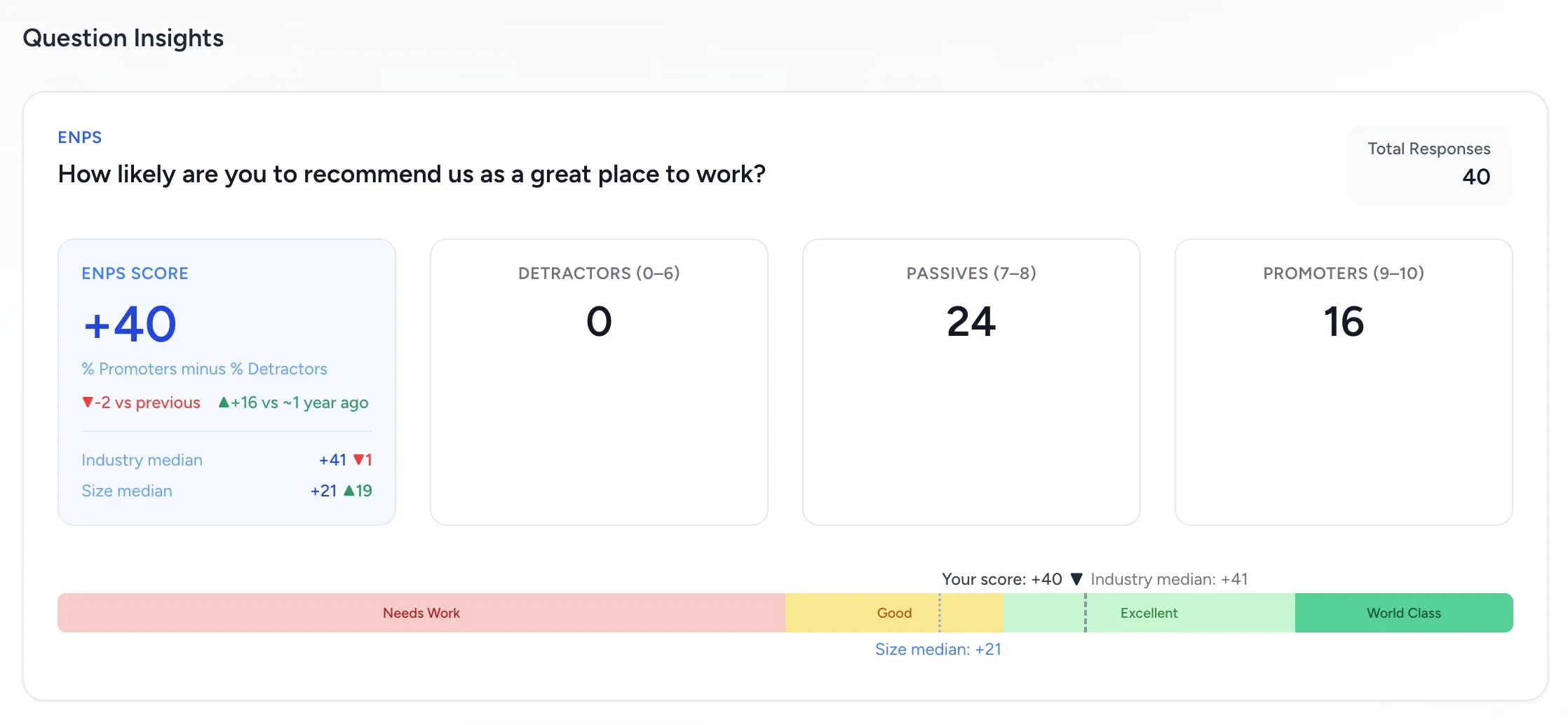
Engagement context: use this view to combine benchmark position with prior-period markers before prioritizing organization-level action themes.
## Rules and constraints
[Section titled “Rules and constraints”](#rules-and-constraints)
* Team-level breakdowns require a minimum of 3 responses per Team. This protects individual anonymity.
* Anonymous Survey responses cannot be traced back to individuals — not even by Admins.
* Open-text responses in anonymous Surveys are never attributed to individuals.
* The survey window must be at least 1 day.
* Engagement Surveys do not require a Manager reporting structure (unlike Performance Reviews).
## Frequently asked questions
[Section titled “Frequently asked questions”](#frequently-asked-questions)
**Q: What is the difference between an Engagement Survey and a Pulse Survey?** A: An Engagement Survey is comprehensive (15-30 questions, quarterly). A Pulse Survey is short (3-5 questions, weekly/biweekly). Engagement Surveys measure broad sentiment; Pulse Surveys track specific indicators over time. See [Pulse Surveys](/help/surveys/pulse-surveys/).
**Q: Can I customize which engagement dimensions are measured?** A: Yes. When building a custom Template, you assign each question to a dimension. You can use the built-in dimensions or create your own.
**Q: Can I add someone to a survey that has already started?** A: Yes. Open the active Survey and scroll to the **Recipients** section. Click the **Add Recipient** button, enter the employee’s email address, and submit. The new Recipient receives an invitation email immediately and can respond until the survey window closes.
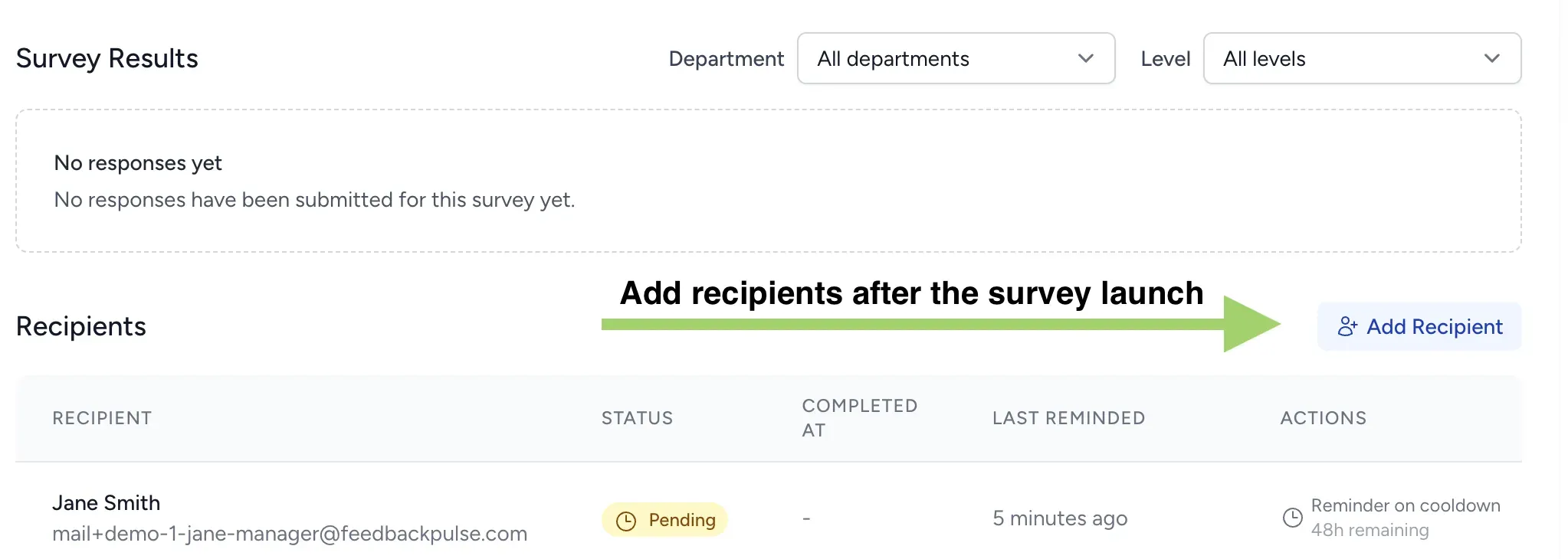
Tip
Adding Recipients mid-survey does not reset or affect existing responses. The survey window end date stays the same — make sure the new Recipient has enough time to respond before the window closes.
Caution
The Add Recipient option is not available for surveys that are already completed, expired, or cancelled.
**Q: Why do I not see team-level results?** A: Team breakdowns require at least 3 responses per Team. If a Team has fewer than 3 respondents, their results are included in the Organization total but not shown separately.
# Manager Survey Templates
> Managers in FeedbackPulse can create their own survey templates scoped to their team, independent of company-wide admin templates, and access them from the My Templates page.
Managers in FeedbackPulse can build and maintain their own survey templates — separate from the company-wide templates that HR Admins manage. This lets every people manager develop a question set that fits their team’s context without waiting for a central template to be created or updated.
For HR and Chiefs of Staff
Manager templates are a practical delegation tool. Rather than fielding requests every time a manager wants to run a team check-in, you can point them to My Templates and let them manage their own question sets. You retain visibility into every survey they launch.
## How manager templates differ from company templates
[Section titled “How manager templates differ from company templates”](#how-manager-templates-differ-from-company-templates)
| | Manager template | Company template |
| --------------------------- | -------------------------- | ----------------------- |
| **Created by** | An individual Manager | An Admin |
| **Visible to** | That Manager only | All Admins and Managers |
| **Scope** | Team | Company |
| **Editable by** | The Manager who created it | Any Admin |
| **Appears in My Templates** | Yes | No |
Managers can select company templates when launching a survey, but company templates do not appear on the Manager’s own **My Templates** page — only their personal team templates do.
## How to access My Templates
[Section titled “How to access My Templates”](#how-to-access-my-templates)
1. Click **Surveys** in the left navigation
2. Click **My Templates** (visible to Managers only)
## How to create a manager template
[Section titled “How to create a manager template”](#how-to-create-a-manager-template)
1. Go to **Surveys > My Templates**
2. Click **New Template**
3. Choose a template type (see table below)
4. Give the template a name and optional description
5. Add your questions — mix question types as needed
6. Click **Save**
The template is saved to your personal library and is immediately available when you create a new Team Survey.
### Template types
[Section titled “Template types”](#template-types)
| Type | Typical use |
| ------------------ | -------------------------------------------- |
| **Pulse** | Short recurring check-ins (3–5 questions) |
| **Engagement** | Broader team sentiment |
| **Leadership** | Upward feedback from direct reports |
| **Onboarding** | New hire experience within the team |
| **Exit Interview** | Departure insights before an employee leaves |
| **eNPS** | Team-level Net Promoter Score |
| **Custom** | Any use case not covered above |
### Question types
[Section titled “Question types”](#question-types)
| Type | When to use |
| ---------------- | ------------------------------------------------------------ |
| **Likert (1–5)** | Measuring agreement, satisfaction, frequency, or performance |
| **Yes / No** | Binary questions with optional follow-up |
| **Open text** | Free-form qualitative feedback |
| **eNPS (0–10)** | Loyalty and advocacy measurement |
## Editing and deleting your templates
[Section titled “Editing and deleting your templates”](#editing-and-deleting-your-templates)
You can edit or delete any template you created from the **My Templates** page. Use the three-dot menu (⋯) on a template card to see these options.
Caution
Editing a template does not change any surveys that have already been launched from it. Changes apply only to future surveys you create using that template.
## Rules and constraints
[Section titled “Rules and constraints”](#rules-and-constraints)
* Manager templates are only visible to the Manager who created them.
* Managers cannot edit or delete company templates created by Admins.
* There is no limit on the number of team templates a Manager can create.
* Deleting a template does not affect surveys already launched from it.
## Frequently asked questions
[Section titled “Frequently asked questions”](#frequently-asked-questions)
**Q: Can I share my template with a colleague or another manager?** A: Not currently. Manager templates are private to the creator. If you want another Manager to use your questions, an Admin can create a company template with the same content, which all Managers can then select.
**Q: Can Admins see my team templates?** A: Admins can see surveys you launch, but they do not have access to edit or delete your personal team templates.
**Q: What happens to my templates if my Manager role is removed?** A: Your templates remain in the system, but you will no longer be able to access or launch them. Contact your HR Admin if you believe your role has been changed in error.
# FeedbackPulse Pulse Surveys
> Run recurring Pulse Surveys in FeedbackPulse with short question sets, fast launch cycles, and real-time results without manager reporting dependencies.
A Pulse Survey is a short, frequent Survey — typically 3 to 5 questions — that tracks team sentiment in real time without the overhead of a full Engagement Survey.
## How Pulse Surveys differ from Engagement Surveys
[Section titled “How Pulse Surveys differ from Engagement Surveys”](#how-pulse-surveys-differ-from-engagement-surveys)
| Attribute | Pulse Survey | Engagement Survey |
| -------------------- | ---------------------------------------- | --------------------------------- |
| **Questions** | 3-5 | 15-30 |
| **Frequency** | Weekly or biweekly | Quarterly or annually |
| **Time to complete** | 1-2 minutes | 10-15 minutes |
| **Results timing** | Real time as responses arrive | After survey window closes |
| **Recurrence** | Can repeat automatically on a schedule | One-time per launch |
| **Best for** | Monitoring trends, early warning signals | Deep analysis, strategic planning |
## How to create a Pulse Survey
[Section titled “How to create a Pulse Survey”](#how-to-create-a-pulse-survey)
1. Go to **Surveys > Create New Survey**
2. Select **Pulse Survey**
3. Choose 3-5 questions (or use a built-in Template)
4. Set the cadence: one-time, weekly, biweekly, or monthly
5. Select Participants
6. Click **Launch**
## Recurring Pulse Surveys
[Section titled “Recurring Pulse Surveys”](#recurring-pulse-surveys)
A Pulse Survey can be set to recur automatically:
* Choose the **frequency** (weekly, biweekly, monthly)
* FeedbackPulse sends the Survey on the configured schedule
* Each recurrence creates a new data point in [Analytics](/help/analytics-and-reports/analytics/)
* Trend data accumulates automatically across recurrences
To stop a recurring Pulse Survey, go to the Survey page and click **Pause** or **End Series**.
## Rules and constraints
[Section titled “Rules and constraints”](#rules-and-constraints)
* Pulse Surveys are limited to 5 questions maximum.
* Pulse Survey results update in real time (unlike Engagement Surveys which aggregate after closing).
* Pulse Surveys do not require a Manager reporting structure.
* A recurring Pulse Survey sends to the same Recipient list each time. To change Recipients, edit the series.
* Team-level breakdowns still require a minimum of 3 responses per Team.
## Reading eNPS insights in Pulse Surveys
[Section titled “Reading eNPS insights in Pulse Surveys”](#reading-enps-insights-in-pulse-surveys)
If your Pulse Survey includes an eNPS question, the question card shows:
* **eNPS score** (`% Promoters - % Detractors`)
* **Promoter / passive / detractor counts** using ranges 9-10, 7-8, and 0-6
* **Benchmark strip** with zones: Needs Work, Good, Excellent, World Class
* **Industry (or global) median** and **size median** markers
* **Trend markers** versus previous and approximately one year ago when comparison data is available

Pulse context: use this card to check quick week-over-week or month-over-month movement before deciding whether to run a deeper follow-up survey.
For full interpretation steps, see [Survey Results & eNPS Benchmarks](/help/surveys/survey-results-and-enps-benchmarks/).
## Example questions
[Section titled “Example questions”](#example-questions)
* “On a scale of 1-5, how would you rate your workload this week?”
* “Do you feel supported by your manager?” (1-5 scale)
* “Is there anything blocking your productivity right now?” (open text)
## Frequently asked questions
[Section titled “Frequently asked questions”](#frequently-asked-questions)
**Q: Can I change the questions in a recurring Pulse Survey?** A: Yes. Editing the questions applies to all future recurrences. Past responses are not affected.
**Q: How many Pulse Surveys can run simultaneously?** A: There is no limit. However, sending too many surveys can cause survey fatigue. We recommend no more than one Pulse Survey per week per Participant.
**Q: Can I add someone to a Pulse Survey that has already started?** A: Yes. Open the active Pulse Survey, scroll to the **Recipients** section, and click **Add Recipient**. Enter the employee’s email address and submit — they will receive an invitation immediately. For recurring series, edit the series to add them to all future recurrences.

Caution
The Add Recipient option is not available for surveys that are completed, expired, or cancelled.
**Q: Do Pulse Survey results appear in the main Analytics dashboard?** A: Yes. Pulse Survey trend data is available in Analytics alongside Engagement Survey results and Review Cycle completion rates.
# Share Survey Results with Colleagues
> Generate a shareable link from a completed survey's report so colleagues can view survey results without signing in.
If you want to share survey results with a colleague, open the completed survey, click **Report**, then click **Generate Link** on the report page. FeedbackPulse creates one shareable report link for that survey.
## Before you start
[Section titled “Before you start”](#before-you-start)
* You need admin access to generate or revoke the share link.
* The survey must have at least one response before sharing is available.
* Anyone with the link can open the shared report, so share it carefully.
Caution
Shared survey report links do not require login. If you no longer want people to access the report, revoke the link from the report page.
## How to share survey results from a completed survey
[Section titled “How to share survey results from a completed survey”](#how-to-share-survey-results-from-a-completed-survey)
1. Open the completed survey.
2. Click **Report** in the top-right corner.
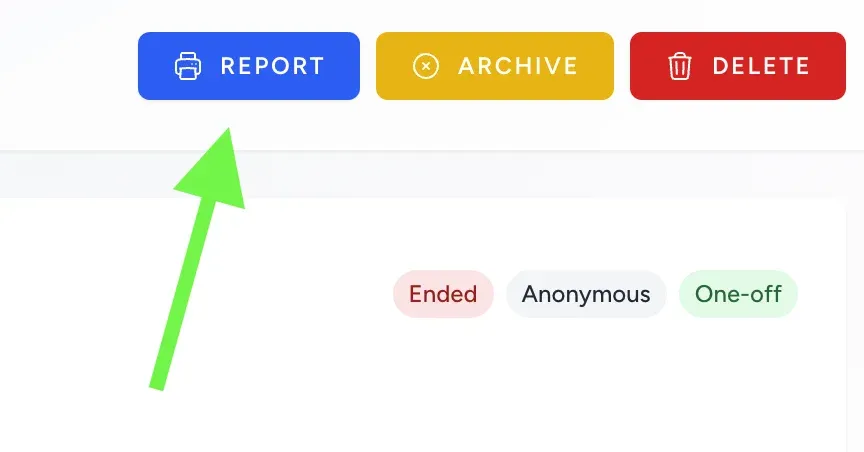
3. On the report page, click **Generate Link**.
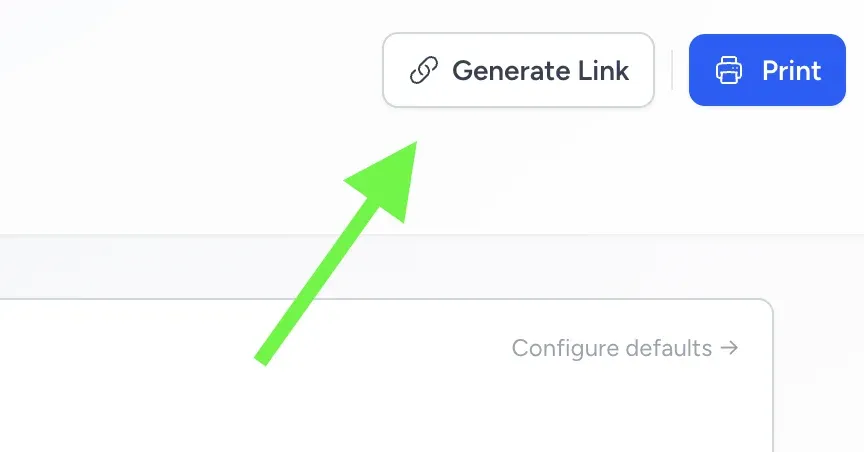
4. After the link is created, click **Copy Link**.
5. Send the link to your colleague by email, chat, or another internal channel.
## What your colleague sees
[Section titled “What your colleague sees”](#what-your-colleague-sees)
Your colleague opens a **Shared Survey Report** page with the survey’s response rate, timing, and question results. They do not need to sign in to FeedbackPulse to view it.
## How the share link works
[Section titled “How the share link works”](#how-the-share-link-works)
| Rule | What it means |
| -------------------------- | ---------------------------------------------------------------------------- |
| One active link per survey | FeedbackPulse stores one share link for each survey report at a time. |
| Public access | Anyone with the URL can view the shared report. |
| No automatic expiry | The link stays active until an admin revokes it. |
| Revoke anytime | Admins can return to the report page and click **Revoke** to disable access. |
## Why you might not see the sharing option
[Section titled “Why you might not see the sharing option”](#why-you-might-not-see-the-sharing-option)
If you do not see **Generate Link** or **Copy Link**, one of these is usually true:
* The survey does not have any responses yet.
* You are not an admin in your FeedbackPulse workspace.
* You are not on the report page for that survey.
## Another way to open the report
[Section titled “Another way to open the report”](#another-way-to-open-the-report)
You can also open survey reports from **Reports** > **Survey Reports**, then open the survey’s **Insights Summary** page and generate the link there.
# Survey Results and eNPS Benchmarks
> Interpret FeedbackPulse survey results with eNPS calculations, benchmark bands, industry and company-size medians, and trend changes across survey periods.
Survey question insights are designed to answer one question quickly: what changed, and where should HR act first? For eNPS questions, FeedbackPulse shows your score, benchmark context, and historical comparison markers in the same card.
## Where to find survey results
[Section titled “Where to find survey results”](#where-to-find-survey-results)
1. Go to **Surveys**.
2. Open a survey instance.
3. Scroll to **Survey Results** for per-question insights.
For export and sharing workflows, admins can also use the survey report views under **Reports**.
## What each question card shows
[Section titled “What each question card shows”](#what-each-question-card-shows)
Every question card includes:
* The question text and type.
* **Total Responses** for that question.
* A question-type specific breakdown:
* **Likert**: average score and distribution.
* **Yes/No**: count and percentage split.
* **Text**: written responses (with anonymity protections).
* **eNPS**: score, promoter/passive/detractor split, benchmark context, and historical deltas.

## How eNPS is calculated
[Section titled “How eNPS is calculated”](#how-enps-is-calculated)
FeedbackPulse uses the standard eNPS model:
| Group | Rating range |
| ---------- | ------------ |
| Detractors | 0 to 6 |
| Passives | 7 to 8 |
| Promoters | 9 to 10 |
Formula:
$$ \text{eNPS} = %\text{Promoters} - %\text{Detractors} $$
This is why you can see negative scores as well as positive scores.
## How to read the benchmark strip
[Section titled “How to read the benchmark strip”](#how-to-read-the-benchmark-strip)
For eNPS questions, the benchmark strip uses four zones:
| Zone | eNPS range |
| ----------- | ---------- |
| Needs Work | -100 to 0 |
| Good | 0 to 30 |
| Excellent | 30 to 70 |
| World Class | 70 to 100 |
The strip also shows reference markers:
* **Your score** marker (current survey).
* **Industry median** marker (or **Global median** if industry is not set).
* **Size median** marker when company-size benchmark data is available.
## Industry and size medians
[Section titled “Industry and size medians”](#industry-and-size-medians)
### Industry median
[Section titled “Industry median”](#industry-median)
* If your company industry is set, FeedbackPulse uses that industry benchmark.
* If industry is not set (or maps to an unsupported benchmark), FeedbackPulse falls back to a global cross-industry median.
* Benchmark ranges are shown only when a low/high range is meaningful.
### Size median
[Section titled “Size median”](#size-median)
Size median is mapped from company size bands:
* `1-10`, `11-50`, `51-200` -> 0-250 band
* `201-500` -> 251-500 band
* `500+` -> 501-1000 band
If company size is not configured, FeedbackPulse infers the size band from active employee count.
## Trend markers: vs previous and vs \~1 year ago
[Section titled “Trend markers: vs previous and vs \~1 year ago”](#trend-markers-vs-previous-and-vs-1-year-ago)
When comparison data exists, eNPS cards show two trend markers:
* **vs previous**
* **vs \~1 year ago**
Each marker shows:
* `▲+N` when the current score is higher
* `▼N` when the current score is lower
* `=` when unchanged
If comparison data is unavailable, the UI shows:
* `no previous data`
* `no prior year data`
### How comparison surveys are selected
[Section titled “How comparison surveys are selected”](#how-comparison-surveys-are-selected)
FeedbackPulse compares against surveys that match all of these rules:
* Same survey template.
* Same tenant.
* Status is `completed` or `expired`.
* Not the current survey.
* Not a master recurring template survey.
Selection logic:
* **Previous**: most recent qualifying survey before the current launch date.
* **\~1 year ago**: qualifying survey with launch date closest to 12 months before the current launch date.
## Privacy and filtering rules that affect results
[Section titled “Privacy and filtering rules that affect results”](#privacy-and-filtering-rules-that-affect-results)
* For anonymous surveys, results are hidden until the minimum anonymity threshold is met (3 completed responses).
* Department and employee-level filters recalculate visible aggregates based on the filtered audience.
* In shared reports, text responses can be withheld when anonymity thresholds are not met.
## Practical interpretation workflow for HR managers
[Section titled “Practical interpretation workflow for HR managers”](#practical-interpretation-workflow-for-hr-managers)
1. Start with **Total Responses** and response rate context.
2. Check eNPS score and zone placement.
3. Compare against **industry/global** and **size** medians.
4. Read **vs previous** and **vs \~1 year ago** together before acting.
5. Use text responses for explanation, but only after confirming sample size is reliable.
If you are reviewing recurring pulse surveys, this sequence helps separate real sentiment shifts from normal month-to-month variance.
# Team Surveys
> Managers in FeedbackPulse can launch Team Surveys to their direct reports independently, view results, and track their surveys separately from company-wide surveys.
A Team Survey is a survey created by a Manager and sent directly to their direct reports. Managers can launch, schedule, and review results for their own Team Surveys without involving HR — making regular team listening fast and self-sufficient.
For HR and Chiefs of Staff
Team Surveys let you distribute the listening workload across your management layer. Managers handle team-level check-ins autonomously while you retain full visibility: every Team Survey appears in your Surveys dashboard with a **Team Survey** badge so you always know what is running and who owns it.
## What Managers can do
[Section titled “What Managers can do”](#what-managers-can-do)
| Action | Manager | Admin |
| ------------------------------- | --------------------- | ------------ |
| Create and launch a Team Survey | Yes | Yes |
| Choose recipients | Direct reports only | Any employee |
| Set a recurring schedule | Yes | Yes |
| Make responses anonymous | Yes | Yes |
| View survey results | Own surveys only | All surveys |
| Add recipients after launch | Direct reports + self | Any employee |
| Edit a survey | Draft only | Draft only |
| Close a live survey | No | Yes |
## Before a Manager can run Team Surveys
[Section titled “Before a Manager can run Team Surveys”](#before-a-manager-can-run-team-surveys)
No separate feature needs to be enabled. Any employee whose profile has the **Manager** role set will automatically see the Team Survey and My Templates options in their navigation. Admins set the Manager role on the **Employees** page when editing a person’s profile.
## How to launch a Team Survey
[Section titled “How to launch a Team Survey”](#how-to-launch-a-team-survey)
1. Click **Surveys** in the left navigation
2. Click **New Survey**
3. Select a template from **My Templates** or from the company template library
4. Set the survey name and optional description
5. Choose anonymity preference (on or off)
6. Set the start date and end date — or enable **Recurring** for an automatic schedule
7. Select recipients from your direct report list
8. Review the summary and click **Launch Survey**
Note
All recipients must be your direct reports. The recipient list is scoped automatically — you will not see employees outside your reporting chain.
### Recurring Team Surveys
[Section titled “Recurring Team Surveys”](#recurring-team-surveys)
Managers can set a Team Survey to repeat on a weekly, biweekly, or monthly cadence — the same recurring options available to Admins. Recurring Team Surveys send automatically to the same recipient list each cycle. To stop or pause a recurring series, contact your HR Admin (only Admins can close live surveys).
### Anonymous Team Surveys
[Section titled “Anonymous Team Surveys”](#anonymous-team-surveys)
When you enable anonymity, individual responses are never attributed to a specific person — not even to you as the survey creator. Results show only aggregated data broken down by department and employee level. Anonymous surveys require at least 3 recipients to protect respondent privacy.
## Viewing your Team Survey results
[Section titled “Viewing your Team Survey results”](#viewing-your-team-survey-results)
Open any Team Survey you created to see its full results page. What you see depends on whether the survey is anonymous:
| Survey type | What you see |
| ----------------- | -------------------------------------------------------------------------------------- |
| **Non-anonymous** | Individual responses, response by recipient, question-level breakdowns |
| **Anonymous** | Aggregated scores, department breakdowns, level breakdowns — no individual attribution |
Results appear in real time as responses arrive — you do not need to wait for the survey window to close.
## Finding your Team Surveys
[Section titled “Finding your Team Surveys”](#finding-your-team-surveys)
Your Team Surveys appear in the main **Surveys** list alongside any company surveys you have been invited to participate in. To see only the surveys you created:
* Click **My Surveys** in the left navigation under Surveys, or
* Open the Surveys list, expand the filters panel, and select **My Surveys** under View
Every survey you created is marked with a **Team Survey** badge so it is easy to identify at a glance.
## Adding recipients after launch
[Section titled “Adding recipients after launch”](#adding-recipients-after-launch)
If you need to add someone to an active Team Survey after it has been sent:
1. Open the survey
2. Scroll to the **Recipients** section
3. Click **Add Recipient**
4. Select from your direct reports (you can also add yourself)
The new recipient receives an invitation immediately and can respond until the survey window closes.
Caution
Adding recipients is not available for surveys that are completed, expired, or cancelled.
## Rules and constraints
[Section titled “Rules and constraints”](#rules-and-constraints)
* Recipients are limited to your direct reports. This is enforced automatically.
* You can add yourself as a recipient after launch via **Add Recipient**.
* Anonymous surveys require at least 3 recipients.
* Only Admins can close a live survey. If you need to stop a Team Survey early, ask your HR Admin.
* You can edit or delete your own surveys only while they are in **Draft** status.
* There is no limit on the number of Team Surveys you can run simultaneously.
## Frequently asked questions
[Section titled “Frequently asked questions”](#frequently-asked-questions)
**Q: Will HR see the results of my Team Survey?** A: Yes. Admins have visibility into all surveys in the organization, including Team Surveys. If the survey is anonymous, Admins see only aggregate results — individual responses are hidden for everyone, including Admins.
**Q: Can my direct reports see each other’s responses?** A: Only if the survey is non-anonymous. In a non-anonymous survey, the survey creator (you) can see individual responses, but recipients only see their own responses after they have submitted.
**Q: Can I use a company-wide template for my Team Survey?** A: Yes. When creating a survey, you can select from both your personal **My Templates** library and the company template library. You can also create your own templates — see [Manager Survey Templates](/help/surveys/manager-templates/).
**Q: What happens if I create a Team Survey for someone who is not a direct report?** A: FeedbackPulse will not allow it. The recipient list is validated server-side, and any submission containing employees outside your direct report chain will be blocked.
**Q: I can see a “Team Survey” badge on some surveys in the main list. What does it mean?** A: The badge marks surveys created by a Manager (rather than by an HR Admin). It helps Admins distinguish team-level listening from company-wide surveys at a glance.
# FeedbackPulse Templates
> Create and manage FeedbackPulse templates for performance reviews, engagement surveys, and pulse surveys, with shared access for all admins.
Templates are reusable question sets that power every review cycle and survey in FeedbackPulse. Once created, a template is available to all Admins in your Organization.
## Can I share a template with another user?
[Section titled “Can I share a template with another user?”](#can-i-share-a-template-with-another-user)
Yes — all custom templates are automatically shared across your Organization. Any Admin in your Organization can use, duplicate, or edit templates created by other Admins.
| Sharing scenario | Supported? |
| ------------------------------------ | -------------------------------------------------------------------------------- |
| Share with Admins in my Organization | Yes — automatic, all Admins see all templates |
| Share with Managers (non-Admin) | Managers can select templates when creating cycles, but cannot edit them |
| Share across different Organizations | Not directly — you would need to recreate the template in the other Organization |
Tip
If you want to let a colleague use your template without them modifying the original, ask them to **duplicate** it first. They can then customize their copy independently.
## Where templates are used
[Section titled “Where templates are used”](#where-templates-are-used)
| Feature | How templates are used |
| ------------------------------------------------------------- | ---------------------------------------------------------------------------------------------- |
| [Performance Reviews](/help/360-reviews/performance-reviews/) | One template per review cycle — includes self-assessment and manager evaluation questions |
| [Engagement Surveys](/help/surveys/engagement-surveys/) | One template per survey — Likert scale and open-text questions mapped to engagement dimensions |
| [Pulse Surveys](/help/surveys/pulse-surveys/) | One template per pulse — typically 3–5 quick questions |
## How to create a custom template
[Section titled “How to create a custom template”](#how-to-create-a-custom-template)
1. Go to **Settings > Templates**
2. Click **Create Template**
3. Choose a type (Performance Review, Engagement Survey, or Pulse Survey)
4. Add your questions — you can mix question types (rating scales, open text, multiple choice)
5. Click **Save**
Your template is now available to all Admins when they create a new cycle or survey.
## How to duplicate a template
[Section titled “How to duplicate a template”](#how-to-duplicate-a-template)
1. Go to **Settings > Templates**
2. Find the template you want to copy
3. Click the **three-dot menu (⋯)** and select **Duplicate**
4. Rename and customize the copy as needed
5. Click **Save**
## Built-in vs. custom templates
[Section titled “Built-in vs. custom templates”](#built-in-vs-custom-templates)
| | Built-in templates | Custom templates |
| ---------------- | ------------------------------------------------------------------ | ------------------------------------ |
| **Created by** | FeedbackPulse | Your team |
| **Editable** | Can be duplicated and customized, but originals cannot be modified | Fully editable by any Admin |
| **Available to** | All Organizations | Your Organization only |
| **Deletable** | No | Yes (if not used in an active cycle) |
## Rules and constraints
[Section titled “Rules and constraints”](#rules-and-constraints)
* A template cannot be modified after it is used in an active (launched) cycle. Duplicate it and make changes to the copy instead.
* Deleting a template does not affect historical data — completed cycles retain their questions and responses.
* Each cycle or survey uses exactly one template.
* There is no limit to the number of custom templates you can create.
## Frequently asked questions
[Section titled “Frequently asked questions”](#frequently-asked-questions)
**Q: Can I export a template to use in another Organization?** A: Not currently. Templates are scoped to a single Organization. To use the same questions in another Organization, you would need to recreate the template there.
**Q: What happens if someone edits a template I’m using in a draft cycle?** A: Template changes only affect future cycles. If your cycle is still in draft (not yet launched), it will use the latest version of the template when you launch it.
**Q: Can Managers create templates?** A: No. Only Admins can create and edit templates. Managers can select from existing templates when creating review cycles.
# Common FeedbackPulse Issues
> Resolve common FeedbackPulse issues, including login problems, survey setup blockers, missing review cycles, delayed results, and email delivery failures.
## I did not receive the invitation email
[Section titled “I did not receive the invitation email”](#i-did-not-receive-the-invitation-email)
**Cause:** Email was blocked by a corporate spam filter or the address was entered incorrectly.
**Solution:**
1. Check your spam/junk folder
2. Ask your Admin to verify the email address in **Settings > Team Members**
3. Ask your IT team to allowlist emails from `feedbackpulse.com`
4. The Admin can resend the invitation from the Team Members page
## I cannot log in
[Section titled “I cannot log in”](#i-cannot-log-in)
**Cause:** Incorrect credentials, expired password, or deactivated account.
**Solution:**
1. Verify you are using the correct email address
2. Click **Forgot Password** on the login page to reset
3. If your account was deactivated by an Admin, contact them to reactivate it
## My Review Cycle is not showing
[Section titled “My Review Cycle is not showing”](#my-review-cycle-is-not-showing)
**Cause:** The User is not a Participant, or the cycle has not been launched yet.
**Solution:**
1. Ask your Manager or Admin to confirm you are a Participant in the cycle
2. Check that the cycle status is “Launched” (not “Draft”)
3. Review Cycles only appear to Participants after the start date
## Survey results are not appearing
[Section titled “Survey results are not appearing”](#survey-results-are-not-appearing)
**Cause:** Insufficient responses for team-level breakdowns, or the survey window is still open.
**Solution:**
1. Team-level breakdowns require a minimum of 3 responses per Team
2. Engagement Survey results are shown after the survey window closes
3. Pulse Survey results update in real time — if no data appears, no responses have been submitted yet
## The Next button is greyed out when I create a survey
[Section titled “The Next button is greyed out when I create a survey”](#the-next-button-is-greyed-out-when-i-create-a-survey)
**Cause:** FeedbackPulse only enables **Next** on the **Recipients** step after you have selected valid recipients. If the survey is set to **Anonymous**, you need at least 3 recipients before you can continue.
**Solution:**
1. Check the selected count at the top of the **Recipients** step. If it shows `0`, select at least one available employee.
2. If the survey is **Anonymous**, select at least 3 recipients or go back to **Basic Info** and turn anonymity off.
3. If you expected someone to appear in the list, confirm they are not marked as terminated. Terminated employees are excluded automatically.
4. When the selected count is high enough, the **Next** button becomes available and you can move to **Review**.
## I want to change my response after submitting
[Section titled “I want to change my response after submitting”](#i-want-to-change-my-response-after-submitting)
**Rule:** Submitted responses cannot be edited. This is by design to maintain data integrity.
**Workaround:** Contact your Admin. Depending on the cycle status, they may be able to reopen the cycle or extend the deadline so you can submit a corrected response.
## My team’s engagement scores seem unexpected
[Section titled “My team’s engagement scores seem unexpected”](#my-teams-engagement-scores-seem-unexpected)
**Possible causes:**
1. Team membership changed between survey periods — scores reflect different people
2. Fewer than 3 Team members responded — team breakdown is not shown
3. Comparing the wrong survey periods — check the date range in Analytics
## Still need help?
[Section titled “Still need help?”](#still-need-help)
If your issue is not listed here, [contact our support team](/help/troubleshooting/contact-support/).
# Contact FeedbackPulse Support
> Contact FeedbackPulse support by email or support form and learn expected response times when you need help with account, survey, or review issues.
Cannot find what you need in the help center? The FeedbackPulse support team can help.
## How to reach us
[Section titled “How to reach us”](#how-to-reach-us)
| Channel | Details |
| ---------------- | -------------------------------------------------------------- |
| **Email** | |
| **Support form** | [feedbackpulse.com/support](https://feedbackpulse.com/support) |
## What to include in your request
[Section titled “What to include in your request”](#what-to-include-in-your-request)
Include the following to help us resolve your issue quickly:
1. **Organization name** and the email address on your account
2. **Description** of the issue or question
3. **Steps to reproduce** (if reporting a bug)
4. **Screenshots** if applicable
## Response times
[Section titled “Response times”](#response-times)
All support requests receive a response within one business day.
## Feature requests
[Section titled “Feature requests”](#feature-requests)
Send feature requests to with “Feature Request” in the subject line.
## What support can and cannot do
[Section titled “What support can and cannot do”](#what-support-can-and-cannot-do)
| Support can | Support cannot |
| ----------------------------------- | ----------------------------------------------- |
| Reset passwords and unlock accounts | Access individual anonymous Survey responses |
| Reactivate deactivated Users | De-anonymize anonymous feedback |
| Extend Review Cycle deadlines | Delete individual Review responses (Admin only) |
| Export data on behalf of Admins | Issue retroactive refunds on invoices |
| Assist with GDPR data requests | Provide phone support (email only) |