FeedbackPulse Pulse Surveys
A Pulse Survey is a short, frequent Survey, typically 3 to 5 questions, that tracks team sentiment in real time without the overhead of a full Engagement Survey.
How Pulse Surveys differ from Engagement Surveys
Section titled “How Pulse Surveys differ from Engagement Surveys”| Attribute | Pulse Survey | Engagement Survey |
|---|---|---|
| Questions | 3-5 | 15-30 |
| Frequency | Weekly or biweekly | Quarterly or annually |
| Time to complete | 1-2 minutes | 10-15 minutes |
| Results timing | Real time as responses arrive | After survey window closes |
| Recurrence | Can repeat automatically on a schedule | One-time per launch |
| Best for | Monitoring trends, early warning signals | Deep analysis, strategic planning |
How to create a Pulse Survey
Section titled “How to create a Pulse Survey”- Go to Surveys > Create New Survey
- Select Pulse Survey
- Add a small set of questions, typically 3-5 (or use a built-in Template)
- Set the cadence: one-time, or recurring daily, weekly, or monthly (choose repeat every 2 weeks for a biweekly cadence)
- Select Participants
- Click Launch
Recurring Pulse Surveys
Section titled “Recurring Pulse Surveys”A Pulse Survey can be set to recur automatically:
- Choose the frequency (daily, weekly, or monthly, with a repeat-every-N interval for cadences like biweekly)
- FeedbackPulse sends the Survey on the configured schedule
- Each recurrence creates a new data point in Analytics
- Trend data accumulates automatically across recurrences
To stop a recurring Pulse Survey, go to the Survey page and click Pause (to hold future sends) or Stop (to end the series).
Rules and constraints
Section titled “Rules and constraints”- There is no fixed maximum question count for a Pulse Survey. Keeping it to 3-5 questions is recommended to protect response rates and completion time.
- Pulse Survey results update in real time (unlike Engagement Surveys which aggregate after closing).
- Pulse Surveys do not require a Manager reporting structure.
- A recurring Pulse Survey sends to the same Recipient list each time. To change Recipients, edit the series.
- Department-level breakdowns still require a minimum of 3 responses per Department.
Reading eNPS insights in Pulse Surveys
Section titled “Reading eNPS insights in Pulse Surveys”If your Pulse Survey includes an eNPS question, the question card shows:
- eNPS score (
% Promoters - % Detractors) - Promoter / passive / detractor counts using ranges 9-10, 7-8, and 0-6
- Benchmark strip with zones: Needs Work, Good, Excellent, World Class
- Industry (or global) median and size median markers
- Trend markers versus previous and approximately one year ago when comparison data is available
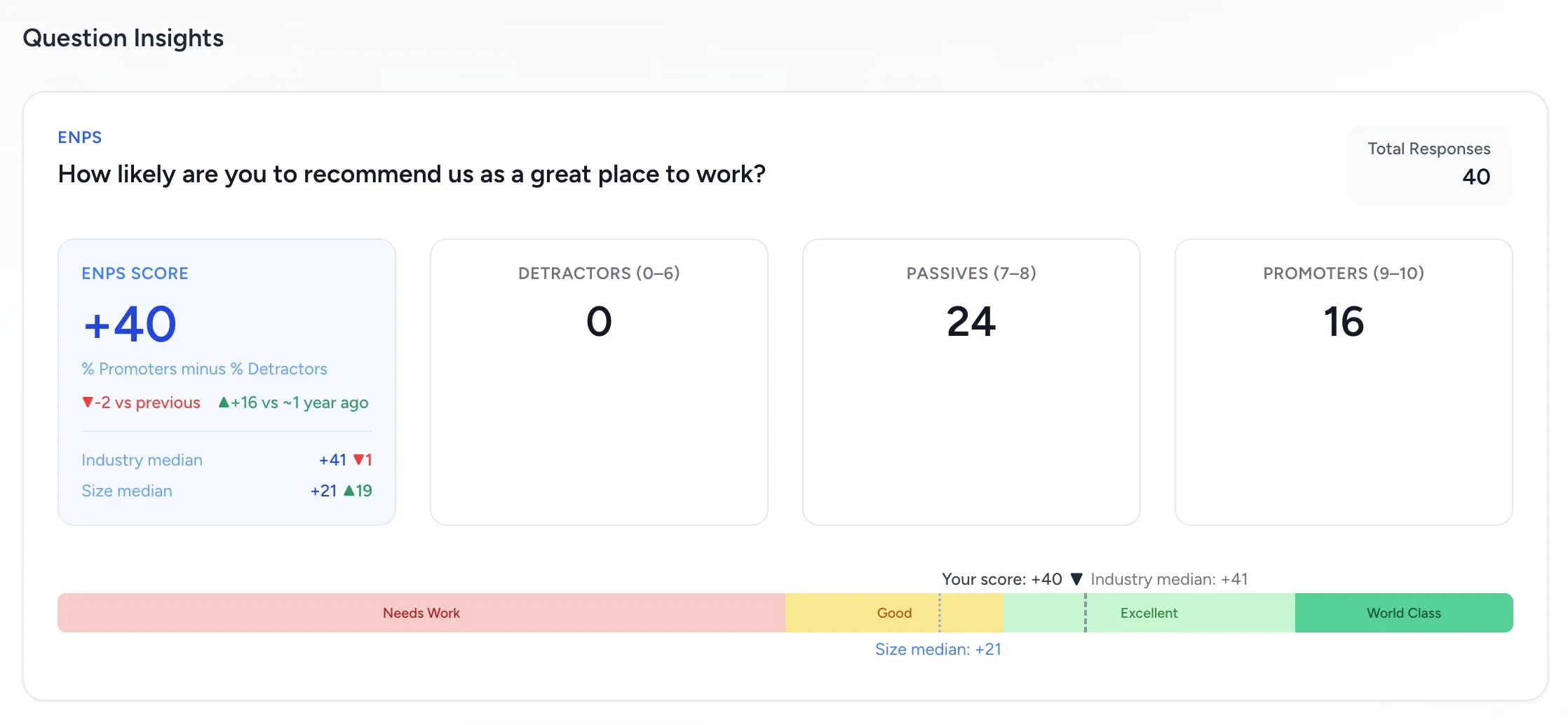
Pulse context: use this card to check quick week-over-week or month-over-month movement before deciding whether to run a deeper follow-up survey.
For full interpretation steps, see Survey Results & eNPS Benchmarks.
Example questions
Section titled “Example questions”- “On a scale of 1-5, how would you rate your workload this week?”
- “Do you feel supported by your manager?” (1-5 scale)
- “Is there anything blocking your productivity right now?” (open text)
Frequently asked questions
Section titled “Frequently asked questions”Q: Can I change the questions in a recurring Pulse Survey? A: The questions shown inside a recurring Pulse Survey are a saved snapshot and are not edited from the survey results page. To translate or customize the Weekly Pulse Check questions, create or edit a Survey Template first, then start a new recurring Pulse Survey from that template.
- Go to Surveys > Templates.
- Open the template you want to customize, or click New Template to create one.
- Replace the question text with your translated or customized wording.
- Save the template.
- Create a new recurring Pulse Survey and choose the updated template.
Past survey responses and already-created survey instances keep their original questions.
Q: How many Pulse Surveys can run simultaneously? A: It depends on your plan. Free plan workspaces are capped at 5 total active, scheduled, and draft Surveys across all Survey types (not just Pulse). Trial workspaces are capped at 15. Paid and Enterprise plans have no cap. However many you can run, sending too many surveys can cause survey fatigue. We recommend no more than one Pulse Survey per week per Participant.
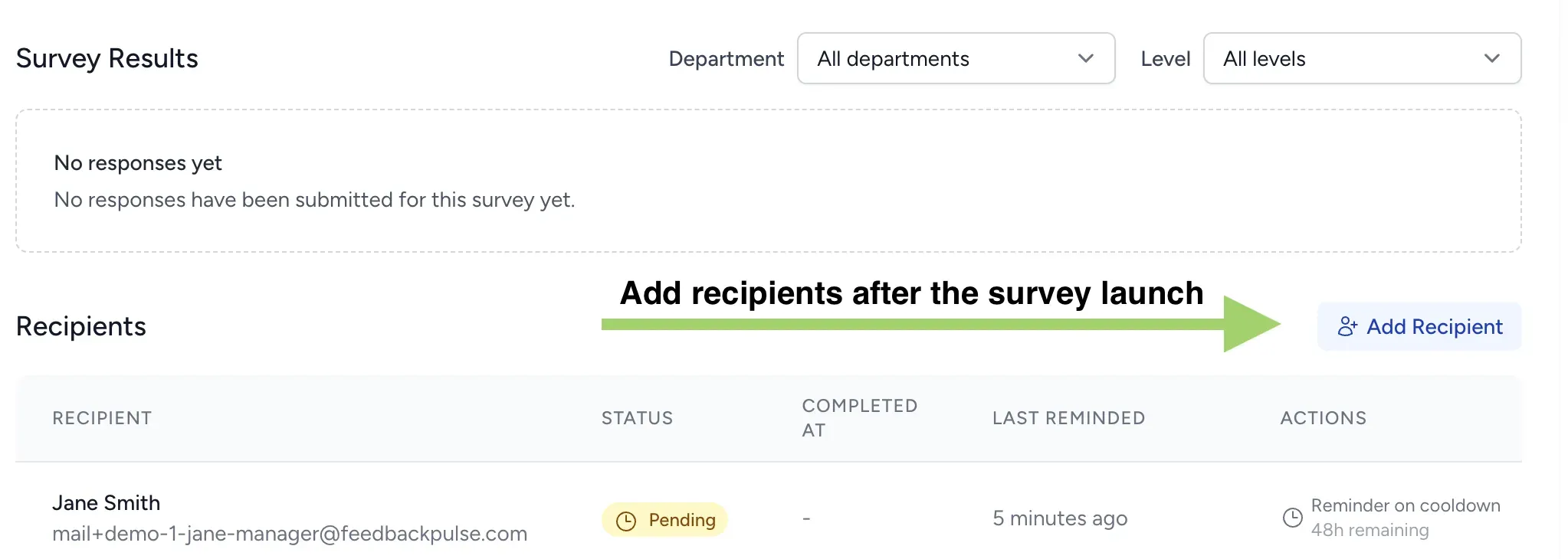
Q: Can I add someone to a Pulse Survey that has already started? A: Yes. Open the active Pulse Survey, scroll to the Recipients section, and click Add Recipient. Select the employee from the list and submit. They will receive an invitation immediately. For recurring series, edit the series to add them to all future recurrences.
Q: Do Pulse Survey results appear alongside other survey results? A: Yes. Pulse Survey reports appear in Reports > Survey Reports the same way Engagement Survey reports do, with each recurrence contributing its own trend data point.