Share Survey Results with Colleagues
If you want to share survey results with a colleague, open the completed survey, click Report, then click Generate Link on the report page. FeedbackPulse creates one shareable report link for that survey.
Before you start
Section titled “Before you start”- You need admin access to generate or revoke the share link.
- The survey must have at least one response before sharing is available.
- Anyone with the link can open the shared report, so share it carefully.
How to share survey results from a completed survey
Section titled “How to share survey results from a completed survey”- Open the completed survey.
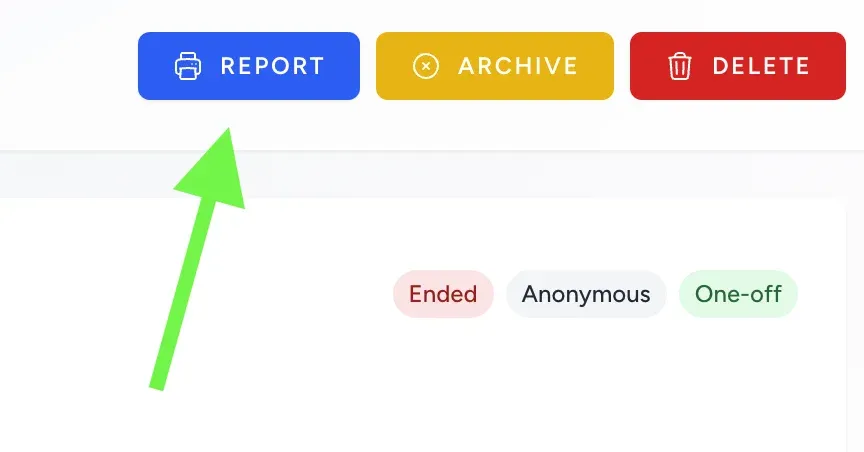
- Click Report in the top-right corner.
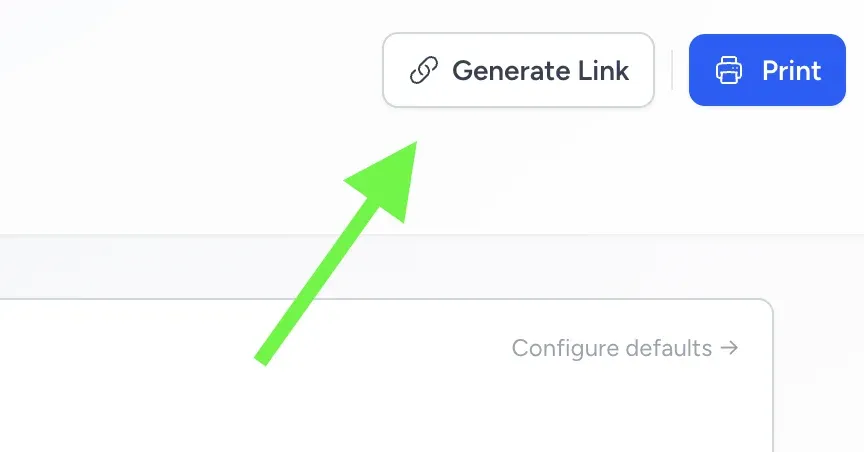
- On the report page, click Generate Link.
- After the link is created, click Copy Link.
- Send the link to your colleague by email, chat, or another internal channel.
What your colleague sees
Section titled “What your colleague sees”Your colleague opens a Shared Survey Report page with the survey’s response rate, timing, and question results. They do not need to sign in to FeedbackPulse to view it.
How to share manager-team report links
Section titled “How to share manager-team report links”Admins can also create manager-scoped report links from Reports > Survey Reports. A manager-scoped link opens a report view locked to one manager’s direct-report responses for that survey.
- Go to Reports > Survey Reports.
- Open the survey’s Share Link actions.
- Expand Manager links.
- Click Generate Link beside the manager.
- Click Copy Link and send it through your internal channel, such as email or Microsoft Teams.
Manager-scoped links are useful when you want a manager to review their team’s results without seeing the full organization report.
| Survey type | What the manager-scoped link shows |
|---|---|
| Named | Aggregated question results and text comments for that manager’s team. Respondent names are not shown in the shared report. |
| Anonymous | Team results only when anonymity thresholds are met. If the manager’s team does not have enough completed responses, the report hides the protected results. |
How the share link works
Section titled “How the share link works”| Rule | What it means |
|---|---|
| Separate links by scope | FeedbackPulse can store a full-report link, department links, and manager-team links for the same survey. |
| One active link per scope | Regenerating a manager or department link replaces the previous link for that same manager or department only. |
| Public access | Anyone with the URL can view that shared report scope. |
| No automatic expiry | The link stays active until an admin revokes it. |
| Revoke anytime | Admins can return to the report page and click Revoke to disable access. |
Why you might not see the sharing option
Section titled “Why you might not see the sharing option”If you do not see Generate Link or Copy Link, one of these is usually true:
- The survey does not have any responses yet.
- You are not an admin in your FeedbackPulse workspace.
- You are not on the report page for that survey.
Another way to open the report
Section titled “Another way to open the report”You can also open survey reports from Reports > Survey Reports, then open the survey’s Insights Summary page and generate the link there.