360 Review Cycle Training Manual
Use this manual when your HR or Operations team is running its first 360 review cycle in FeedbackPulse. It explains what admins need to configure, what managers need to do, what employees should expect, and how to close the cycle cleanly.
For shorter reference pages, see Performance Reviews, Peer Reviews, and Review Cycle Analytics.
Watch: run your first review cycle
Section titled “Watch: run your first review cycle”What a 360 review cycle includes
Section titled “What a 360 review cycle includes”A 360 review cycle usually combines self-review, manager review, and peer or upward feedback in one time-bound process.
| Workstream | Created by | What participants do |
|---|---|---|
| Performance reviews | Admins add reviews on an active cycle that includes performance reviews; managers can add their own direct reports when enabled on the cycle | Employees complete a self-review and managers complete a manager review |
| Peer reviews | Admins, managers, or employees, depending on the cycle setup | Reviewers answer peer review questions about a colleague |
| Upward reviews | Admins can bulk assign direct reports to review managers | Employees give feedback about their manager through peer review requests |
| Analysis pack | Available after the cycle is completed | Admins export the full cycle; managers may export a manager-team pack where enabled |
Before you launch
Section titled “Before you launch”Check the setup before the review window opens. Most cycle problems come from missing manager relationships, unfinished questions, or unclear reviewer ownership.
- Active employees are invited and can access FeedbackPulse.
- Each employee who needs a performance review has a manager assigned. See Invite Your Team.
- Performance review questions are final in Settings > Performance Reviews. There is no per-cycle template; the current questions are snapshotted onto each new review.
- Peer review questions are final.
- Peer review privacy is clear: anonymous by default or named by default.
- Manager reviewer scope is clear: direct reports only, same department, or whole company.
- Peer reviewer selection mode is clear: manager assigns, employee nominates, or HR assigns.
- Review period and due date are agreed. FeedbackPulse requires the due date to be at least seven days after the review period end date.
- Notification recipients and auto-close behavior are set for the cycle.
- Managers know whether they need to assign peer reviewers.
- Employees know what feedback they will be asked to complete.
- Decide whether managers may add performance reviews for their own direct reports on this cycle. That control is on Reviews > Cycles (not Settings > Review Cycles) and starts off.
Admin runbook
Section titled “Admin runbook”Admins own the cycle setup, launch, completion tracking, close, and export.
1. Confirm users and reporting lines
Section titled “1. Confirm users and reporting lines”Go to Settings > Team Management and check active employees, roles, and each person’s Reports to manager. Fix missing managers before generating performance reviews or upward review assignments.
2. Confirm review questions and peer settings
Section titled “2. Confirm review questions and peer settings”Go to Settings > Performance Reviews to review performance review questions. Go to Settings > Peer Reviews to review peer review questions, manager reviewer scope, default review privacy, nomination defaults, and peer review lifecycle emails.
Use wording that managers and employees can answer with examples. If you use competencies or company values, make sure those labels are final before the cycle launches.
3. Create the review cycle
Section titled “3. Create the review cycle”Go to Reviews > Cycles and choose New Cycle. (Settings > Review Cycles is a separate, configuration-only page for default auto-close behavior and notification recipients. It does not create cycles.)
Start by choosing the launch mode and checking the cycle name. FeedbackPulse can generate a cycle name from the period and frequency, but admins can edit it before saving.

Use Keep as Draft if HR is still preparing. Use Schedule Launch when the cycle should be prepared now and launched later. Use Launch Now when the review window should open immediately.
Next, set the period under review, cycle length, and due date. The date timeline helps confirm whether dates were entered manually or generated automatically.

Finally, confirm cycle settings such as auto-close behavior and peer reviewer selection. If the cycle uses employee nominations, also check the nomination audience and whether initial nomination emails should be sent.

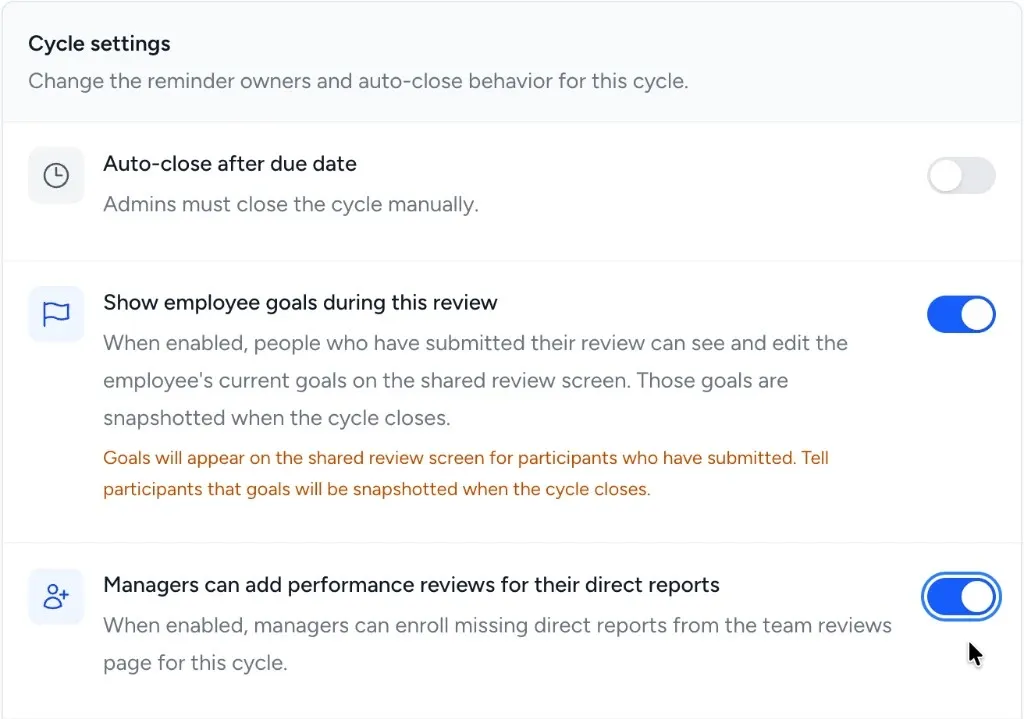
The Cycle settings section on the cycle edit screen also includes Show employee goals during this review and Managers can add performance reviews for their direct reports. The manager enrollment toggle starts off, stays changeable while the cycle is still collecting reviews, and is not on Settings > Review Cycles.
4. Add performance reviews
Section titled “4. Add performance reviews”Launching or scheduling a cycle does not create performance review forms. After the cycle is active, add performance reviews from the active cycle page or from the admin banner on Performance Reviews.
The cycle header on the active cycle page says Add performance reviews. The empty cycle table and the Performance Reviews banner still say Generate Reviews. Those are the same admin action, not two features.

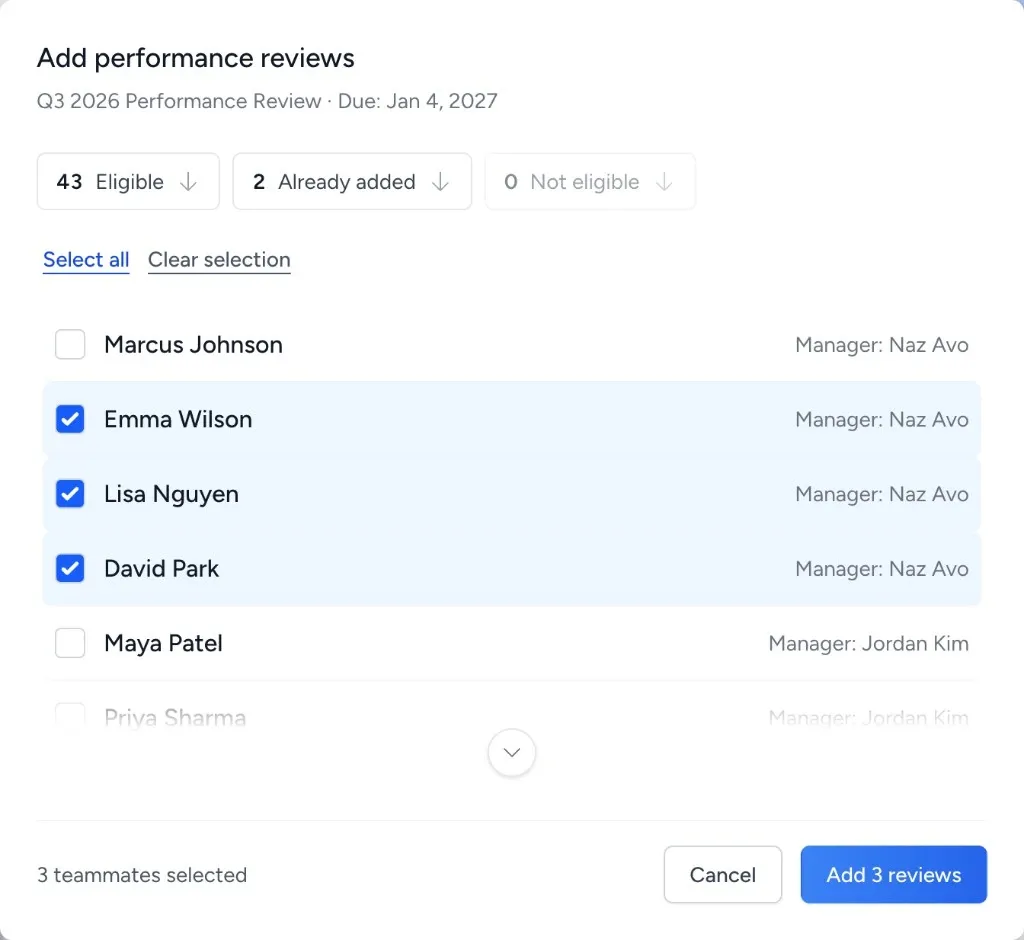
The preview shows who will receive a review, who already has one in the cycle, and who is not eligible. You can add active employees who have an assigned manager and do not already have a review in that cycle. The manager on each form is the employee’s manager at creation; nobody picks a different reviewer. If the selection includes someone who is no longer eligible, the whole request is rejected.
Each new review sends the same assignment email. Adding performance reviews does not create peer reviews or upward reviews. Create those separately.
5. Create peer and upward review requests
Section titled “5. Create peer and upward review requests”Use the peer review method that matches your cycle setup.
| Need | Where to do it |
|---|---|
| Managers choose reviewers for their direct reports | Managers use Peer Reviews > Manage and Request peer feedback |
| Employees nominate their own peer reviewers | Employees follow the peer nomination prompt while the active cycle allows nominations |
| HR assigns all reviewers | Admins use cycle-level peer assignment controls |
| Direct reports review managers | Admins use Assign reviewers > Direct reports review managers from the active cycle |
When managers request peer feedback, the reviewer picker follows the setting under Settings > Peer Reviews. Depending on your setup, managers may choose only their direct reports, people in the reviewee’s department, or the whole company. FeedbackPulse prevents people from reviewing themselves and prevents the direct manager from being selected as a peer reviewer for that same employee.
6. Monitor completion
Section titled “6. Monitor completion”Open the active cycle to track progress across performance reviews and peer reviews. Watch the completion cards, department breakdown, performance review table, peer review table, and any “Needs attention” signals.
Use Nudge Pending Reviews when the cycle has eligible incomplete reviews. Nudges are available only for active cycles and respect reminder limits and recent-reminder cooldowns.
7. Close the cycle
Section titled “7. Close the cycle”Close the cycle when the review window is finished and any expected late submissions have been handled.
Closing a cycle locks submissions and edits. Open peer reviews in that cycle are marked incomplete. Performance review and peer review data remain available for reporting and export after the cycle is completed.
8. Export and review the analysis pack
Section titled “8. Export and review the analysis pack”After the cycle is completed, use Export analysis pack from the completed cycle. The ZIP includes cycle context, completion summary, performance answers, peer answers, questions, and an AI analysis guide.
Treat the export as sensitive HR data. Review any spreadsheet, BI, or AI-assisted summary before sharing it with leaders or managers.
Manager guide
Section titled “Manager guide”Managers complete their own assigned reviews and may be asked to assign peer reviewers for direct reports.
Complete your own assigned reviews
Section titled “Complete your own assigned reviews”Use Performance Reviews for your own self-review and any manager reviews you need to complete. Use Peer Reviews for peer or upward reviews assigned to you.
Write from observable work. Name the situation, the behavior, and the impact so the person receiving feedback can act on it.
Complete manager reviews for direct reports
Section titled “Complete manager reviews for direct reports”Open each assigned performance review and complete the manager review section. Strong manager feedback includes examples, outcomes, and one or two clear next steps. Avoid introducing major performance concerns for the first time in written review comments.
Add performance reviews for your direct reports
Section titled “Add performance reviews for your direct reports”Admins can allow managers to add performance reviews for their own direct reports on a cycle. The control is on Reviews > Cycles for a cycle that includes performance reviews, labeled Managers can add performance reviews for their direct reports, with the hint When enabled, managers can enroll missing direct reports from the team reviews page for this cycle. It starts off, stays changeable while the cycle is still collecting reviews, and is not on Settings > Review Cycles. Turning it off hides the action and leaves existing reviews in place. A duplicated cycle starts off.
When the control is on for a cycle, go to Performance Reviews > Team and choose Add performance reviews. The list shows only your active direct reports who are missing a review in that cycle. Choose the people to add (use Select all to choose everyone in the list). New rows then use the existing Start action. People who no longer qualify are skipped; everyone else in the same request is still added.
The button is hidden when the switch is off, the cycle filter is All Cycles, the cycle is draft, scheduled, completed, or peer-only, you have no missing active direct report, or there are no active performance review questions. You cannot create the cycle, edit questions, choose another reviewer, or have forms appear at launch. An admin who is not that person’s manager uses the admin action on the cycle page. The admin dialog has Eligible, Already added, and Not eligible tabs. The manager dialog does not.
Assign peer reviewers when HR asks you to
Section titled “Assign peer reviewers when HR asks you to”If the cycle uses manager assignment, go to Peer Reviews > Manage and choose Request peer feedback.
For each direct report:
- Choose the teammate being reviewed.
- Pick reviewers who worked closely enough with the person to give useful feedback.
- Confirm the current review cycle.
- Check whether the request should be anonymous.
- Send the requests.
Picking around three reviewers is a practical default. It gives the employee more than one perspective without overloading the team.
Prepare for the follow-up conversation
Section titled “Prepare for the follow-up conversation”After the cycle closes, review the full picture before the 1:1:
- The employee self-review
- Your manager review
- Peer feedback
- Upward feedback, where relevant
- Repeated strengths, gaps, and themes
Use the review as input for a conversation. The goal is not to read the report line by line. The goal is to help the person understand what to keep doing, what to improve, and what support they need.
Employee guide
Section titled “Employee guide”Employees complete the reviews assigned to them and may nominate peer reviewers when the cycle uses employee nominations.
Complete your self-review
Section titled “Complete your self-review”Go to Performance Reviews and open your assigned review. Reflect on the full review period, not only the last few weeks.
Useful self-review answers cover what went well, where you got stuck, what you learned, and how your work connected to team priorities or performance review goals.
Complete peer or upward reviews
Section titled “Complete peer or upward reviews”Go to Peer Reviews and complete each assigned review. If you are reviewing your manager, use the same standard: be specific, constructive, and grounded in examples.
Good peer feedback is:
- Specific
- Based on work you actually saw
- Balanced between strengths and growth areas
- Practical enough for the person to use
Instead of writing “Great communicator,” write what happened and why it helped, such as “Kept the launch team aligned by sending clear status updates before blockers became urgent.”
Nominate peer reviewers if prompted
Section titled “Nominate peer reviewers if prompted”If your organization uses employee nominations, FeedbackPulse may ask you to nominate peers during the active cycle. Choose people who worked closely enough with you during the review period to give useful feedback.
Suggested operating timeline
Section titled “Suggested operating timeline”| Timing | HR or Operations task |
|---|---|
| 1-2 weeks before launch | Confirm employees, managers, questions, anonymity, reviewer selection mode, and manager instructions |
| Launch day | Launch or schedule the cycle. Launching does not create performance review forms; add performance reviews once the cycle is active, then create upward review assignments if used, and announce next steps |
| During the review window | Track completion, help managers assign missing reviewers, answer employee questions, and send nudges where needed |
| Before close | Review incomplete items and decide whether to extend the due date or close the cycle |
| After close | Export the analysis pack, review themes, prepare manager summaries, and schedule follow-up conversations |
Common questions
Section titled “Common questions”Does Generate Reviews create every 360 review?
Section titled “Does Generate Reviews create every 360 review?”No. Generate Reviews (labeled Add performance reviews on the active cycle header) creates performance reviews only, and only for active employees with an assigned manager who do not already have a review in that cycle. Peer reviews and upward reviews are created through peer review requests or cycle assignment tools. Launching or scheduling a cycle does not create any forms.
Can people keep submitting after the cycle is closed?
Section titled “Can people keep submitting after the cycle is closed?”No. Completed cycles are locked. Reviewers can no longer submit or edit responses for that cycle.
Should peer reviews be anonymous?
Section titled “Should peer reviews be anonymous?”That depends on the type of feedback you want and how much trust already exists in the organization. Anonymous peer reviews can make people more comfortable sharing honest feedback. Named peer reviews can make follow-up conversations clearer. Set the default before launch and explain it to employees.
When does anonymous peer feedback appear?
Section titled “When does anonymous peer feedback appear?”Anonymous peer feedback is shown in aggregate. FeedbackPulse uses anonymity thresholds before showing anonymous feedback, and some cycle modes can show partial aggregate feedback when enough reviewers were requested and at least one response is complete.
Who should read this manual?
Section titled “Who should read this manual?”HR and Operations teams should use the whole manual. Managers can start with Manager guide. Employees can start with Employee guide.