



Some of the people you most need to hear from will never open a survey email. They don't have a work inbox, or they share a terminal, or they only see a screen at the start of a shift. Sending them a personal link doesn't work, and an open survey link with no check-in lets anyone answer, as many times as they like.
FeedbackPulse shared survey links sit in between. One link and QR code reach everyone, and a quick Employee ID check-in keeps the audience to the people you chose and limits each of them to one response. It works on a personal phone, an iPad on a stand, or a PC in the break room, and the screen cleans itself up between people.
What you can do with shared survey links
Publish one link and QR code for the whole team
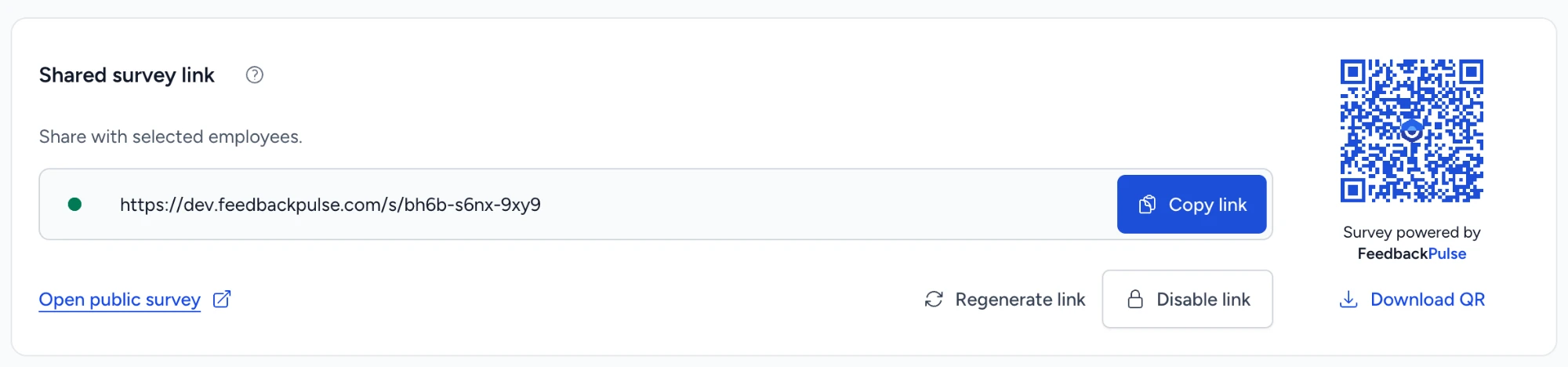
Every shared-link survey gets one short URL in the form app.feedbackpulse.com/s/xxxx-xxxx-xxxx and a branded QR code you can download as an image. The code is random, not sequential, and it is not derived from anything about your employees. Copy the link into a team chat, print the QR code for a noticeboard, or open it on a tablet. It is the same survey everywhere.
Check employees in by Employee ID
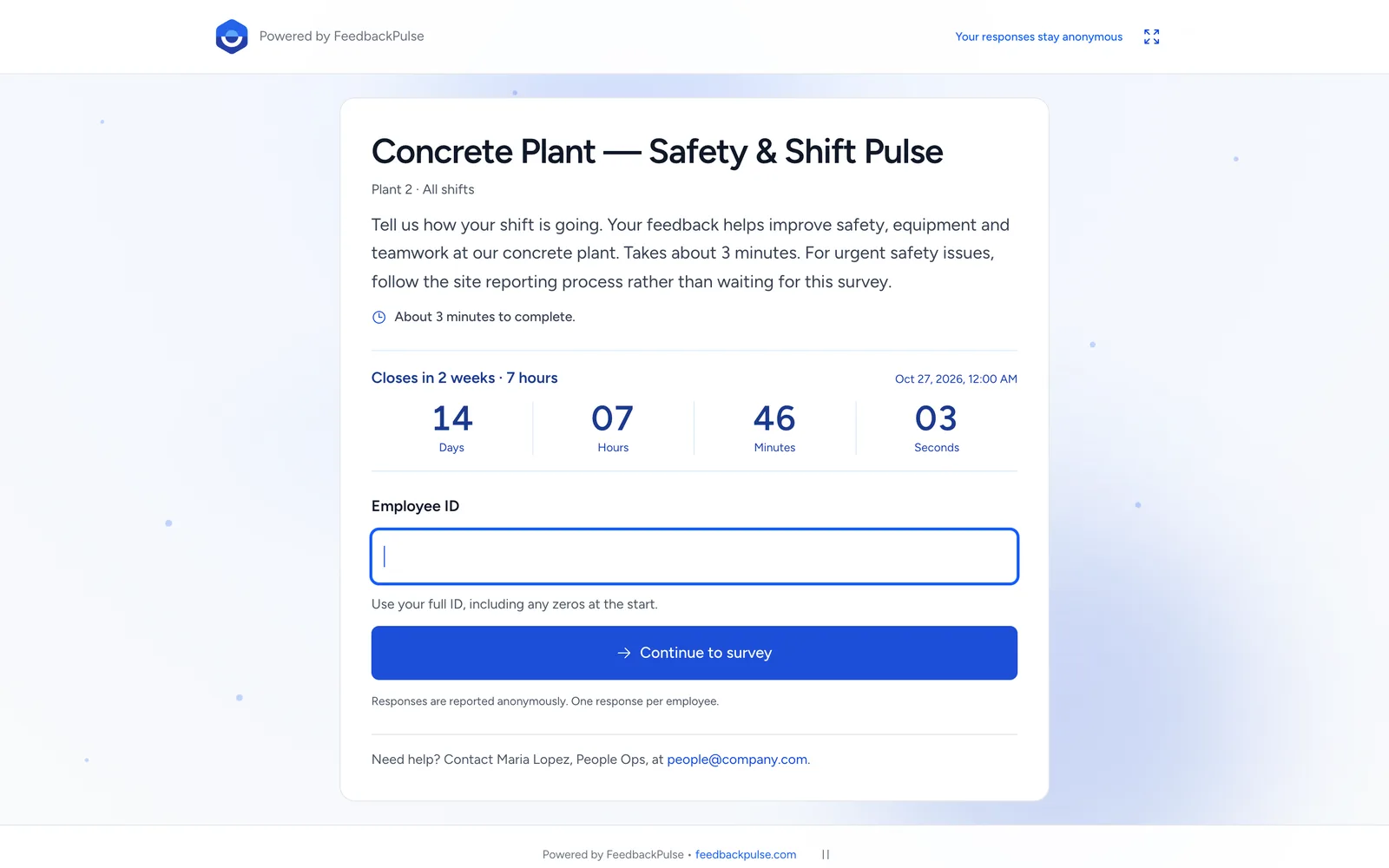
Employees type their Employee ID before they see any questions. The match is exact: 00021 and 21 are different IDs, so leading zeros on badges and payslips keep working. Only active employees you selected for this survey get through. Unknown, removed, or out-of-scope IDs all receive the same neutral message, so the screen never confirms who is on your roster. Failed attempts are rate-limited per device and survey, without blocking a whole site that shares one Wi-Fi network.
Keep it to one response per person
Each Employee ID submits once. If two devices try to submit for the same ID, the first committed answer wins and the second is refused. An employee who checks in again sees Already completed, without their answers on screen, plus small print explaining who to contact if they think it's a mistake.
Run a kiosk on a shared tablet or PC
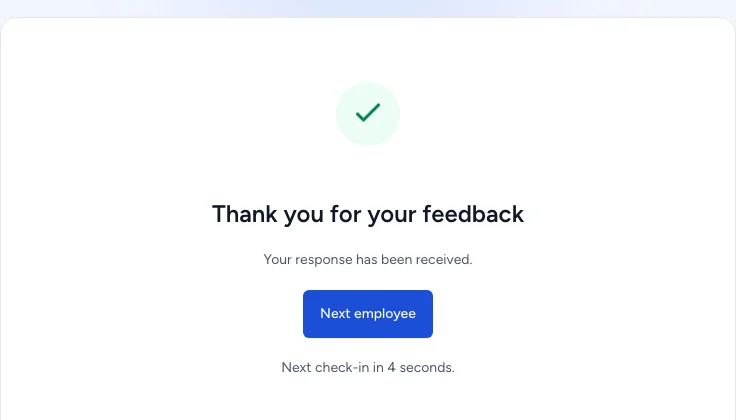
A shared device needs to forget each person as soon as they're done. After a confirmed submission, the ID, the answers, and the permission to submit are cleared first. Then the thank-you screen appears for five seconds, with a Next employee button for a queue. Other cases are covered too:
- Start over discards the current answers immediately and returns to check-in.
- Five idle minutes clear an unfinished response, with a warning and a way to continue in the last 30 seconds.
- Refresh, Back, Forward, or a second tab can't restore the previous person's ID, answers, or permission.
- A sleeping tablet clears an expired session before it shows the form again.
- Fullscreen is one tap where the browser supports it.
Show people when the survey closes
The check-in screen shows the survey title and introduction, an estimated completion time, and the closing date, time, and timezone. In the final three days it adds "Closes in 2 days" style wording and a live countdown, which works well on a tablet that stays on a wall all week. Scheduled, disabled, and closed surveys each get their own clear screen instead of an error.
Survey people who don't have an email address
Import a CSV with each person's name and Employee ID. Email is optional, and department and location columns let you break results down by site or team. A single upload handles hundreds of employees. Employee IDs keep their leading zeros and case, and duplicates are rejected rather than silently merged. FeedbackPulse never invents placeholder emails, and people without one never receive email.
Rotate or switch off the link
From the launch screen or the survey's results page, admins can copy the link, open the public survey, download the QR code, regenerate the link, or disable it. Regenerating replaces the URL and QR code permanently and cuts off anyone mid-check-in on the old one. Disabling shows a clear "link is disabled" screen until you switch it back on.
How it fits with the rest of FeedbackPulse
Shared-link responses go into the same survey results, reports, and exports as invitation surveys. Anonymous surveys keep their three-response threshold, and department and location breakdowns use the same rules. If you run engagement surveys and eNPS for office teams by email or Slack, you can run the frontline version from the same account and compare them side by side.
For a full rollout plan by industry, see employee surveys for frontline teams. If you're still choosing between paper, SMS, and QR codes, our guide on how to survey employees without email compares them.
Limits worth knowing
- Employee ID only. There's no PIN. Someone who knows a coworker's ID could answer as them, though only once.
- One-off surveys. Shared links aren't available on recurring survey programs yet.
- No reminders. Shared-link surveys send no email, Slack, or Teams messages.
- Online only. Answers are submitted live, so the device needs a connection.
- Seats. Everyone on the roster counts toward your plan's seats. See pricing.
Frequently asked questions
How do QR code employee surveys work in FeedbackPulse?
When you create a one-off survey, choose Shared link as the delivery method and select who can take part. After launch you get one short URL and a branded QR code. Employees scan or open it on any device, enter their Employee ID, and answer in the browser. Responses go into the same reports as any other survey.
Can I run an employee survey kiosk on a shared tablet?
Yes. Open the survey link on the tablet and, if you like, switch to fullscreen. After each submission the screen clears the Employee ID and answers, shows a thank-you for five seconds, and returns to check-in. Unfinished answers are discarded after five minutes without activity, with a 30-second warning. Locking the tablet to the browser is done in the device settings, such as Guided Access on iPad.
Do employees need an account, an app, or an email address?
No. Employees only need their Employee ID. Your roster needs a name and an Employee ID for each person, and email is optional. Administrators still sign in to FeedbackPulse as usual.
Can the same person answer twice?
No. Each Employee ID can submit once per survey, and the first committed submission wins even if two devices submit at the same moment. Checking in again shows Already completed without displaying any answers.
Are QR code survey responses anonymous?
The Employee ID is used for check-in and the one-response rule. Results follow the survey's anonymity setting, and anonymous results stay hidden until at least three people respond. Small groups and comments can still identify someone, so no threshold guarantees anonymity.
What if the QR code is shared outside the team?
Only employees selected for the survey can check in, and any other ID gets the same neutral refusal. You can regenerate the link, which retires the old URL and QR code immediately, or disable it and enable it again later.
Does a shared-link survey send reminders?
No. Shared-link surveys send no email, Slack, or Teams invitations or reminders, and they cannot be answered through personal invitation links. That keeps a single, checked entry point. Use posters, team briefings, and supervisors to remind people.