Action Planning
Action Planning lets you assign a goal from a finished survey and track its progress under Follow-up actions. The employee who owns the goal updates it in Goals.
Before you start
Section titled “Before you start”- You need Admin access to assign follow-up goals from a survey.
- Your workspace must have Goals enabled. See Set up Goals as an admin.
- Choose a finished survey that has not been archived.
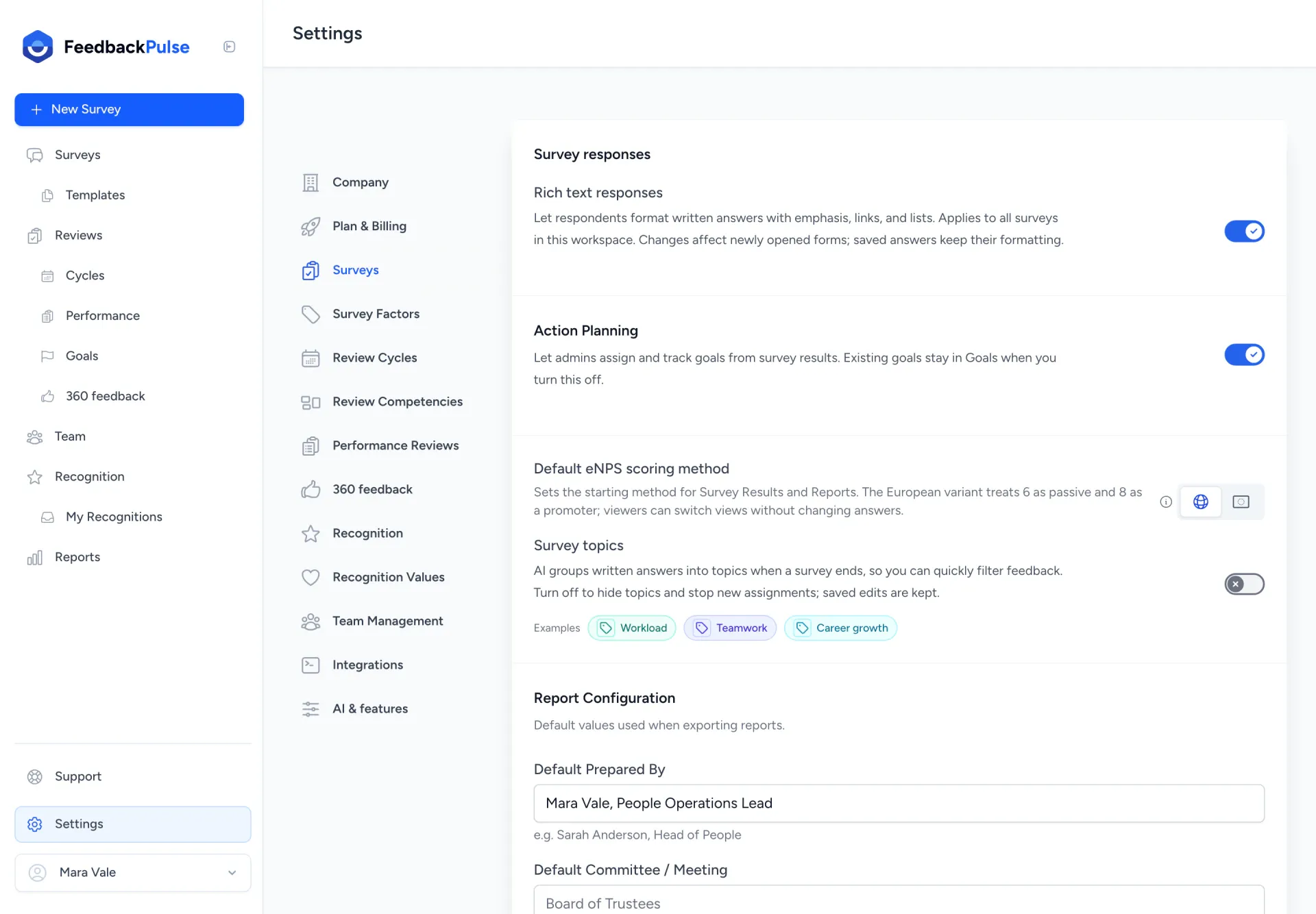
Action Planning is on by default when Goals are enabled. To check the switch, go to Settings > Surveys.
Step 1: Choose a finding to act on
Section titled “Step 1: Choose a finding to act on”- Open the finished survey from Surveys.
- Review the Survey summary, if available, or the survey results.
- Choose an aggregate finding and decide what action would address it.
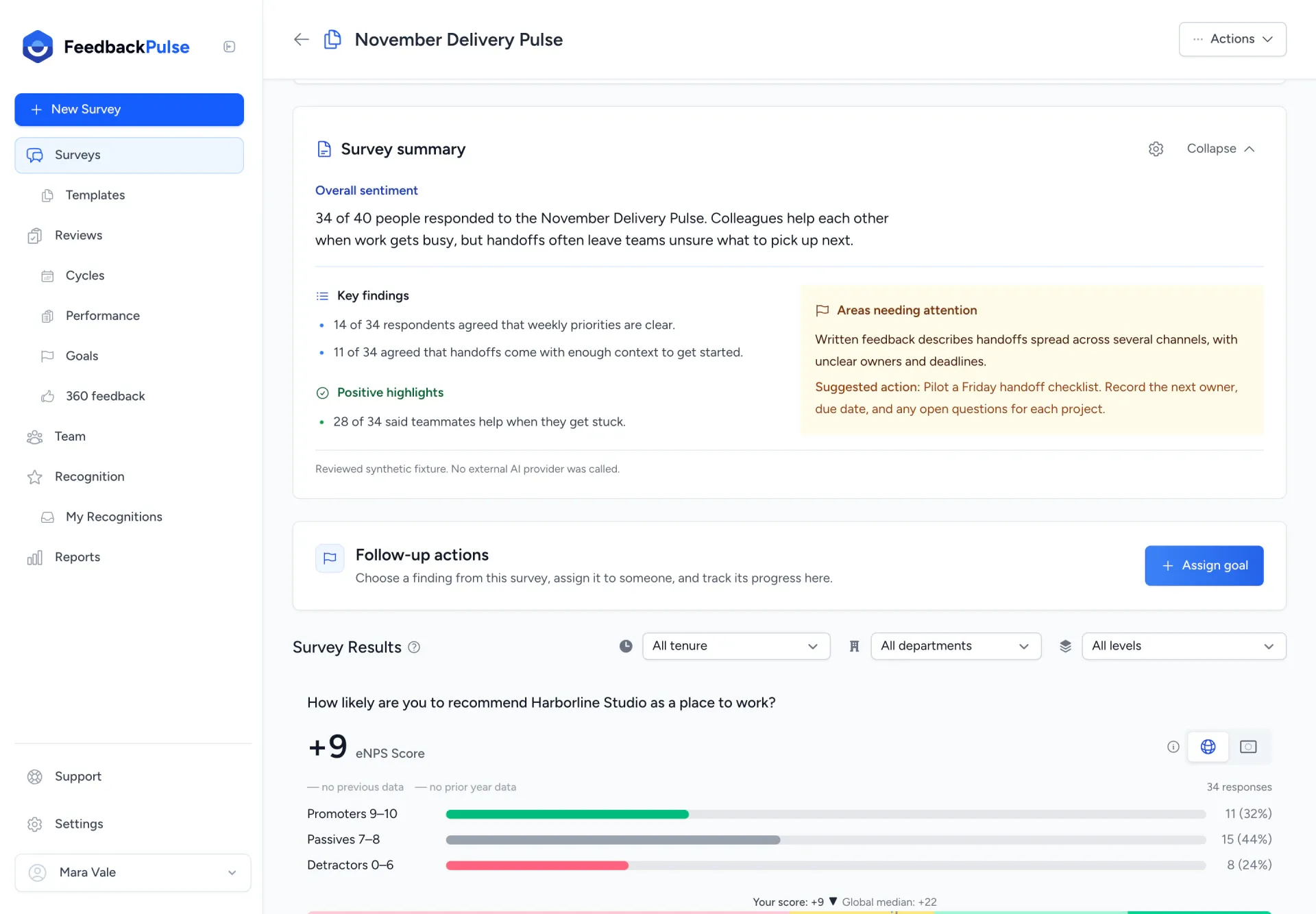
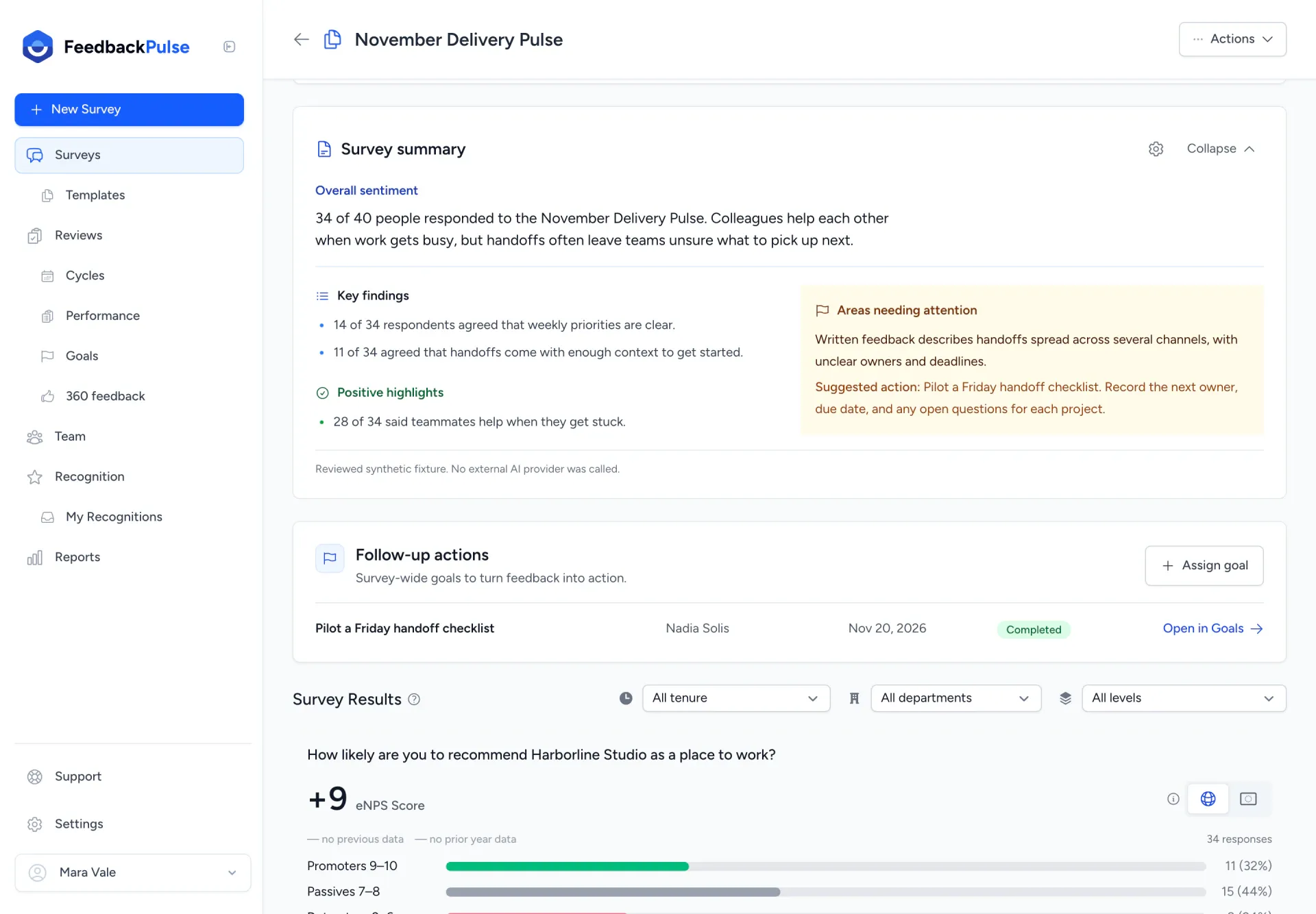
In this example, Harborline Studio’s November Delivery Pulse shows that 11 of 34 respondents agreed handoffs carry enough context. Mara, the HR administrator, decides to assign Nadia the goal Pilot a Friday handoff checklist.
Step 2: Assign a goal to an employee
Section titled “Step 2: Assign a goal to an employee”- Under Follow-up actions, select Assign goal.
- Enter a Goal title that describes the action, such as Pilot a Friday handoff checklist.
- In Assign to, choose the employee who will own the goal. Mara chooses Nadia Solis.
- Optionally, add a Due date and Description. Use the description to explain what the owner should do. For the checklist pilot, Mara asks Nadia to test it on two active projects and record the next owner, due date, and open questions.
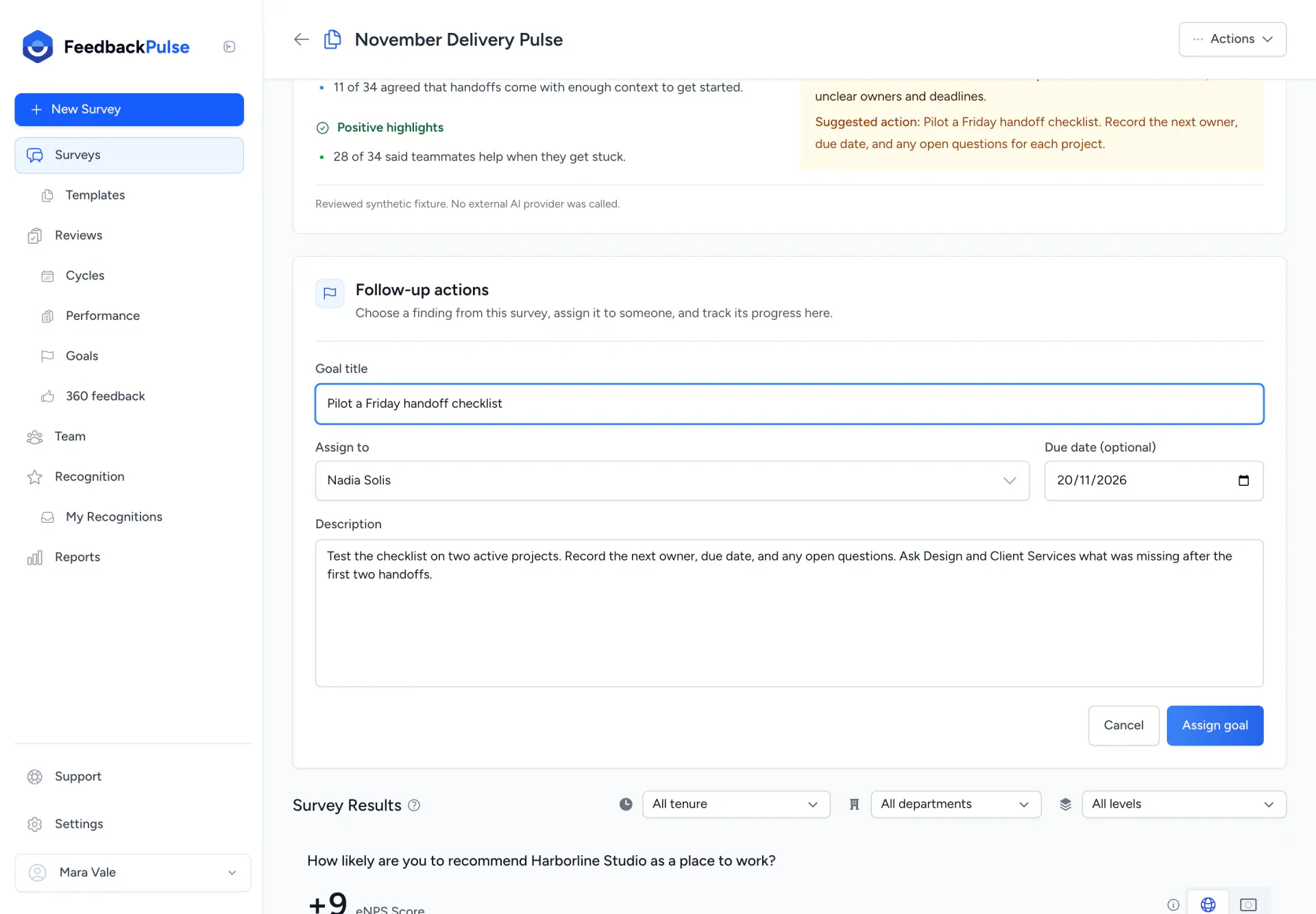
- Select Assign goal to create the goal.
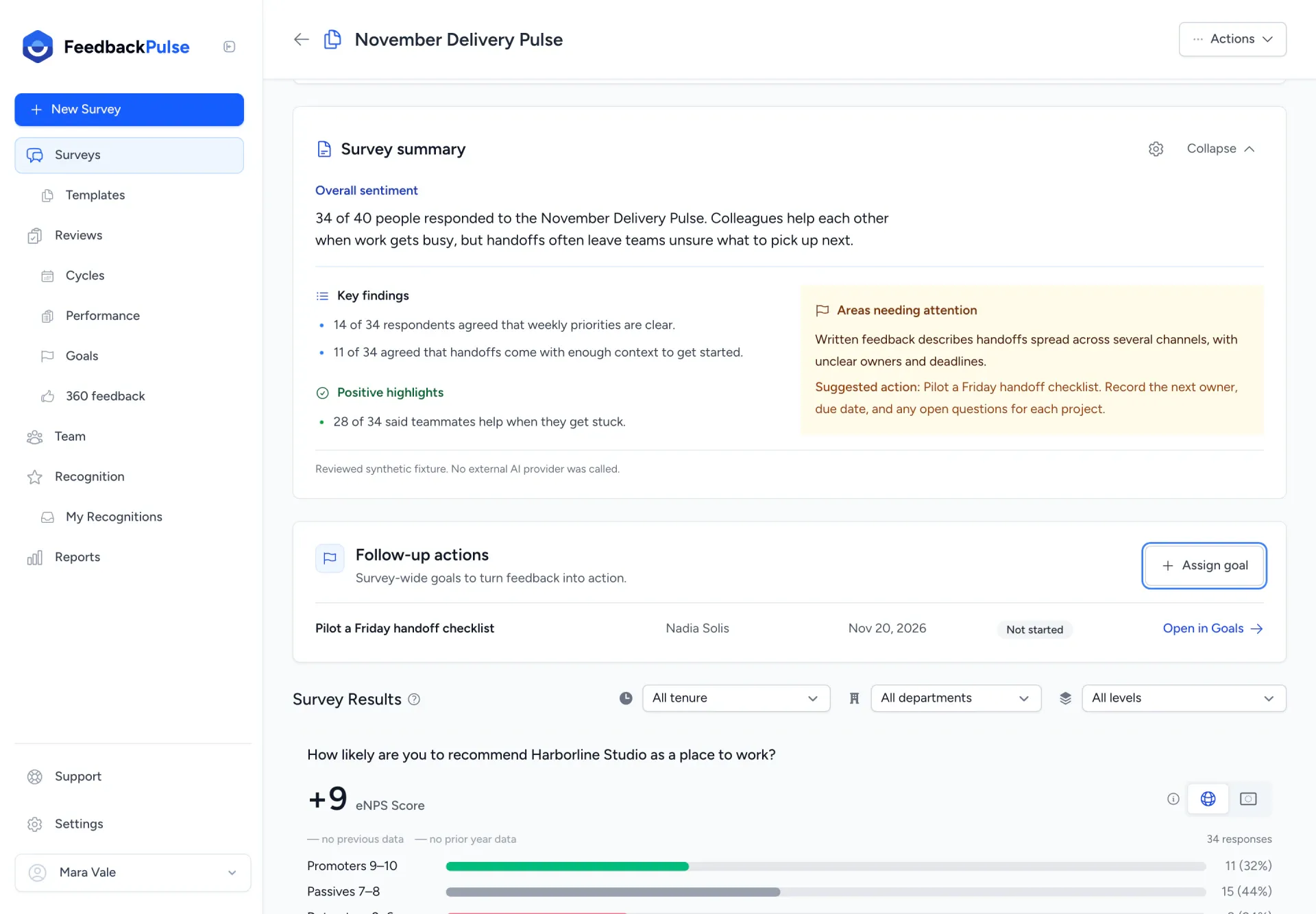
The goal appears under Follow-up actions with its owner, due date if provided, and Not started status. Select Open in Goals to open the owner’s Goals view.
Step 3: Have the owner update progress in Goals
Section titled “Step 3: Have the owner update progress in Goals”The owner updates the goal from their own account:
- Go to Goals > Yours.
- Open the assigned goal.
- Change Status to reflect progress. In this example, Nadia chooses Completed after finishing the checklist pilot.
- Wait for Saved to appear. The change saves automatically.
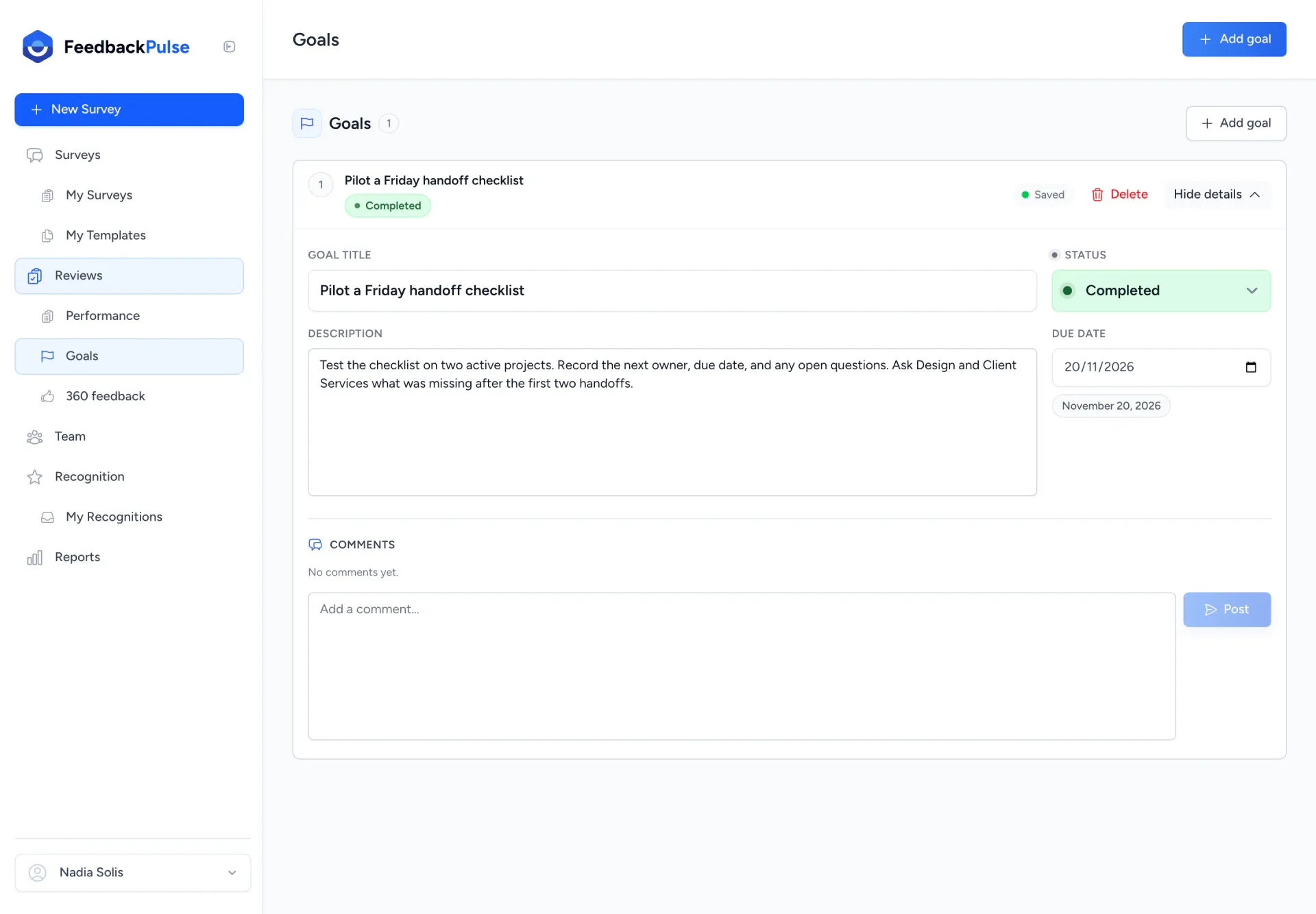
For more on maintaining goals, see Use Goals with Performance Review Cycles.
Step 4: Check progress from the survey
Section titled “Step 4: Check progress from the survey”Return to the survey and refresh the page to see the latest status under Follow-up actions. Mara now sees Nadia’s checklist goal marked Completed.
Turn off Action Planning or view archived surveys
Section titled “Turn off Action Planning or view archived surveys”To hide the Follow-up actions panel, turn off Action Planning under Settings > Surveys. Existing goals remain available in Goals.
On an archived survey, you can view existing follow-up goals, but you cannot assign new ones.